Tag: hacks

  • Exporting WooCommerce Orders (3 Simple Methods)

    Exporting WooCommerce Orders (3 Simple Methods)

    Dealing with an online business through your WooCommerce website requires a lot of effort. One important step of the whole process is to contain and save your WooCommerce orders regularly, not only to keep track of them but to have a fail safe backup if something is to break or happen in the future.

    That is the main reason why we are writing this article to explain 3 ways to export the orders from your WooCommerce website as easily as possible.

    Step 1. Navigate to your WooCommerce Dashboard Menu.

    To begin the process, first you need to log into the dashboard of your WooCommerce website. Afterwards, navigate to the WooCommerce menu (1) and Reports (2) section:
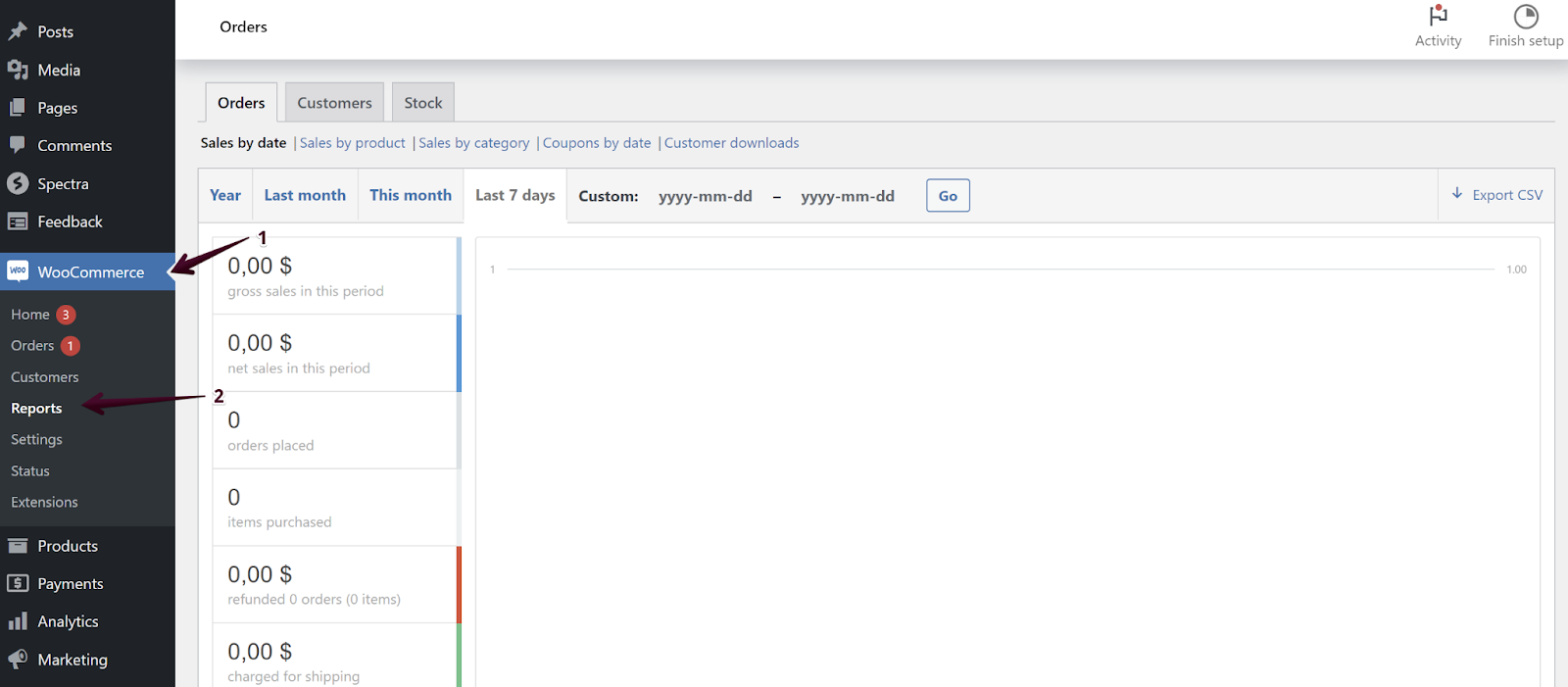
    woocommerce dashboard menu

    From there you can see all the orders with different categories and sections. You can choose the specific time frame to sum up all of the orders made on your WooCommerce website and export them in the desired format.

    Keep in mind that the built-in WooCommerce feature has the option to list and keep statistics for all orders, customers and stock inventory for your online business.

    Orders section contains data divided by:

    • Sales by date – to the specific timestamp, number of overall sales;
    • Sales by product – to the specific product, number of overall sold products;
    • Sales by category – to the specific category, number of overall sales in it;
    • Sales by coupons – to the specific coupon, number of overall sales made with an added coupon;
    • Sales by customer downloads – to the specific online content, number of overall downloads.

    Customers section contains data divided by:

    • Customers vs Guests – number of overall people who visit the site and order vs people who only generate traffic without purchasing a product.

    Stock section contains data divided by:

    • Low in stock – the number of products you have currently available on your WooCommerce website;
    • Out of stock – the number of products you do not currently have inventory of on your WooCommerce website;
    • Most stocked – the number of products you currently have in quantity and in stock on your WooCommerce website.

    Step 2. Export the information in CSV Format via WooCommerce built-in functionality.

    Once you have listed and gone through all the needed data with the desired parameters, you can continue to download the data through the Reports section by choosing Export CSV button:
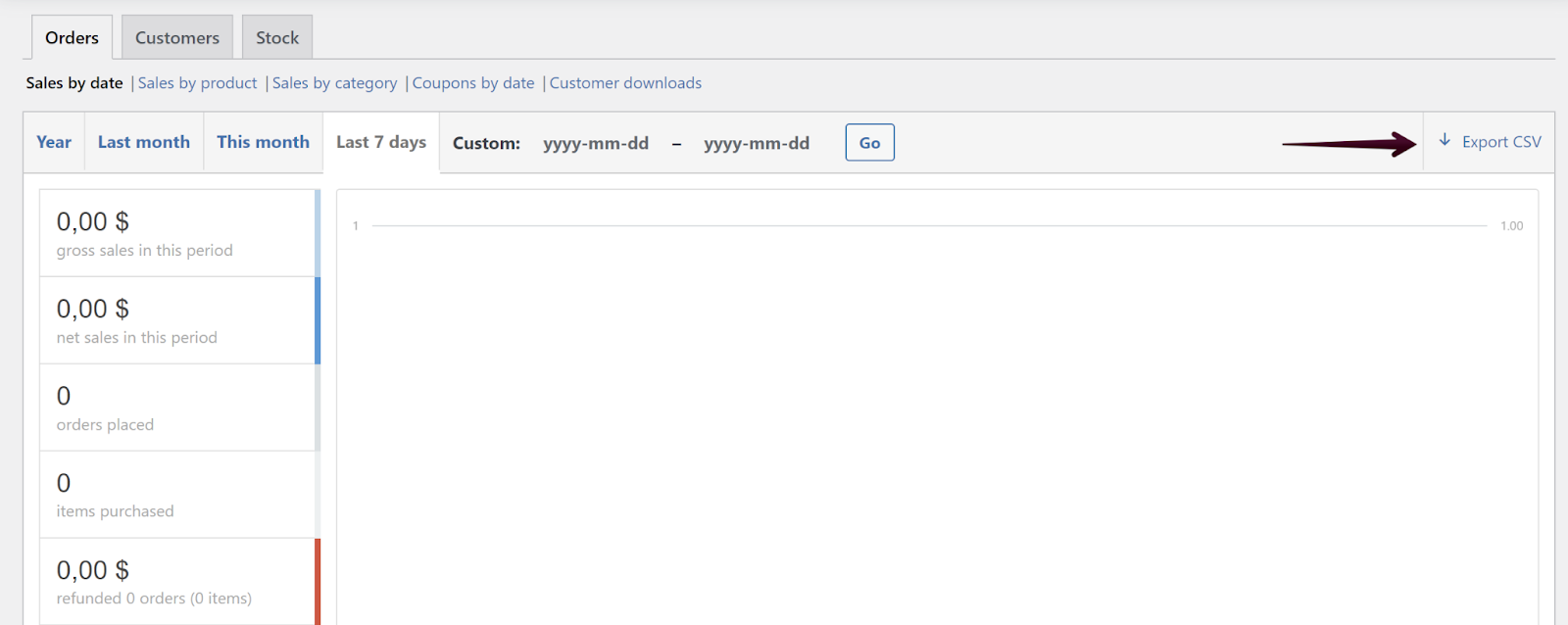
    eport the information in csv format

    Keep in mind that you have an option to export the needed information from the WooCommerce plugin for the Orders and Customers section only. The last Stock section is simply for keeping track of the current inventory state of your online WooCommerce website.

    That’s it. Once you select the button, your data will start to download and finish in CSV format. You can later on open it locally on your computer to keep track of the information. The built-in feature sorts out the information beforehand.

    Step 3. Export the information in XML Format via WordPress built-in Tools.

    This method displays the option to use the built-in WordPress Tools to export and download all the orders generated from your online business website.

    To do that, you would need to navigate to Tools (1) category and Export (2) section to complete the process:
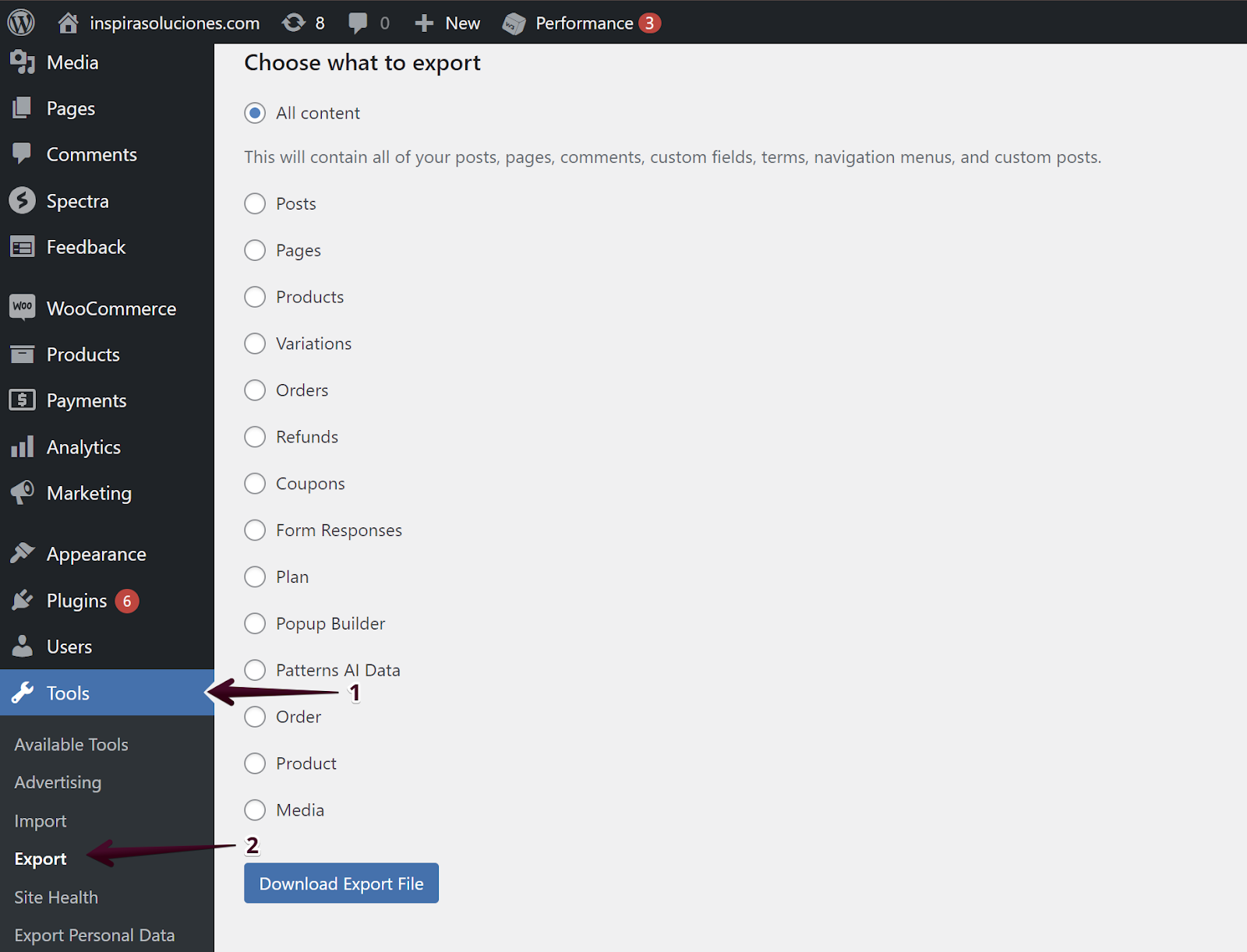
    export the information in xml format

    Once done, you will need to select the specific content you wish to export. In the case of the topic, that would be all Orders (1) and then select Download Export File (2):
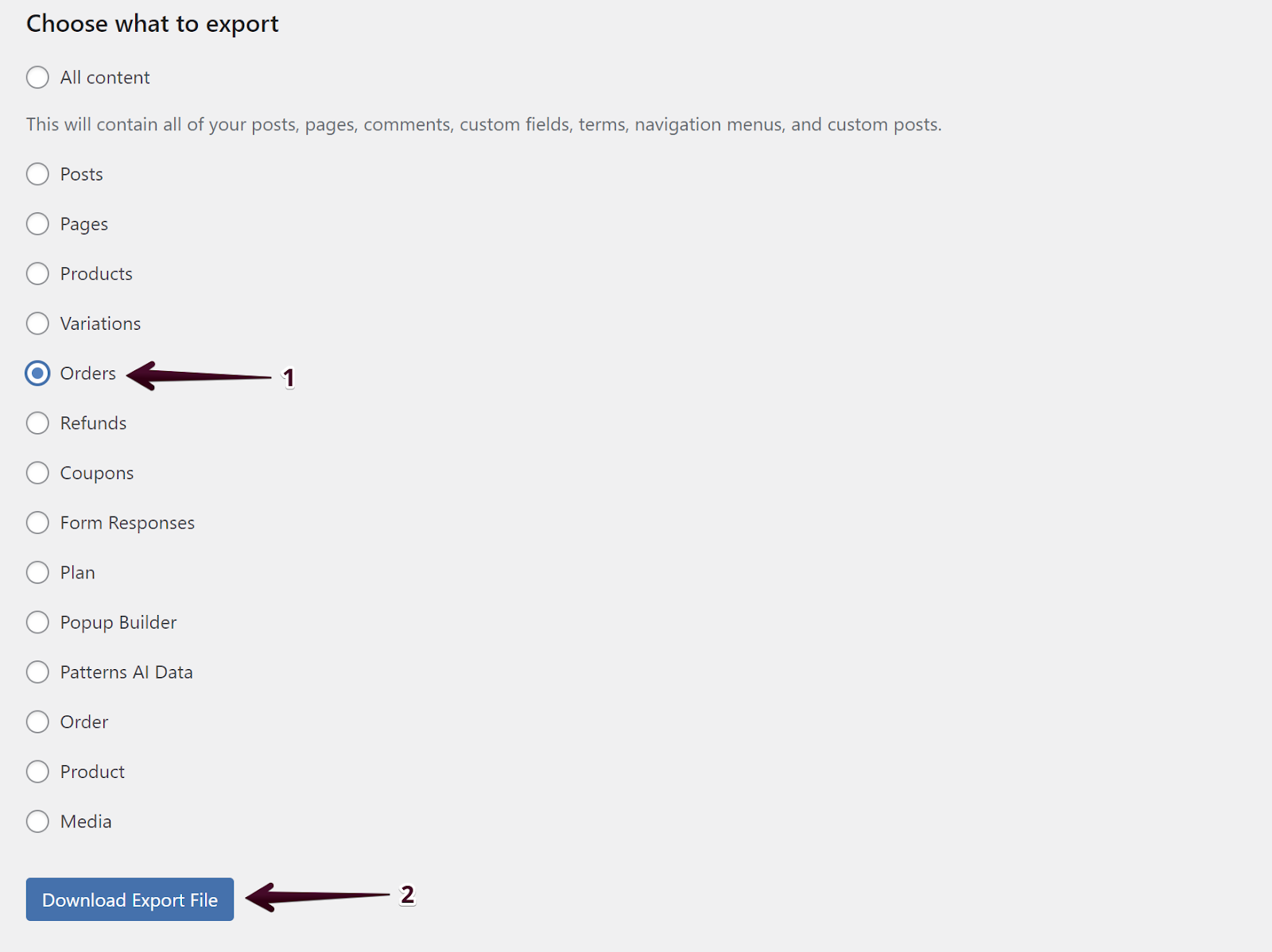
    export woocommerce orders

    That’s it. You will see the download start locally on your computer. Keep in mind that the file will be in XML format.

    The WordPress Exporter Tool does not have the same functionalities as the built-in WooCommerce one. There aren’t any parameters which you can set to divide the information such as time frame, products, coupons etc. Thus, the downloaded file will just be a summed up file of all the orders ever created on the website. You will need to separately sort them out.

    There isn’t any specific difference between the CSV and XML format. If you are wondering which to choose, the decision would weigh more, depending on the functionalities that are offered during export. In terms of better management of data, using the built-in WooCommerce option would be best since it auto-sorts the data and allows you to use different parameters. The XML format through WordPress Tools just provides simple export functions on almost all the content on your website but without parameters or sort options. Both formats are easily exported and can be imported at any time to any other WooCommerce websites built on WordPress CMS platform.

    Step 4. Export your data via WooCommerce plugin.

    The last and third option would be to use a WooCommerce plugin. To do that, you would need to search and download it through the Plugins (1) section and navigate to Add New Plugins (2):
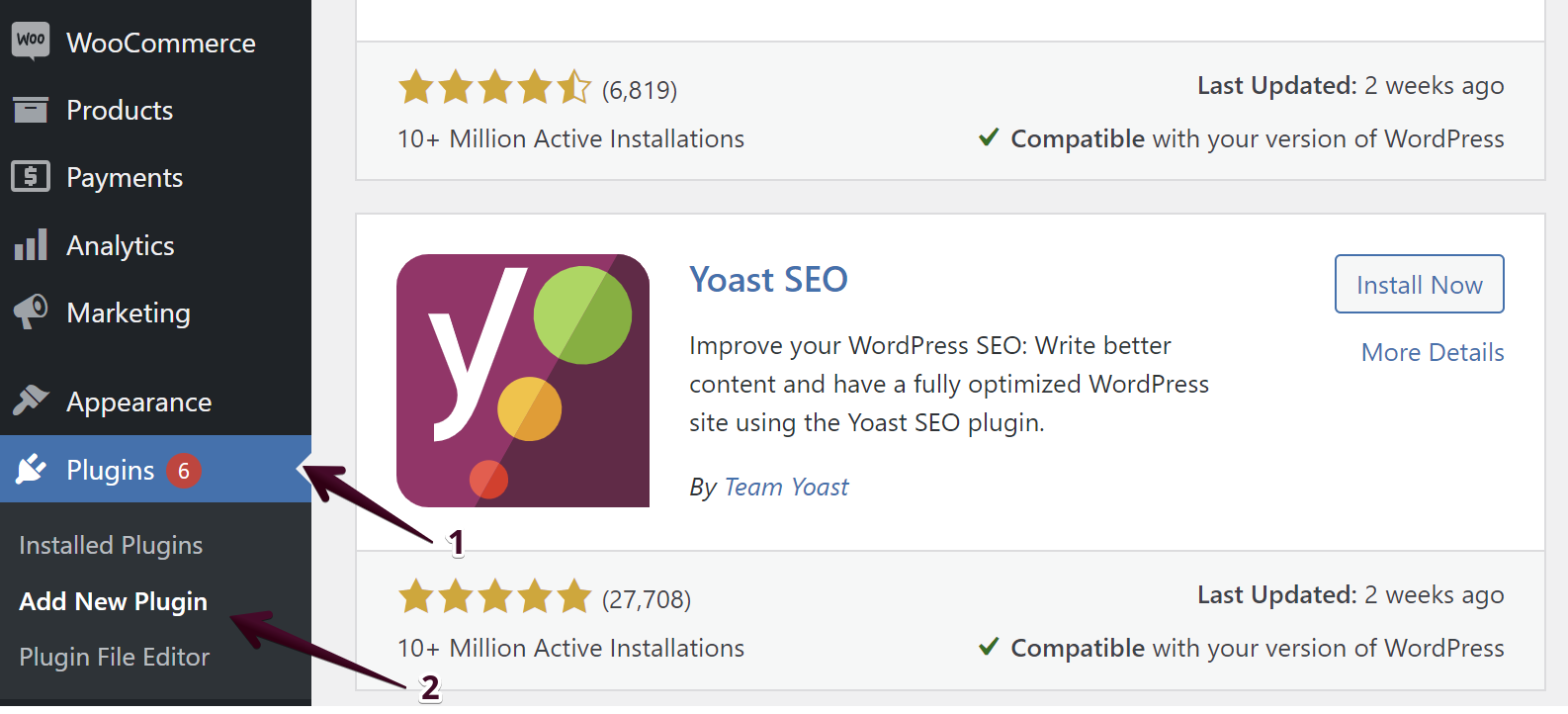
    export orders via woocommerce plugin

    From there you would need to use the Search Bar and input the name of the plugin: Advanced Order Export For WooCommerce. Once you list the plugin, you can choose Install Now option to complete the process:
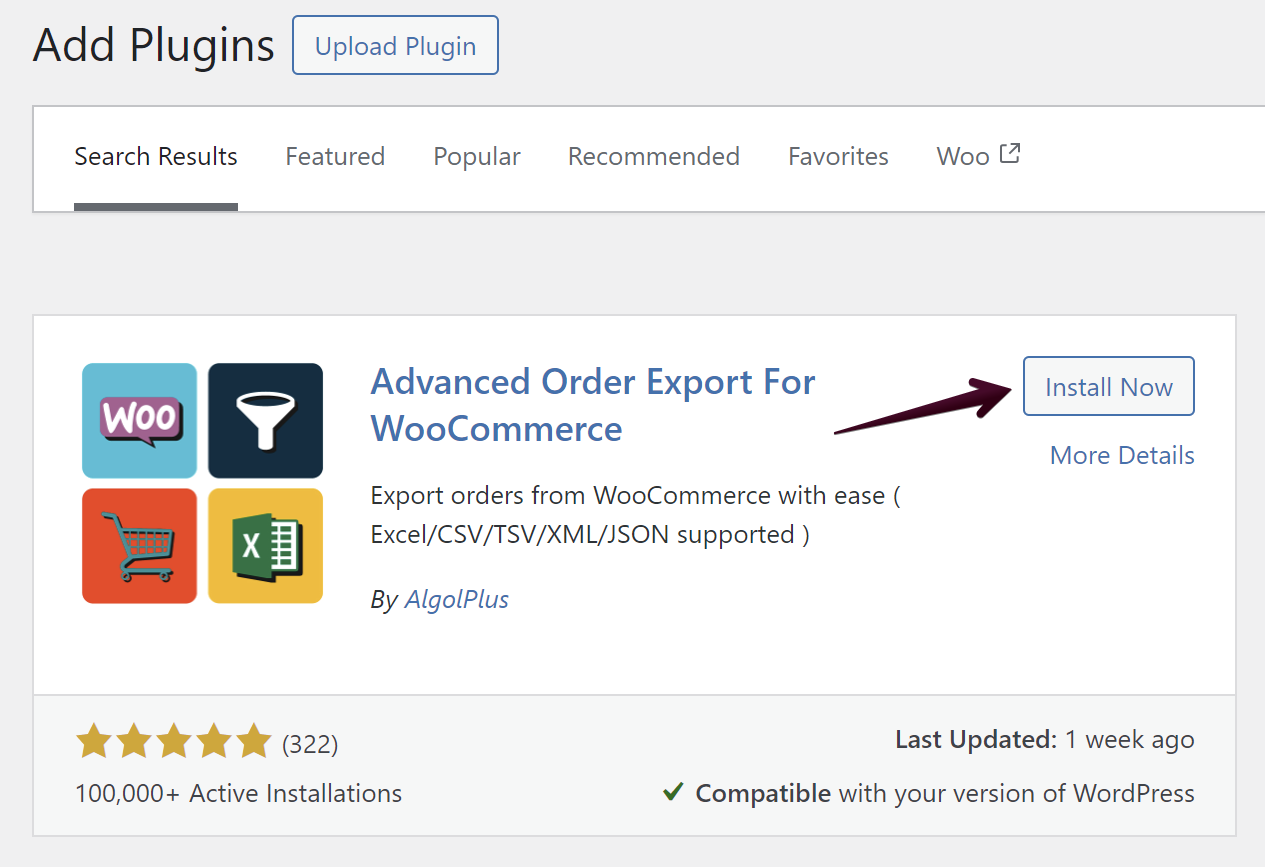
    advanced order export for woocommerce

    Once installed and activated, the plugin will basically replace the previous built-in WooCommerce option for exporting data via CSV format from Step 2 of the article.

    The plugin in general provides more in-depth options and parameters to further advance your statistics and gathering of data from your WooCommerce online business.

    The steps to accessing the plugin functionalities are similar to the first method. You would need to navigate to WooCommerce dashboard (1) and select Export Orders (2):
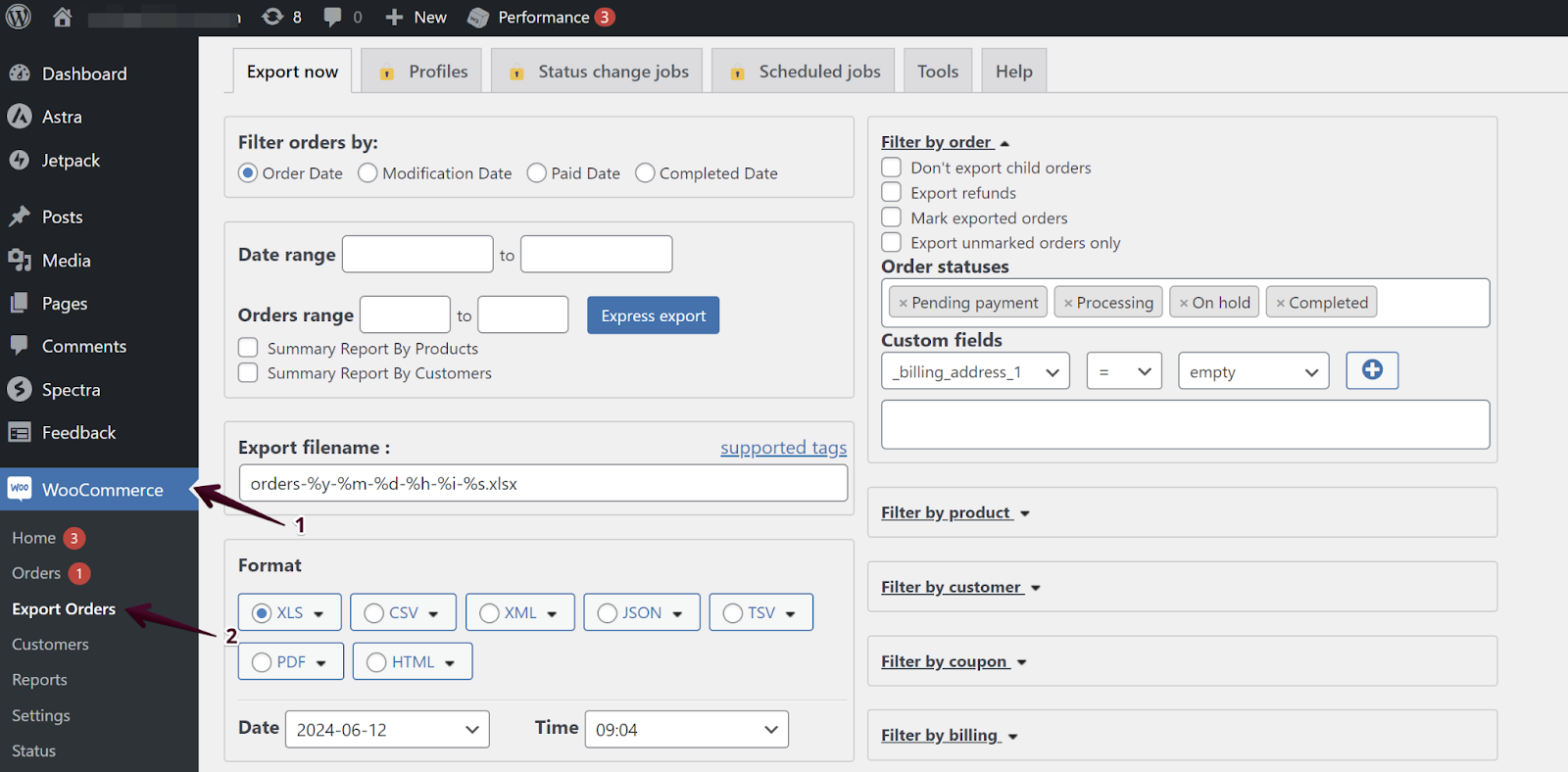
    export orders

    You can see that there are much more options to divide the data, however and whichever you want to. Additionally you have the option to name the file that you export, which again, adds more structure to sort out everything on your end. Multiple formats can be chosen to download the data in and so forth.

    Once you have completed everything and completed the process, you can name the file and select Export option to finish it:
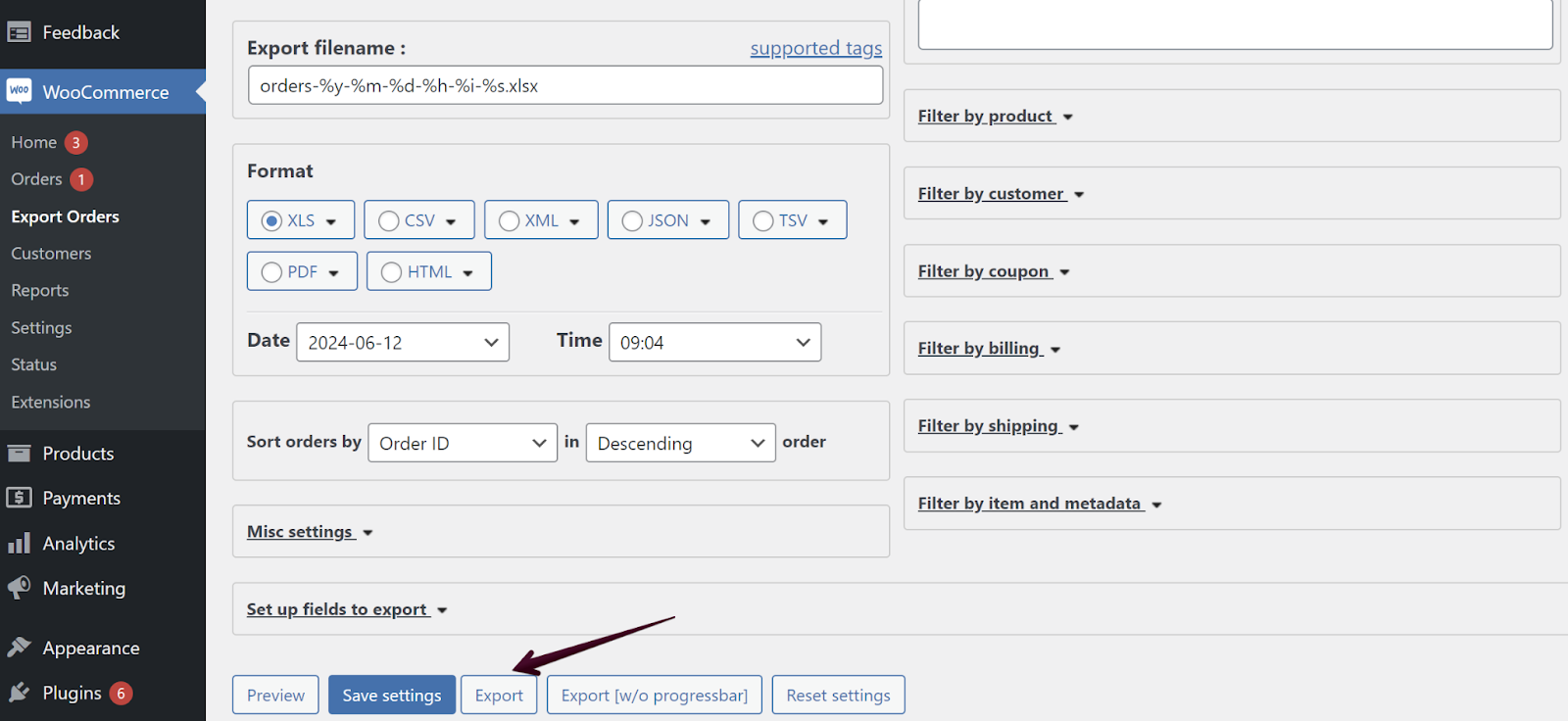
    export woocommerce orders

    That’s it. We went through all three methods which you can use to export data from your online sales, orders, products and much more.

    Keeping track of your online orders, products and inventory is a crucial part of  the success factor for any WooCommerce store. As you grow your business, orders begin to pile up, naturally categories get added, different products and thus, the need to export all the information to analyze it and get better, becomes that much necessary.

  • A Beginner’s Guide to Adding Custom Fonts to WordPress in 2 Easy Steps

    A Beginner’s Guide to Adding Custom Fonts to WordPress in 2 Easy Steps

    As any other online business, you want your website to stand out from the rest by using different themes and plugins to appeal to your visitors. One strong recommendation when managing a WordPress based website is to use different custom fonts to add to your design that much needed final touch. We will cover the basics in this article on which fonts to use and how to choose them carefully to fit your individual needs.

    Step 1. Find and choose the correct Custom Font for your WordPress Site.

    Finding sources for the perfect custom font to add to your WordPress website will not be hard since there are a lot to cover such as Google Fonts, FontSquirrel, and FontSpace.

    Heroic Message: Additionally, if you are picky with your choice and do not like the fonts that are offered from the services mentioned above, you can try and generate your own unique custom font, driven by your ideas. That can happen by using a tool such as FontSquirrel Generator. From there you can choose from a variety of different options to pick the correct one to your liking. 

    The main thing to look for in a font would be the “be cool” factor and how it will stand out on your website and of course, the boring stuff related to readability, where you need to be careful.

    Keep in mind that the “cool” factor for choosing a unique font needs to be thought through carefully since it will affect the readability of your website. If it looks cool but damages the overall look of the website, we recommend that you source out a different one that will suit your needs in a balanced manner. You need to make sure that your visitors can read easily through your website without having too many different fonts and actions happening in one place, leading to annoyance.

    Step 2. Adding Custom Fonts from Google Fonts.

    As explained earlier, Google Fonts provides the biggest library available for free for fonts to use on your WordPress website. If you are searching for the perfect one, that will most likely be the best place to find it.

    The first step to adding the desired font is to install the plugin Google Fonts Typography on your WordPress website. Once installed, you will need to activate it like any other WordPress plugin you have.

    Upon activation, you will be prompted to input an email address to receive a beginners guide on how to properly use the plugin. The step is optional and it is up to you if you want to use their free instructions on how to utilize it:

    Adding Custom Fonts from Google Fonts

    The next step is finally where some work is done on your website. You would need to navigate through the dropdown menu of the plugin and choose Customize Fonts:

    customize fonts

    From there, you will be automatically redirected to the built-in WordPress Theme Customizer:

    wordpress theme customizer

    There, you can start laying the foundation for your WordPress website by choosing the default fonts through the “Basic Settings” section:

    fonts plugin

    There, you will see all the different fields you can choose to set up the groundwork for your website appearance such as your base, heading, buttons and inputs.

    Once you have chosen all the options for different fonts on the left of your screen, the right half will generate a preview of all the things you saved, so you can actually see what you are doing in real time.

    Once you are done with the basics, you can start applying custom fonts for different parts of your website through the “Advanced Settings” section:

    advanced settings

    From these settings you can basically touch up and fine tune all the groundwork you set with the basic fonts and make changes on your Site Title, Navigation Menu, Content and much more.

    Every section in “Advanced Settings” has a drop-down menu from which you can choose different fonts. Wants you are ready with all the major changes on your WordPress website appearance, then you can simply save all the changes by clicking Publish:

    customizing fonts

    That’s it! You have successfully learned how easy it is adding custom fonts to WordPress site! An important note to take here is that you need to check if all the fonts mix and match together, as well as the read quality of your website. Fun recommendation is to get some of your friends to read through your website and make suggestions if something is wrong with the text. Most times those little things might matter and help you sort out anything that you haven’t noticed already.

    If you find this guide on adding custom fonts to WordPress helpful, check out our Beginner’s Guide to Backing Up WooCommerce Orders too!

  • How to Backup Your WordPress Site (3 Simple Methods)

    How to Backup Your WordPress Site (3 Simple Methods)

    We all know how much time and effort goes into creating and maintaining a WordPress site. It’s like your place on the internet where you share your passions, business, or ideas with the world. But have you ever thought about what would happen if all your hard work disappeared instantly? Scary, right? That’s why backing up your WordPress is essential to protect your content, settings, and configurations from data loss due to hacking, server issues, or accidental deletions.

    In this guide, I’m going to walk you through three simple and effective methods to back up your WordPress site. Whether you’re a tech newbie or a seasoned pro, you’ll find a method that fits your comfort level. Let’s dive in!

    Method 1: Backup your WordPress site using a Backup Plugin 

    Using WordPress plugins is the easiest and most popular way to make a backup of your site. There are plenty of options available in the WordPress library making it easy to find a solution that fits your needs. Among the most commonly used backup plugins are  All in One WP Migration, Duplicator, and UpdraftPlus. We’ve covered them in detail in our knowledgebase article. 

    It’s important to note that backups created by backup plugins are initially stored on your server and count towards your overall disk space usage. To save space and enhance security, you should download these backups to your local computer or another remote storage solution. This approach ensures your backups are safely stored separately from your hosting service, providing an additional layer of protection to your content.

    Method 2: Backup your WordPress site from your hosting control panel

    Many WordPress hosting providers, including WPX, offer backup services. At WPX, we automatically make daily backups of all websites hosted with us, keeping them for 28 days on separate servers. Additionally, you can create personal backups at any time of all your sites and download them to store safely on your local device. This option is conveniently available in the WPX Control Panel.

    If you’re using cPanel, you can back up your website by compressing the files in your File Manager and exporting the database of your site using phpMyAdmin. Depending on your hosting provider, there may be even easier options available to back up and download your site’s content.

    Method 3: Backup your WordPress site using FTP and phpMyAdmin

    This method is more technical but offers a thorough backup solution. Here’s how you can manually back up your files and database through the WPX Control Panel:

    Backup your files using FTP

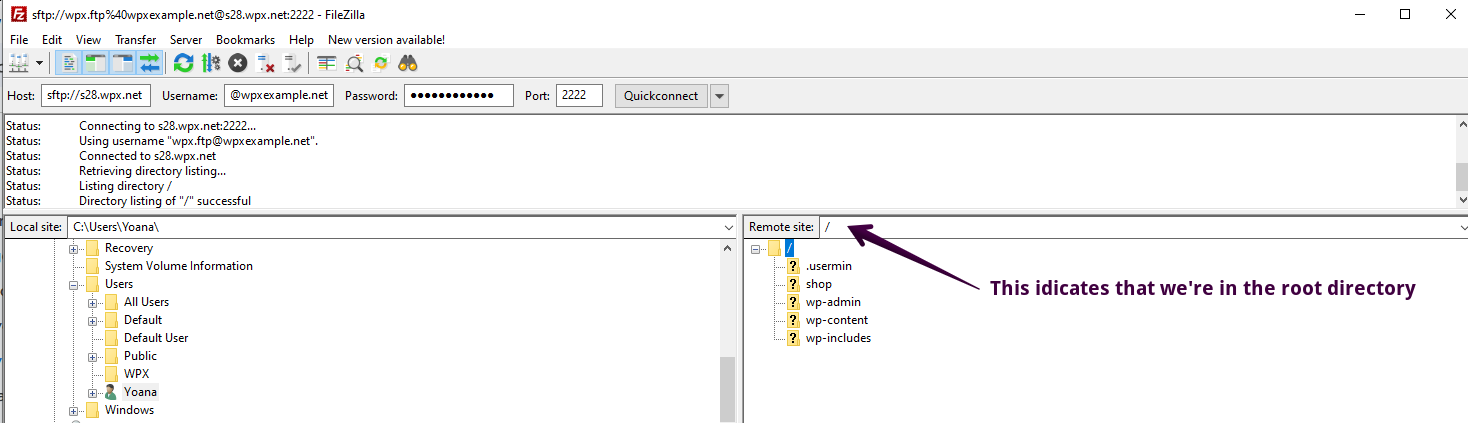
    To backup your files using FTP access you’ll need an FTP client like FileZilla. A detailed tutorial on how to connect with FileZilla can be found in the WPX knowledgebase. The basic steps are similar across most hosting services:

    1. Download and install an FTP client like FileZilla.
    2. Connect to your web server using your FTP credentials; If you’re using an sftp connection, don’t forget to add sftp:// before the hostname the your server.
    3. Once you’re connected, navigate to the directory where your WordPress site is installed (usually that is a directory named public_html);
    4. It is not possible to compress files using FileZilla so you can download all files by selecting them (for Windows CTRL+A for Mac Command-A). 
    5. Then click the right button on the mouse and select the Download button to download the files to your local device.

    By following these steps, you will have a complete backup of your WordPress site files.

    Backup Your Database via phpMyAdmin

     To export the database of your site, you need to access phpMYAdmin from your hosting’s control panel. Here is a detailed tutorial on exporting a database from the WPX control panel. Regardless of your hosting service, the basic steps are as follows:

    1. Log into your hosting account’s phpMyAdmin 
    2. Select your WordPress database.
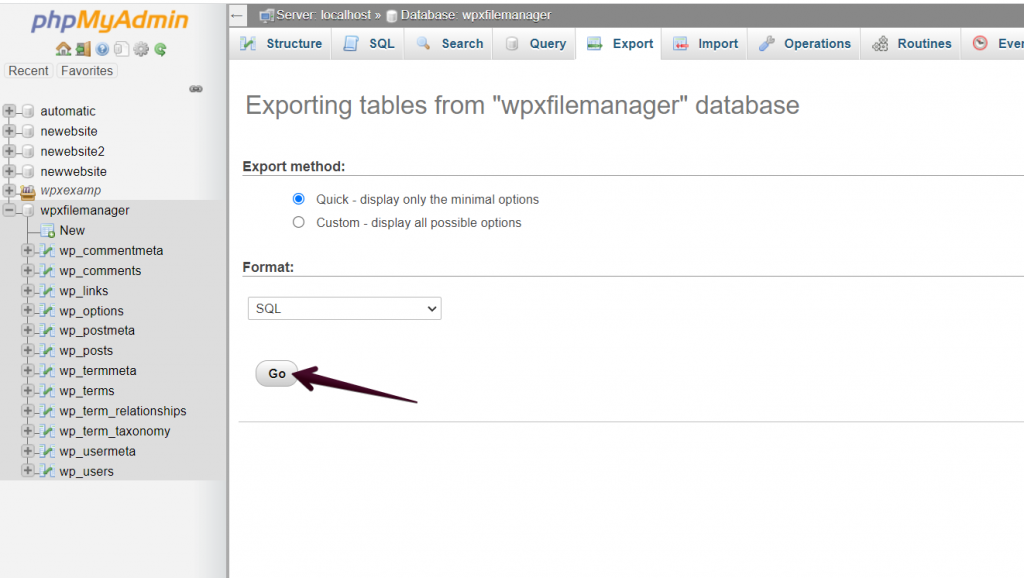
    3. Click on the Export tab.
    4. Choose the Quick export method and SQL format.  Then click on the Go button to download the exported database. 
    Backup Your Database via phpMyAdmin

    Tips for Effective Backups

    • Schedule Regular Backups: Depending on how frequently you update your site, schedule daily, weekly, or monthly backups.
    • Store Backups Offsite: Always store your backups in a remote location like cloud storage or an external hard drive to avoid data loss in case of server failure.
    • Test Your Backups: Periodically test your backups to ensure they can be restored successfully.

    Conclusion

    Backing up your WordPress site is crucial for maintaining its integrity and ensuring quick recovery in case of any issues. Whether you choose a plugin, cPanel, or FTP and phpMyAdmin, each method provides a reliable way to secure your data. Regular backups, offsite storage, and periodic testing will keep your website safe and give you peace of mind.

  • 18 B2B Content Marketing Hacks You  Need to Know

    18 B2B Content Marketing Hacks You Need to Know

    B2B content marketing and B2C marketing are entirely different beasts. the purpose is the same, however, in the case of B2B content marketing, the content absolutely has to be useful above everything else. It can be entertaining and funny too, but the utility is a critical feature. 

    For your business to be successful and keep up with changing times, your B2B marketing must be useful and meaningful and also distributed efficiently. 

    if your current content marketing strategy feels like it’s falling flat, or you’re just starting out with a new B2B business, the following B2B content marketing hacks could bring better results for less work.

    Charlotte Chamberlain

    Content Strategist at Tao Digital Marketing

    Twitter: @taodigitalUK

    LinkedIn: Charlotte Chamberlain  

    Don’t Underestimate Long-Tail, Zero Search Volume Keywords!

    B2B content marketing is competitive – mixing popular, high-volume terms with hyper-focused, long-tail queries is by far the best strategy for pushing your website to the top of the SERPs.

    Making ‘low hanging fruits’ a priority, alongside your main keyword strategy, will allow you to cover all bases in a format that is easy to read and follows a clear buyer journey, no matter what end of the funnel a reader is from.

    This way, you’ll get better results and a wider, more extensive data set to utilize for your ongoing B2B marketing plan.

    Jeremy Rivera

    Founder of SEO Arcade

    Twitter: @JeremyRiveraSEO

    Linkedin: Jeremy Rivera

    Recycle, Reduce, Reuse Your Content In Multiple Formats

    If you make a connection with an expert known to your industry audience, a famous creator or speaker then you’re poised to get the biggest win by recording a video interview with them on your target topic. Then you can create a post with the transcript, turn key moments into quote graphics, transform the transcript into blog style content, chop up the interview into interesting clips for Insta, Tiktok, Facebook, Linkedin. By leveraging multiple content formats, you can take a single topical idea and make dozens of content pieces for different channels!

    Nat Caesar

    Owner & Head of Growth of Myndset

    Use Internal Linking Strategically

    Many content marketers tend to focus more on acquiring backlinks and underestimate the power of internal linking. Strategic internal linking brings better user experience, improves search rankings and contributes to the overall success of your content marketing efforts. Spend time doing a page-by-page analysis of your top performing posts and from there, link to the articles that need a boost. The transfer of link juice from these influential pages or posts can definitely bring keywords to higher rankings in the SERPs. In addition, executing tactical interlinking in your posts will keep your readers engaged as they switch from one valuable post to another. As a result, you build more trust and your audience starts to see you as an authority in what you preach!

    Learn more: 20 Practical Content Marketing Tips for 2022

    Jamie Cohen

    Owner of Backlinks.io

    LinkedIn: Jamie Cohen

    You Don’t Always Have to Recreate the Wheel

    If your B2B services are a smaller industry, don’t be afraid to steal winning content ideas from bigger industries. Industries with a ton of B2B services like SEO and Real Estate will have almost every content type covered. Use tools like Ahrefs and BuzzSumo to find which content types are working for them. Use these ideas as a starting point for content creation and fit the ideas to your audience. There is a decent chance that your audience has yet to see certain content types that could resonate with them.

    Anoop Yersong

    Head of Growth – Zonka Feedback

    Twitter: @anoopyersong

    LinkedIn: Anoop Yersong

    Listen to Your Customers & Optimize Your 24×7 Sales Rep 

    Data is the new gold. And apart from the general web or in-product analytics, heat-maps and session recording tools, at the end of the day, it’s the customer who makes the final call.

    Collecting, analyzing and taking action on the website feedback data can help you measure 360° customer experience and if done strategically, this can:

    • Increase brand awareness through cluster pages like blogs and articles
    • Increase customer acquisition on your conversion pages by improving copy
    • Bring more leads in your sales pipeline from your pillar pages
    • Streamline customer journey through easy-to-understand help articles

    So, start making customer-centric changes in your website content strategy by taking feedback from your new and recurring visitors, high-intent prospects, as well as existing and past customers.

    Back your analytics with customer feedback and drive results from your content marketing.

    Learn More: 10 Creative Ways to Collect Feedback on Website 

    Justin Lubomirsky

    SEO Manager for INFUSEmedia

    LinkedIn: Justin Lubomirsky

    Creating a Content Marketing Strategy That Converts!

    Do research and proper market segmentation in order to address reader intent with the right set of keywords. Adapting B2B content marketing strategies for specific target markets is essential for driving results, no matter the size of the audience. Content marketing strategies help marketers make the most of their content and maintain a high ROI, while creating lasting equity for their brand.

    Here are the 10 steps we recommend to create a Content Marketing Strategy That Converts:

    1. Keyword Research
    2. Content Goals
    3. Content Length
    4. Style Guide (Consistency)
    5. Content Map
    6. Pillar Pages
    7. Visual Content
    8. Writing and Revising
    9. Content Target Audience
    10. Promotion and Distribution

    Alongside a detailed knowledge of your target audiences, these steps are imperative for taking full advantage of content’s potential and yielding the desired results.

    Learn more: Definitive Guide to B2B Content Marketing

    Sam Meenasian

    Founder of Business Insurance USA


    Create Content Marketing Partnerships

    Creating content marketing partnerships is a great way to get your site more link juice, boost awareness, and grow your business. It is an underused tactic, but it can help you reach new frontiers. You can partner with promising potential brands and companies that don’t compete with your products but have overlapping audiences and a shared vision. 

    Partnerships with influencers in your niche are really effective as they can include your content on their social media posts or marketing newsletters. That will help you reach a new audience that can be interested in your new content and your brand.

    Charles Brecque

    Founder of Legislate

    Twitter: @CharlesBrecque

    LinkedIn: Charles Brecque

    Hyper Tailored Content

    Focusing part of your content marketing efforts on hyper tailored content is key to attracting prospects that are likely to be qualified and interested in your services. For example, someone searching for “CRM software with email automation and landing pages” is more likely to have a commercial intent than someone searching for “CRM”. Despite attracting a lower volume of visitors, hyper tailored content is worth the investment because these visitors are more likely to become real customers.

    Nebojša Rakić

    Founder of Get Results Link Building

    LinkedIn: Nebojša Rakić

    Research, Research, Research and Content That Brings Value

    B2B content marketing doesn’t have to be a complex and endless back and forth between planning, execution and tracking of results. It can be much simpler, you just need two things to do it efficiently, and that is research and content that actually brings value to the readers. Starting with research, you need to get familiar with the needs and problems the business is facing, and then craft content that can actually help them implement your actionable advice in their strategy. Forget about stuffing your content with countless keywords and keyword synonyms – if your content doesn’t have any value when the fluff is removed, it simply won’t have any effect. Provide your readers with reliable advice without thinking about SEO when producing the content, and the results will follow!

    Rifat Shibli

    Senior Marketing Specialist at ShortDot

    LinkedIn: Rifat Shibli

    Be Human

    The best content marketing hack is to humanize your content. Talk to your readers, understand their problems, and provide them with a solution.

    SEO, link building, keyword research, etc are excellent ways to rank your content. However, all your efforts will go for naught if your content sounds robotic and fails to connect with the reader.  

    Therefore, the most important tip I can offer is to tailor your content to the readers you want to interact with it. Google will like your content if your readers do, and it will eventually perform better and increase the credibility of your business.

    GnanaPrakash Rathinam

    Founder of Clearout

    LinkedIn: GnanaPrakash Rathinam 

    Make a content hub to catch Google’s attention and rank organically!

    The concept of cluster content or topic clusters might initially seem confusing, but it is great to strengthen your content and SEO strategy.

    Why does this strategy work?

    The content cluster model has three main components: pillar pages, cluster content, and internal links. Organizing content in this way makes it easier for Google and online users to understand and navigate the content.

    How do you build a good content cluster?

    • Analyze your goals & conduct a thorough keyword research
    • Perform a thorough content audit to find out if it will benefit your site’s performance
    • Construct pillar pages that would bring all the content together
    • Interlink all your content and pillar page
    • Keep mining the content gaps and keep your clusters up-to-date.

    If you are thinking about whether this strategy is for you or not, if you want to enhance your ranking and grow your brand organically, this is definitely for you.

    Along with content cluster marketing, you should also focus on other strategies like co-marketing, social proof, social bookmarking, and more to grow your SaaS organically.

    Learn more: A Complete Guide to Grow your SaaS Organically without Spending Anything on Marketing 

    Araks Nalbandyan

    Director of Digital Marketing at 10Web.io

    LinkedIn: Araks Nalbandyan

    The Importance of Audio SEO

    We cracked Google’s algorithm ?

    Not really?, but we’ve found a loophole that boosts your rankings quickly and instantly. What we actually did was insert a voice recording of the article into the article, therefore, giving a signal to the search engine that it helps users to have multiple options to consume the content which is always a plus for Google, because if we take a look at recent updates, Google mainly focuses on user experience.

    And here are some tips we have figured out in this process:

    ✅ Use AI reading tools to save time and human resources.
    ✅Don’t insert MP3 into your article, as it can slow down your website (you definitely know page speed is crucial for any website). There are different podcast/audio hosts that you can post audio there and then embed on your website.

    ✅Make sure not to have signs in the text after getting the AI audio version of the article.

    Khaled Bentoumi

    Founder of Data to Page

    Twitter: @BentoumiTech

    LinkedIn: Khaled Bentoumi

    Lacking Ideas on Content to Create? Make a Glossary of Your Niche Terms

    Creating a glossary of your niche terms to leverage search traffic is worth it. You’ll find that a great deal of your target audience tends to search for more information on terms they’re learning about.

    It’s a good idea to include a glossary with regularly updated terminology of your market or field. For example, Ahrefs has a glossary involving all SEO terms, which is a commonly trusted platform by marketers around the world. The provision of these terms allows for ranking on different keywords while enhancing the reputation amongst users and readers; giving them a positive first impression of the brand or website.

    Integrating well-managed glossaries on websites has the potential to have your visitors come back for more!

    Lito James

    Founder of MassivePeak.com

    Twitter: @litojames_

    LinkedIn: Lito James

    The Powerful Techniques in Content Marketing

    Storytelling is an ancient art form that has been around for centuries. It is the power of a story to connect with people on an emotional level and inspire them to take action.

    In today’s content marketing world, storytelling is being used more and more as a way to engage audiences and tell their stories. The use of storytelling in content marketing has grown exponentially in recent years because it is such a powerful tool for engaging customers.

    When you think about the purpose of any piece of content, it should be to get your reader to take some