Tag: google core web vitals

  • How to Fix LCP Issue in WordPress

    How to Fix LCP Issue in WordPress

    In this article, we will cover one of the main metrics that is a part of Google Core Vitals. Having a good overall score and performance is very important for each online business and website for that matter. We will go through the main things you need to know about the given metric and how to go about fixing any potential issues or bad scores you may have due to it.

    What is LCP

    Before we dive in detail on what can be done and what are the main issues connected to the metric, we need to understand its meaning and what it stands for. LCP or in other words Largest Contentful Paint, together with INP and CLS is a main part of three general metrics – that Google uses to check your website performance and speed, including end user experience. LCP is strictly connected to the time it takes for the biggest element of your page to load and become visible for the visitor. 

    In most cases that element is a big image or a block of text that is created by you on any given page. It could also be a video, if you have embedded one that is long and is big by size or a serious animation that takes up the entire page. Keep in mind that the biggest element may be different depending if you are performing a mobile speed test or a desktop page speed one.

    As for the element itself, the purpose for the metric is to determine both it’s load speed and user experience depending on the load time, and finally, grade it.

    What are the good and bad LCP metrics

    To start off, you need to keep in mind that these metrics are fixed and are not individual for a given site. That being said, anything under 2.5 seconds to load is considered to be Good by LCP standard:
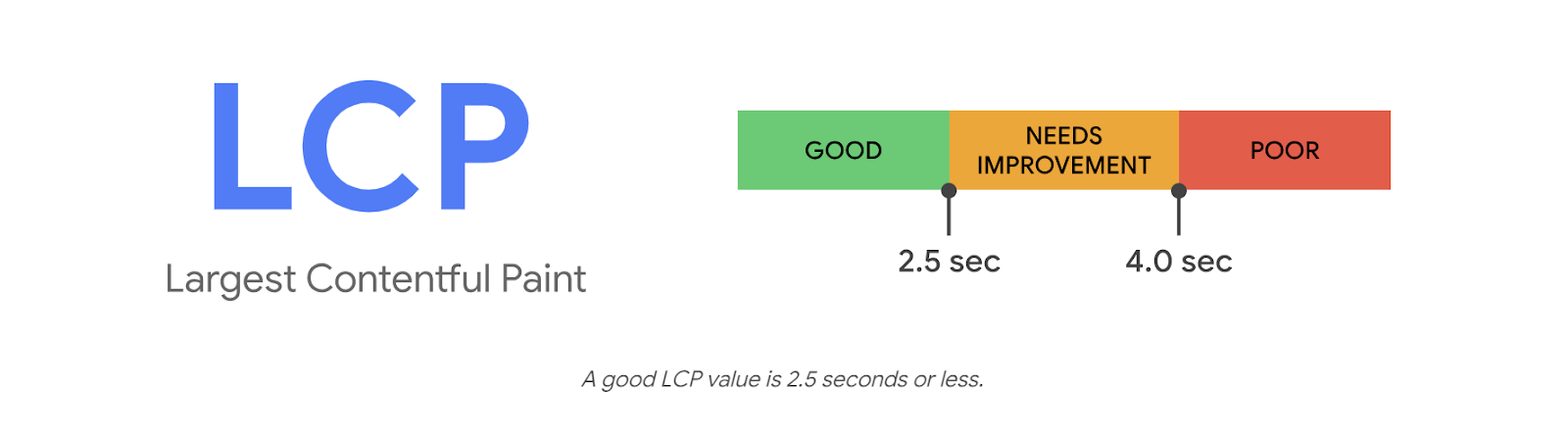
    LCP score

    From the given screenshot directly from Google Web Core Vitals, you can see that everything between 2.5 seconds and 4.0 seconds is considered Still Good but needs a bit of improvement on the load time. Everything over that is considered Not Good as far as Google’s standard goes.

    The main parameters that form LCP are:

    • TTFB (Time to First Byte) 
    • Resource Load Delay
    • Resource Load Duration
    • Element Render Delay

    These parameters form 100% of your LCP score. The most important ones as far as percentage of importance goes are TTFB and Resource Load Duration.

    Different types of elements connected to LCP

    To continue the topic, we need to go through all the common elements that may be considered biggest in terms of LCP metric.

    • The first one would be any kind of animated Gifs or images in PNG format. The main reference in code would be <img>;
    • Large images that are loaded on your website page <image>;
    • Large videos that are embedded on your website page <video>;
    • Any kind of custom elements that have an image loading in the background through CSS code or theme customization;

    These are the most common elements that fall under the LCP category. The next step would be to explain how the metric actually measures their size and chooses the biggest one. 

    It gets kind of tricky when trying to explain how LCP measures the elements since it is complex. On one side, it measures the sheer size of the element, meaning visible size and how much space it takes on the page. On the other hand, it also takes into consideration the actual image dimensions and scalability on the given website page.

    How to check your website LCP score

    You can check your website with all three metrics of Google Web Core Vitals through PageSpeed Insights. That is the main tool that is trusted by Google and can be used to both view your mobile speed performance grades and score, including the desktop version of your website.

    To do that, you simply need to add in the full domain name of your website. Keep in mind that it may take a few moments to complete the entire test since it goes through all the metrics and it is also affected by the size of your website and number of pages.

    To start the process, you need to review the results that are given once it is complete:
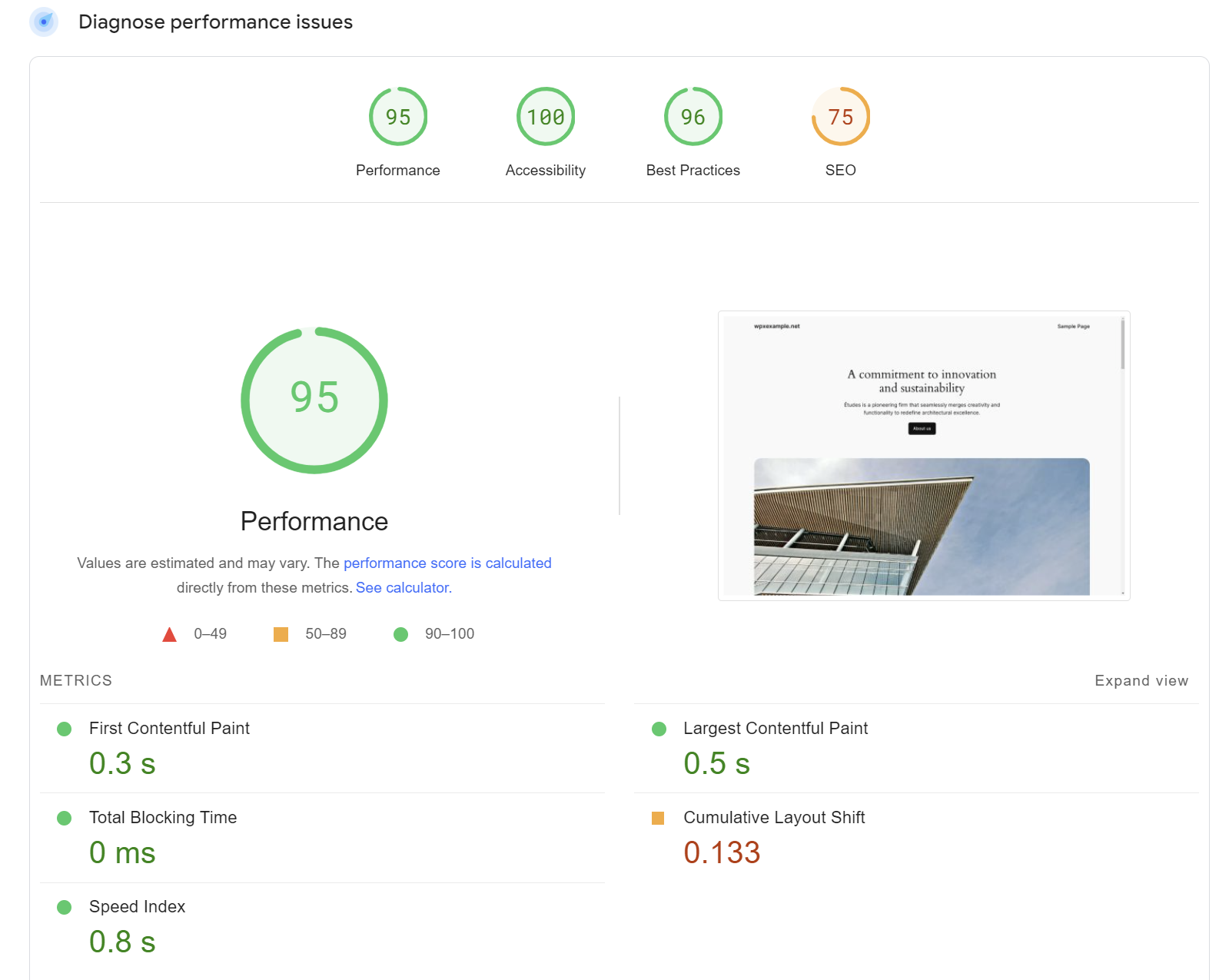
    google web core vitals

    From the test results you can see that the load time of LCP is 0.5 seconds and that is well in range of the Good score measures that we explained in step 2. When you click on Expand view, you will be able to see additional information and links to every metric shown in the test.

    What are the most common things that affect LCP score?

    We will cover the most common issues that can affect LCP score negatively. Keep in mind that these parameters are overall and do not take part of every individual setup and hosting environment.

    • Slow Server Response Time;
    • Optimize LCP sub-parts;

    The first one is Slow Server Response Time. This one is strictly connected to the specific server setup the website is hosted on. When loading a website, the browser that is used will send a request to the server to open it up. If that request takes too much time, it will affect the loading time overall, thus LCP score will be affected in a negative way.

    This issue can be mended by using a CDN Network to cache and improve TTFB (Time to First Byte) in order to improve the overall score and LCP. In that matter, we provide our own built-in XDN which can be used on all of your websites hosted at WPX for free, included in each hosting plan.

    The second common issue is connected to tackling a serious task of every part that makes LCP a metric. To do that, you need to start with different criteria which can be viewed on your PageSpeed Insights test. 

    TTFB or Time to First Byte is extremely important and forms around 40% of the LCP score. Depending on the load time of the first element on your website, can give you a good or bad score at the end. 

    To fix this issue, the first and most simple step would be to activate a CDN Network for your website to cache all the requests. That way, TTFB will be gradually improved and the load time overall as well.

    The next big parameter would be Resource Load Duration. That is strictly connected to the resources of your website loading time. To fix that, you would need to lower the loading time of any resources that may be large or not cached. 

    On top of using CDN, we recommend using another layer of cache with a cache plugin such as W3TC. We at WPX provide recommended settings which are optimal for the website and our servers compatibility.

    Once these two main parameters are completed with a successful cache setup and preload of your resources, then the time and LCP score will jump up and provide a good result.

    Additional recommendations would be to optimize your images and make them smaller in size so that they take less time to load. Everything connected to making the website fast will affect TTFB and of course that will connect to LCP score directly. Make sure to use less external loading resources such as ads and third-party links that may not be optimized since that will hinder the loading time and lower the results.

    That’s it! You have read through all the basics that need to be known regarding LCP, what it means and how to handle results that are not that great from Google Web Core Vitals.

  • How to Fix CLS Issue in WordPress

    How to Fix CLS Issue in WordPress

    Having good grades and even better performance is essential for any online website. In this article, we will uncover one of the main Google Core Web Vitals. We will cover the basics and explain what are the best tips to do in order to keep that metric in check when testing your website.

    What is CLS?

    In order to better understand how Google Web Core Vitals work, you need to understand each component. In this case, we will review CLS or in other words Cumulative Layout Shift. To put it simply, it is strictly connected to the stability of your web pages. How quickly they shift, moving components like a sliding bar for example or if you have any moving objects on your page through custom code or theme that you may be using.

    It basically serves as a count metric of how many moving objects you have not just by clicking on something to move it on the current page but in general, even when hovering over an icon for example with an animation, counts as a layout shift.

    The sum of all the shifts count in the overall score that you get on that specific metric from Google.

    What counts as a good and bad CLS score?

    Before we dive into the numbers and good and bad scores, we need to look at the whole idea of using this metric and why it’s one of the three main ones that Google uses when making a performance check. 

    Firstly, it is connected to unexpected layout shifts. That means that every move of your content on a given page is tested. If you have ads running for example and they squeeze the content or start moving it up and down, depending on their location, it would affect the end user experience. 

    So, the end goal of the metric is to determine if you have too many shifts and moving objects that would obstruct the user when visiting your website page. The number would directly affect the score positively or negatively.

    How can I find out what my CLS score is?

    You can use various tools to check the main Google Core Vitals. The main one that we recommend is directly connected to them and that is PageSpeed Insights. 

    To use it properly, you need to input the full name of your website. Once that is done, the application will make a request to that specific address and display the results that you are looking for.

    To start the process, simply test the website and review the main results as shown in this example:

    CLS score

    You can see from the example test, that the website has no issues connected to CLS score and that is shown in the results. When you scroll down, you will see all the other issues at hand that may be problematic.

    What are the main issues causing a bad CLS score?

    Once the performance test is done, we will go through all the biggest and most common things that affect the positive score which we recommend avoiding.

    • Images and Videos
    • Ads and Embeds
    • Web Fonts and Content

    The first one is pretty simple and it connects to any images and videos you have on your webpage. If you do not specify the correct width and size, then the browser does that for you automatically and tries to fit and shift them every time it loads with the content. That amounts to unnecessary layout shifts that count on the negative side when it comes to user experience and CLS score.

    The next one is something that we mentioned earlier, and that are all the different ads or embeds that may be running on your website. The same thing applies to them as to images and videos. You need to have allocated space for them to fit correctly with both the content on the page. If not done correctly, the same unexpected layout shifts will occur and get you a bad score on Google Core Vitals.

    The third common issue is connected to the way your fonts and content loads overall on your website. If the process is not seamless and the text for example loads first, then the images and fonts, that would again cause different layout shifts since the page loads partially different parts that shift and move.

    How to fix CLS issue on your WordPress site?

    The logical way is to check and correct any common issues that were mentioned previously on the topic. 

    • Add width and specific size for your Images and Videos
    • Fixed dimensions for your Ads and most free space
    • Optimize your Fonts

    The first one is to correct and add width and correct size on all of your images and videos to fit correctly with your content and page. That is the quickest way to check and go through them by using the built-in WordPress CMS. 

    To do that, you need to log in your WordPress Dashboard of the specific site and check your Media Library (1), Select (2) the specific image you want to check and re-size:

    fix cls issue on wordpress site

    Once you select the image, you will be redirected to the editing options. From there you need to select Scale (1) and the image dimensions will show next to it. Once you are done with the size, again select the button Scale (2) and WordPress will automatically do it based on the numbers you set:

    scale image

    The next one is to manage the size and space that your Ads take up on your website page to avoid layout shifts. The best recommendation here would be to use fixed dimensions for all of them in order to embed them properly to each page. That would save you the headache of doing it individually for each ad and wondering about what space you have to free up to fit it properly.

    When arranging the main layout of your page, make sure to save the biggest free spaces for the ads. That would minimize the chance of an unexpected layout shift.

    Make sure to use ads that do not “stick” to the content of the page, especially if they are in the middle of it. Make sure that the ads are embedded with the option to move freely while scrolling through.

    The last step is to optimize your website fonts. You can do that through various caching plugins. The only inconvenience of this method is that it mostly includes paid options which are not available on free versions of the plugins mentioned below.

    For example, if you are using the W3TC Pro version of the cache plugin, you have an option that can be enabled to Preload your website fonts. To complete the process, you need to login to your WordPress Dashboard. From there, you need to navigate through the Performance tab (1) of the plugin and select User Experience section (2):

    optimize website fonts

    Once that is done, you can check the box Preload Requests and that would automatically include the website fonts that load on each page. Additionally, you can add specific fonts and choose which one to pre-load if you want to. Other cache plugins can offer the same functionality such as WP-Rocket and Litespeed. The whole purpose of having that option is to ensure that the text is loaded alongside your website fonts and not after, which would cause layout shifts.

    Another recommendation is to edit and convert the font icons on your website to SVG Format. That would require a bit of developer work since someone needs to check and add CSS code to embed them in that specific format. The purpose of doing so is being in SVG, you can position the icons easily anywhere and can customize them the way you want.

    The last recommendation connected to your fonts would be to make as many formats available as possible. That is connected to the best user experience where each browser used to access your website would choose the correct font that would fit best, avoiding layout shifts.

    That’s it! CLS, together with LCP and INP, is one of the main three metrics from Google Core Vitals and has a big part of your overall performance and speed score. If that matters to you, these are the overall steps you need to learn and check in order to better the score if it is in the negative according to your website results.