Tag: wordpress

  • Top 5 Essential Tips to Speed Up Your WordPress Website in 2024

    Top 5 Essential Tips to Speed Up Your WordPress Website in 2024

    Isn’t it frustrating when you open a site and it takes ages to load? Absolutely, in our fast-paced digital world, a website’s speed and performance are more important than ever. A faster website not only enhances user experience but also brings a host of benefits like increased traffic, improved SEO rankings, and lower bounce rates. When visitors face long load times, they’re more likely to leave before engaging with your content, which can significantly impact your success.

    That’s why optimizing your website’s speed is so crucial. It’s not just about keeping up with expectations—it’s about staying ahead of the competition and ensuring your visitors have the best experience possible. In this article, we’ll share 5 tips to boost your website’s speed. Plus, as a special bonus for WPX users, we’ve included an extra tip made just for you. Let’s dive in and make your site faster and more efficient!

    Why Speed is Important? 

    Website speed is a pivotal element for several reasons. Firstly, user experience is heavily influenced by load times; even a one-second delay can reduce page views, decrease customer satisfaction, and result in lost revenue. Faster websites tend to have lower bounce rates, higher engagement, and better retention rates. Secondly, search engines like Google consider page speed a ranking factor, meaning that a faster website can improve your visibility in search results, driving more organic traffic to your site. 

    Optimizing your WordPress site for speed not only enhances user experience but also boosts your SEO performance and overall online success.

    Choose Fast WordPress Hosting

    Before diving into the tips, it’s important to emphasize that the best way to start is by choosing WordPress-optimized hosting. This will address most performance issues right from the beginning.

    Optimizing WordPress speed begins with selecting the right hosting provider. When you make the right choice, you’ll find that there’s less left to manage. Stick around until the end for an exclusive bonus tip for WPX users!

    Here are the top 5 essential tips to speed up your WordPress website in 2024.

    1. Use Content Delivery Network (CDN) 

    A Content Delivery Network (CDN), which is possibly the most important feature, distributes your site’s static files (like images, CSS, and JavaScript) across a global network of servers. When a user visits your site, these files are delivered from the server closest to their location, reducing latency and speeding up load times.  

    Here at, WPX, we have our custom-built XDN that works best with our systems and it is optimized especially for WordPress. The WPX XDN is enabled by default for all of your websites hosted with WPX. However, if you’ve disabled it by any chance, you can turn it back on easily from the control panel. Navigate to My Services → Select your Hosting Plan  → WPX XDN and just click the toggle button. 

    content delivery network CDN helps speed up your website

    Why it matters: By reducing the physical distance between your server and your users, our custom-built XDN (with over 30 endpoints) improves the speed at which content is delivered, enhances user experience, and reduces the load on your origin server, especially during traffic spikes. Using our XDN is an excellent method to speed up your WordPress website and ensure quick load times. The best part about the whole thing is that we have it free in all our plans and you can take full advantage of it!

    2. Set Up a Powerful Caching Plugin

    use cache plugin to speed up your wordpress website

    Caching is one of the most effective ways to boost your WordPress site’s performance. By storing static versions of your web pages, caching reduces the load on your server and speeds up content delivery. 

    We recommend the following caching plugins W3 Total Cache, WP Rocket, LiteSpeed Cache, and Nitro Pack. More on the topic can be found here. 

    Why it matters: Caching reduces the need for repeated database queries and PHP processing for each page load, significantly decreasing load times and server load, especially during high-traffic periods. This is a critical step to speed up your WordPress site and enhance user experience. 

    Let’s add the fact that WPX is a step further than others, we have our tested custom settings for WP Rocket, W3 Total Cache, and LiteSpeed Cache. The settings are updated regularly and work well together with our custom-built XDN!

    3. Optimize Images and Media

    Large image files can drastically slow down your website. Optimize images by compressing them without compromising quality. Use image optimization plugins like Smush, ShortPixel, or EWWW Image Optimizer to automate this process. Additionally, serving images in next-gen formats like WebP can further enhance performance.

    Why it matters: Optimized images reduce the amount of data that needs to be transferred to the user’s browser, speeding up page load times and improving the overall user experience. Fast-loading images are also crucial for mobile users who may be on slower networks. Optimizing images is an essential step to speed up your WordPress website effectively.

    4. Minimize and Optimize Plugins

    While plugins add valuable functionality to your WordPress site, too many can slow it down. Regularly audit your plugins and deactivate or delete those that are unnecessary or poorly coded. Also, ensure that the plugins you use are from reputable developers and are regularly updated.

    Why it matters: Each plugin can add its scripts, styles, and database queries, which can collectively slow down your site. Keeping your plugins lean and optimized ensures your site remains fast and efficient. Minimizing plugins is a straightforward way to speed up your WordPress site.

    5. Keep WordPress, Themes, and Plugins Updated

    Regular updates to your WordPress core, themes, and plugins are crucial for maintaining optimal performance and security. Updates often include performance improvements, bug fixes, and security patches. Enable automatic updates for minor releases and set a schedule to manually check for and apply major updates.

    Why it matters: Outdated software can slow down your website and expose it to security vulnerabilities. Keeping everything up-to-date ensures that your site runs smoothly and securely, benefiting from the latest enhancements and optimizations. Regular updates are essential to speed up your WordPress website and maintain its performance.

    Bonus Tip: Request your FREE Optimization

    Here’s some great news for WPX users: you get a FREE optimization for each of your websites, thanks to our Expert Optimization Team!

    What’s the process? Just submit your optimization request, and our team will handle the rest. They’ll perform a thorough audit, make speed improvements, and give you a report with before-and-after test results. Plus, you’ll get handy tips on keeping your site running smoothly and suggestions for additional tweaks.

    Curious to learn more? Check out the details here!

    Final Thoughts

    Optimizing your WordPress website for speed and performance in 2024 involves a strategic combination of regular updates, effective caching, image optimization, careful plugin management, and CDN utilization. By focusing on these top five essential tips, you can ensure your site is fast, reliable, and ready to provide the best possible experience to your visitors.

    Remember, a faster website not only improves user satisfaction but also enhances your SEO rankings, leading to better visibility and growth for your online presence. Start implementing these optimization strategies today to reap the benefits of a speedy and efficient WordPress site. Speed up your WordPress website now and see the difference it makes!
    Still keen on the topic? Check out our WPX Academy video on speeding up your website!

  • How to Fix WordPress Critical Error After PHP Update

    How to Fix WordPress Critical Error After PHP Update

    Critical errors are one of the most common issues in WordPress and are tightly connected to its way of working. Most frequently a critical error occurs after a PHP update of our website.

    Luckily, we here at WPX Hosting are quite good at resolving all kinds of technical issues, including Critical Errors. That’s why we’ve decided to share our experience in dealing with these issues, specifically, the ones that sometimes appear after a PHP update, in this very article. We will cover what creates critical errors, how to pinpoint their origin, and how to tackle a critical error occurring after a PHP update.

    This article follows our Technical Support Team’s troubleshooting process. 

    What Does “There Has Been a Critical Error on Your Website” Mean?

    To resolve an issue, we must first try to understand it. This leads us to the question: “What Does “There Has Been a Critical Error on Your Website” Mean?

    Some WordPress errors may block you from accessing the WP Admin Dashboard, displaying the message, “There has been a critical error on this website. Please check your site admin email inbox for instructions.”

    critical error

    A critical error is a standard error that occurs because of the primary WordPress elements: plugins, themes, PHP versions, or WordPress versions. A change (most commonly an update) made in any of these elements can cause a critical error.

    Specifically, they are caused by the following reasons:

    • Incompatibility between plugins or between a plugin and the WordPress version or even the PHP version of the website can trigger this error.
    • Problems with the active theme, such as outdated code or plugin conflicts, can also cause them.
    • Syntax errors or coding mistakes in PHP files can lead to critical errors. These errors can occur in themes, plugins, or custom code snippets.
    • When WordPress exceeds the allocated PHP memory limit, it can cause the site to crash with a critical error.

    How to Fix Critical Errors in WordPress? 

    Easier said than done, right?  Well, don’t worry—we’ve gathered our troubleshooting process in this article so that you can easily follow along and resolve critical errors on your site. 

    Before proceeding with any of the changes described, make sure to back up your website. in an earlier blog article, we’ve covered the 3 methods to back up your WordPress website.

    Check the Error logs 

    WordPress typically sends emails when there is a critical error on your website. These emails will most likely contain the information on which plugin or theme caused it. However, if the email does not contain any specific information or you didn’t receive it altogether, you can check the error logs of your site. 

    The error log is a file that contains all kinds of errors and warnings concerning your website. The file records four types of PHP errors – warning, notice, parse, and fatal. At the beginning of each log, you’ll see the type of error that was found. 

    Here is an example of a PHP error found in one of the files of a plugin: 

    The error shows the exact PHP file and the line that is causing the Critical error on the site. If you are a developer or more tech-savvy, you can open the file and fix the code. Another option would be to contact the Support Team of the Plugin itself, but while waiting for them to resolve the matter, you can disable the plugin, to fix the error on the site. 

    But how to disable the plugin when you don’t have access to the Dashboard? 

    The File Manager Method

    Firstly, you need to access the file manager of your hosting, if you’re using WPX, check out our guide – How Can I Access My File Manager?  The File Manager gives you access to the files and, most importantly in this situation, the folders of your websites. 

    When you open File Manager, you need to locate the /wp-content folder of your website. This folder contains the information of your website including media, plugins, themes, etc. 

    fix critical error

    Then open the plugins folder and rename the folder of the plugin that is causing the critical error conflict. 

    For example, if the plugin causing the error is Akismet, you rename it to akisment-stop.  Changing the name of the plugin folder will deactivate the plugin. If that plugin was causing the issue, the critical error will be gone, and you will have access to your WordPress Dashboard.

    fix critical error

    Save the changes and check your site. 

    What if the theme is causing the Critical Error? 

    You can do the same for the theme, with one small difference. By changing the folder name of the theme, WordPress will automatically activate a default theme. The reason for that is an integrated mechanism within WordPress itself, which doesn’t allow the website to work with no theme activated.

    Remember to open a non-cached version of your site after every change, so you can be sure that the error is fixed. Clearing the browser cache or opening the website in private mode should work in this case. 

    Revert the PHP version

    The easiest solution of course would be to simply change back the PHP version to the one previously used by the website. 

    revert php version

    Typically, this should clear the critical error as you restore the old configuration eliminating the conflict between the plugin or theme and the PHP version.

    This is the best option if you need to wait for the plugin or theme support to fix the conflict and release an update. Remember to always keep the latest versions of all your plugins, themes, and PHP. Deactivate and remove unused themes and plugins to improve your site’s security, performance, and reliability. 

    Restore the website 

    If none of the solutions above doesn’t work, you can always restore the website from a backup. Here at WPX, we make daily backups of all sites hosted with us. You can restore the website from an automatic backup with a just few clicks from the hosting panel. 

    Or, if you have a personal backup made before the critical error appeared, you can use it to restore the site. 

    Conclusion

    At this point, you most probably understand that the sheer number of elements found in WordPress, each with its own pieces of code, can cause conflicts leading to critical errors.

    Although this article covers the specific case of critical errors after a PHP update, the steps for resolving them we’ve discussed above can be applied successfully to other origins of critical errors.

    So here we have it, folks. Following this article should ensure a working WordPress website after a critical error 90% of the time. As for the other 10%, you have the WPX Support Team 😉

    We also hope that you will read this article out of curiosity rather than necessity.

  • SEO For WooCommerce: Trends and Practices For 2024 

    SEO For WooCommerce: Trends and Practices For 2024 

    In the competitive world of e-commerce, staying ahead of SEO trends is essential for maximizing visibility and sales. WooCommerce, as one of the most popular e-commerce platforms, requires a specialized approach to SEO. 

    As we move into 2024, understanding and implementing the latest SEO strategies is crucial. This comprehensive guide will cover the key trends and best practices to ensure your WooCommerce store ranks high in search engine results pages (SERPs). 

    Top 5 Tips For WooCommerce SEO

    Optimizing your WooCommerce store for search engines is crucial for increasing traffic, improving brand visibility, and boosting sales. 

    By following effective SEO strategies tailored specifically for WooCommerce, you can ensure that your products rank higher on search engine results pages (SERPs). Here are the top five tips to enhance your WooCommerce SEO:

    1. Optimize Product Titles and Descriptions

    Product titles and descriptions are essential for WooCommerce SEO as they provide search engines with relevant information about your products. Make sure that your titles are clear and include primary keywords that potential customers might use in their search queries. Similarly, descriptions should be informative, keyword-rich, and engaging, highlighting the key features and benefits of the product​.

    Example: Fishwife 

    fishwife

    Fishwife, a brand known for its gourmet canned seafood, uses detailed and descriptive titles and descriptions to engage customers and improve SEO. For instance, their product title “Slow Smoked Mackerel with Chili Flakes” clearly states the main features, making it easier for search engines and customers to understand the product at a glance. 

    It also includes a frequently googled keyword within their niche. The description further elaborates on the sourcing and smoking process, emphasizing the unique selling points and benefits, which helps in attracting targeted traffic and boosting conversions. 

    2. Utilize SEO Plugins

    SEO plugins can significantly simplify the entire optimization process on your website. They offer features such as automated meta tags, XML sitemaps, and schema markup, which help improve your site’s visibility on search engines. 

    They also provide insights and recommendations for optimizing individual product pages, categories, and overall site performance​​. 

    If you’re a total newbie to the WordPress plugin scene and don’t know where to start looking for the perfect plugin for your online store, check out some of our top picks below! 

    Our Favorite SEO Plugins for WooCommerce
    Yoast SEO All in One SEO Pack 
    Known for its user-friendly interface and comprehensive features, Yoast SEO helps optimize your store effectively. It offers tools for optimizing product pages, generating sitemaps, and managing breadcrumbs​.This plugin offers a range of features for optimizing titles, meta tags, and sitemaps. It integrates seamlessly with WooCommerce, providing specific tools for product optimization​​.
    Rank MathSEOPress
    A robust plugin that provides advanced SEO features, including keyword tracking, rich snippets, and automated image SEO. Rank Math is highly recommended for its comprehensive feature set and ease of use​​.Offers extensive features like social media integration, custom HTML and XML sitemaps, and more. SEOPress is a powerful tool for optimizing WooCommerce stores and enhancing overall SEO performance​.

    Of course, just because these plugins work wonders for us, it doesn’t mean that they’ll do the same for you. Fresh plugins get released literally every single day – who’s to say that a brand new plugin or a very niche add-on isn’t the one that will rejuvenate your store and take your sales numbers to the next level? 

    Ultimately, the best SEO plugin for WooCommerce is the one that you like to work with the most. But how do you go about choosing the right one? Don’t worry – we’ve got you covered. Scroll down to the bottom of this article for a brief guide on choosing SEO plugins that will meet your business needs. 

    3. Optimize Product Slugs

    Product slugs, or the URLs of your product pages, should be short, descriptive, and include relevant keywords. Avoid using default slugs generated by WooCommerce, which can be lengthy and non-descriptive. Customizing your product slugs makes them more readable for users and search engines, thus enhancing your SEO efforts.

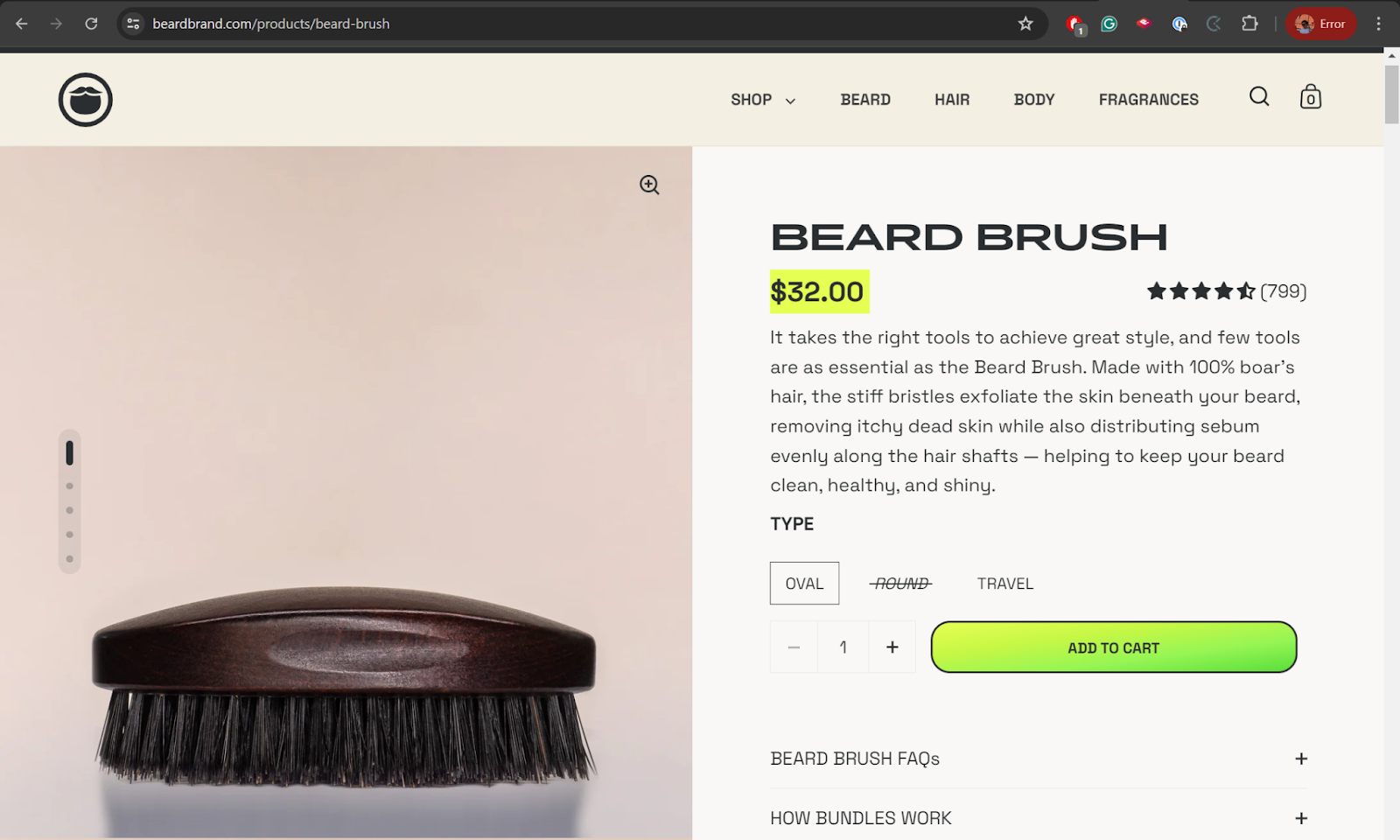
    Example: Beardbrand 

    reard brush

    Beardbrand, a grooming company specializing in beard care products, optimized their product slugs to make URLs more descriptive and SEO-friendly. 

    Instead of using generic slugs, they use detailed and relevant keywords that precisely match their products, which not only helps in improving search engine rankings but also makes the URL more user-friendly and informative. 

    This practice ensures that both search engines and customers can easily understand the content of the page just by looking at the URL​. 

    4. Implement Breadcrumb Navigation

    Breadcrumbs improve user experience by showing the path to the current page, making navigation easier. They also enhance SEO by providing search engines with a clear structure of your website. 

    Enabling breadcrumbs in WooCommerce, through plugins like Yoast SEO, can help improve your site’s rankings and make it easier for visitors to find related products.

    Example: Pura Vida Bracelets 

    pura vida bracelets

    Pura Vida Bracelets, known for their handcrafted jewelry, effectively uses breadcrumb navigation on their website. After migrating to Shopify, they implemented a clear breadcrumb trail on their product pages, enhancing user experience and helping search engines understand the structure of their site. 

    This navigation feature allows customers to trace their steps back to parent categories, improving site usability and potentially boosting rankings due to better site structure and internal linking​. 

    5. Add Alt Text to Product Images

    Alt text for images is a critical factor for image SEO. It provides a textual description of the image, which is useful for search engines and improves accessibility for visually impaired users. 

    Including relevant keywords in the alt text can help your product images rank higher in image search results, driving more traffic to your store. 

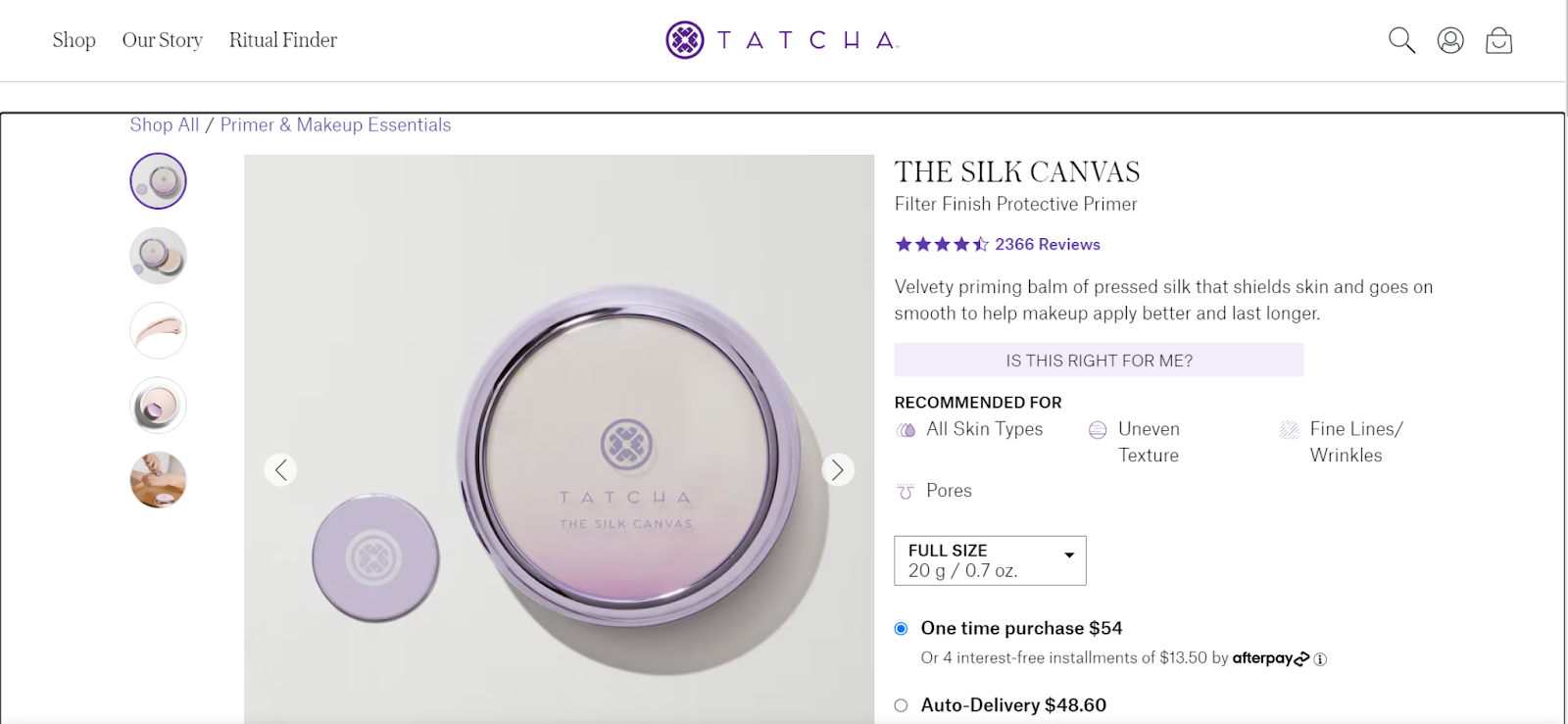
    Example: Tatcha 

    tatcha

    Tatcha, a luxury skincare brand, excels in using alt text for their product images. For instance, an image of their “Silk Canvas Primer” includes the following alt text: “Tatcha Silk Canvas Protective Primer – 20g.” 

    This detailed alt text not only improves accessibility for visually impaired users but also helps in ranking higher in image search results, driving more organic traffic to their product pages. This practice ensures that the images are easily understood by search engines and improves overall SEO performance.

    6. Speed Optimization 

    Optimizing the speed of your WooCommerce store is crucial for enhancing user experience, improving search engine rankings, and increasing conversion rates. A faster website reduces bounce rates and keeps potential customers engaged. One of the most effective ways to achieve optimal speed is by choosing a reliable hosting service like WPX.

    We’re renowned for our exceptional performance. With features like the custom-built WPX Cloud CDN, which delivers content from 37 global endpoints, we’ll make sure that your website loads quickly regardless of the visitor’s location. 

    All our hosting plans come with free site speed optimization, where our dedicated optimization team performs a thorough audit, including caching plugin setup, CSS/JS minification, image optimization, and database cleanup. 

    This comprehensive approach significantly enhances your website’s loading speed and performance scores on tools like GTmetrix and Google PageSpeed Insights. 

    Key SEO Trends for WooCommerce in 2024 

    As the digital landscape evolves, so do SEO strategies. Keeping up with the latest trends is essential for maintaining your WooCommerce store’s competitiveness. In 2024, several key trends are shaping the future of SEO. These include the rise of voice search, the increasing importance of mobile-first indexing, and the integration of AI and machine learning in SEO practices. 

    Additionally, Core Web Vitals have become critical for user experience and search rankings. Understanding and leveraging these trends will help you stay ahead of the competition and ensure your WooCommerce store remains visible and accessible to your target audience.

    Voice Search Optimization

    Voice search continues to grow, with more users relying on voice-activated devices for their searches. To optimize for voice search, focus on natural language keywords and question-based queries. This involves incorporating long-tail keywords and conversational phrases that users might speak into their devices​. 

    Mobile-First Indexing 

    Google’s shift to mobile-first indexing means that the mobile version of your site is considered the primary version for indexing and ranking. 

    Make sure your WooCommerce store is mobile-friendly by using responsive design, optimizing load times, and offering a seamless mobile shopping experience. 

    AI and Machine Learning in SEO 

    AI tools like Google’s RankBrain are increasingly influential in SEO. These tools help understand user intent and improve search results. 

    Utilizing AI-driven SEO tools for keyword research, content creation, and analysis can provide a competitive edge. Tools like SEMrush and Ahrefs offer valuable insights into AI-driven SEO strategies. 

    Core Web Vitals and User Experience (UX)

    Core Web Vitals are a set of metrics that measure user experience, focusing on load time, interactivity, and visual stability. Improving these metrics can enhance your site’s SEO performance. Ensure your WooCommerce store meets these standards by optimizing images, reducing server response times, and enhancing interactivity.  

    SEO-Friendly WooCommerce Themes

    One of the easiest, most straightforward ways to get an SEO boost for your online store is to pick out an SEO-friendly website theme on WooCommerce before even launching the website. Here are some of the best themes you might want to try out for yourself. 

    Astra

    Astra is a highly popular theme known for its speed and lightweight design. It offers built-in SEO optimization features like schema markup and AMP compatibility, making sure your store loads quickly and is easily crawled by search engines. Astra’s customization options are extensive, making it suitable for any type of eCommerce site​​.

    Storefront

    Developed by Automattic, the team behind WordPress and WooCommerce, Storefront is the official WooCommerce theme. It’s designed for seamless integration with WooCommerce and its extensions. Storefront is highly responsive, built with valid schema markup, and optimized for speed, making it a great choice for SEO-conscious store owners​​.

    OceanWP

    OceanWP is a versatile and feature-rich theme that’s fully compatible with WooCommerce. It offers numerous customization options, including advanced coupon management and product badges. 

    The theme is fully responsive, ensuring a great user experience across all devices. Its lightweight and clean code helps in achieving fast loading times, which is essential for SEO​.

    Neve

    Neve is a modern, mobile-first theme designed for speed and flexibility. It integrates well with WooCommerce and supports drag-and-drop page builders, making customization easy. 

    Neve’s lightweight structure and fast loading times enhance SEO performance. The theme also includes features like quick product view and custom layouts for product pages, improving the overall shopping experience​.

    Kadence

    Kadence is known for its modern design and user-friendly interface. It offers quick loading times, mobile optimization, and an SEO-friendly structure.

    Kadence includes customizable product galleries and extensive integration with WooCommerce, providing a seamless shopping experience. Its intuitive design tools make it easy to adjust layouts, colors, and fonts to match your brand identity​​.

    How to Choose the Best WooCommerce SEO Plugin For Your Business Needs 

    Your choice of an SEO plugin for WooCommerce can significantly impact your store’s visibility, user experience, and overall sales. Choose the right one, and you’ll see your key metrics go right up. Choose poorly, and you might cause more harm than good to your online store. 

    With numerous options available, it’s essential to carefully evaluate different plugins and try out a bunch of different options before settling for the one that suits you most. 

    Here’s a step-by-step guide to help you choose the best SEO plugin for your WooCommerce store:

    Identify Your SEO Needs

    If you’re new to the world of SEO, even something as simple as determining what exactly you need a plugin to do for you can be quite difficult. 

    The ultimate goal is to rank better on search engine results pages, but how exactly can you go about it? Look out for these key features in your WordPress plugins. 

    1. Keyword Research: Determine if the plugin offers tools for keyword research to help you target the right search terms.
    2. On-Page SEO: Look for features that assist in optimizing product titles, descriptions, and meta tags.
    3. Technical SEO: Check if the plugin can handle technical aspects like XML sitemaps, schema markup, and canonical URLs.
    4. Content Analysis: Some plugins offer content analysis and recommendations to improve your SEO strategy.
    5. Social Media Integration: If you leverage social media for marketing, choose a plugin that supports social sharing optimization.
    6. Analytics and Reporting: Opt for plugins that provide comprehensive SEO performance reports and analytics.

    Evaluate Plugin Usability 

    When assessing potential plugins, consider the following points:

    • Ease of Use: The plugin should have an intuitive interface and straightforward setup process. A user-friendly dashboard can save you time and effort.
    • Customization Options: Look for plugins that allow you to customize SEO settings for different products, categories, and pages.
    • Compatibility: Ensure the plugin is compatible with your current WordPress theme and other installed plugins to avoid conflicts.
    • Support and Updates: Check if the plugin is regularly updated and offers reliable customer support. Active support forums and documentation can be valuable resources.

    The Bottom Line

    Staying ahead of SEO trends and practices is vital for the success of your WooCommerce store. By implementing the strategies discussed in this article, you can improve your store’s visibility, drive more traffic, and increase sales in 2024 and beyond. 

    Keep experimenting, stay updated with the latest trends, and continuously optimize your WooCommerce store to achieve the best results.

    Sign up today for risk-free WPX WooCommerce web hosting

  • Fixing WordPress Not Sending Emails (SMTP)

    Fixing WordPress Not Sending Emails (SMTP)

    Having constant and active communication with the online community and visitors in general through your WordPress website is essential. Sometimes, there are issues connected to sending and receiving emails from customers. That hurts any online business or blog for that matter. It disrupts the user experience and will affect you negatively in the long run. That is why it is very important to fix any outgoing or incoming issues related to emails.

    What are the causes for Not Sending Emails through WordPress?

    First, like any other issue, we need to get accustomed to it before we go ahead and tackle it with different fixes. We need to understand how the email system for WordPress works. There are two types of emailing systems that are separate and depend a lot on the type of setup you are using. 

    The first system is the integrated one from WordPress or in other words mail function. In simple terms, it operates on a server level and it uses basic PHP language to send out mails through the contact form of your website. It is mainly used to handle communication directly, for example newsletters, sending or receiving mails from clients, visitors etc.

    The second system is connected to the type of mail service you are using. For example, if you use Google Apps or Office 365 providers, then you have special external MX records  that are responsible for them to work properly on your website. The issue with these is, that sometimes it can make a conflict with the internal mail function of WordPress and cause disruption on the receiving and sending end, such as Not Receiving Mails errors. This type of mail service is often used for communication between different email addresses that are separate from your website contact forms.

    What is SMTP and how does that fix the sending mails issue?

    The next step is to explain a big part of the fix which comes through SMTP or in other words Simple Mail Transfer Protocol. It is mainly used to re-route the internal mail function of your WordPress website and fix any email issues. 

    The reason for fixing these issues is connected to higher email deliverability and proper setup. It uses existing email addresses and works through them. To start the process, you would need to use an external SMTP service like WP Mail SMTP for example. 

    Installing external SMTP and setting it up to work

    To start the process, you would need to login your WordPress Dashboard. From there, navigate to Plugins (2) section and select Add New Plugin (2):

    SMTP plugin

    From there you would need to use the Search Bar and type in: WP Mail SMTP (1) and once it shows,