


WordPress migration isn’t something most site owners look forward to, but it’s often unavoidable. Perhaps your current host is too slow, you’ve outgrown your plan, or you simply want better support.
Whatever the reason, the process of migrating WordPress hosting can be tricky. And if you’re not careful, your SEO traffic and rankings could take a hit.
Search engines don’t like broken links, downtime, or missing redirects. Even small oversights during migration can undo months (or years) of hard SEO work. In fact, the first page of Google captures over 27.6% of all clicks. A sudden drop in rankings after migration could result in thousands of lost visitors overnight.
In this post, we’ll break down how to migrate WordPress hosting without losing search engine performance, plus the essential precautions that protect your site during the move.
9 Steps to Migrate WordPress Hosting Without Losing SEO
WordPress hosting migration doesn’t have to mean sacrificing your hard-earned rankings. Below are the essential steps to follow to make sure your site stays visible and functional after you migrate WordPress hosting.
Step 1: Back Up Your Website
A complete backup is your safety net. It includes your WordPress files, database, themes, plugins, and uploads. If anything goes wrong during the migration, you can restore your WordPress site to its exact state before the move.
What you’re backing up and why:
- Files: These are the “building blocks” of your site—WordPress core, your chosen theme, plugins, and all uploaded images or media. If you skip this, your WordPress site design and functionality could vanish.
- Database: This is where WordPress stores content, such as blog posts, pages, settings, user accounts, and comments. Without it, your site would be an empty shell.
How to initiate the backup:
- Via phpMyAdmin (database): Log into your host’s control panel and open phpMyAdmin. This web tool, included in most hosting dashboards, lets you view and export your WordPress site’s database without using code. Once you’ve opened it, select your site’s database and click Export. This creates a .sql file, which is essentially a copy of all your content in text form.
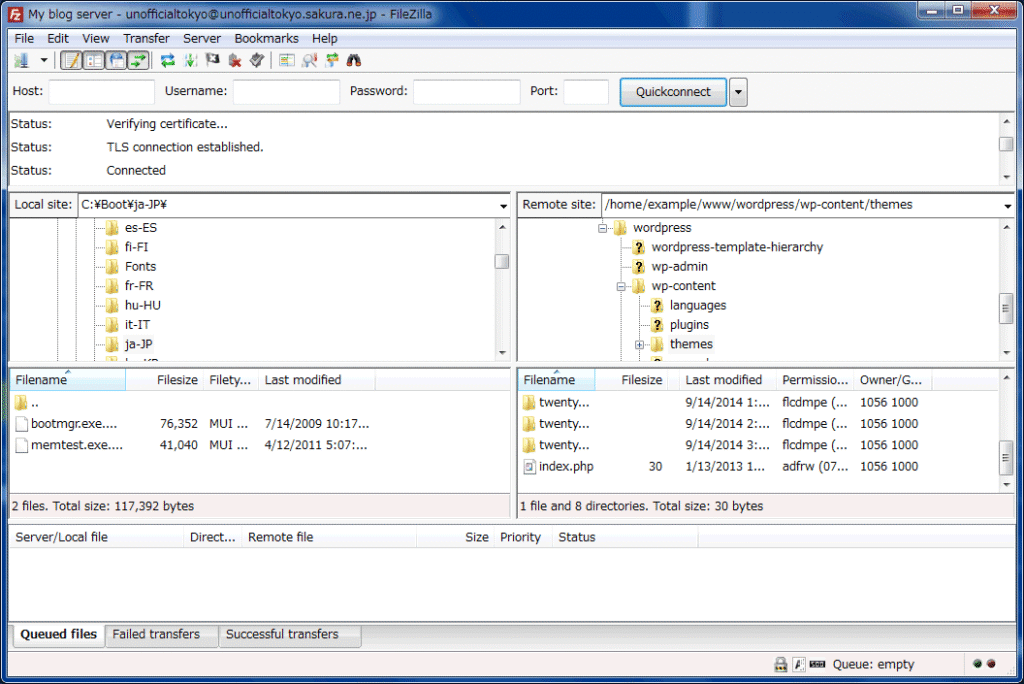
- Via FTP (files): Use an FTP program like FileZilla to connect to your server and download the entire public_html (or www) folder. FTP is a method of connecting your server to transfer site files between your computer and your host, similar to dragging and dropping files on your desktop. Be sure to enable “show hidden files” so you don’t miss .htaccess, which controls URL structure and redirects.
Then, once the site is live on the new host, it’s a good idea to give key pages a quick proofread. Use a grammar checker to ensure the content is top-notch, free from mistakes and typos.
Step 2: Audit Current SEO Performance
Before making any changes, benchmark your SEO. This is crucial because SEO changes slowly, so if rankings drop after a migration, it can be hard to tell if the cause was the move or just normal fluctuations.
Record your current keyword rankings, organic traffic levels, and top-performing content. Export data from Google Search Console and Google Analytics.
Google Analytics shows which pages get the most visitors from organic search, while Google Search Console shows which queries (keywords) you currently rank for and if there are crawl/indexing errors.
You should also audit your backlinks, which are URLs other sites link to. If those break during migration, you risk losing authority.
The audit will serve as your baseline, allowing you to track how quickly your rankings decline after the migration. Pay particular attention to high-traffic blog posts, product pages, and URLs with backlinks.
Step 3: Crawl and Document Your WordPress Site
Run a site crawl to receive a snapshot of your website’s structure and SEO elements before the move. Use a tool like Screaming Frog to capture URLs, metadata, internal links, and redirects.
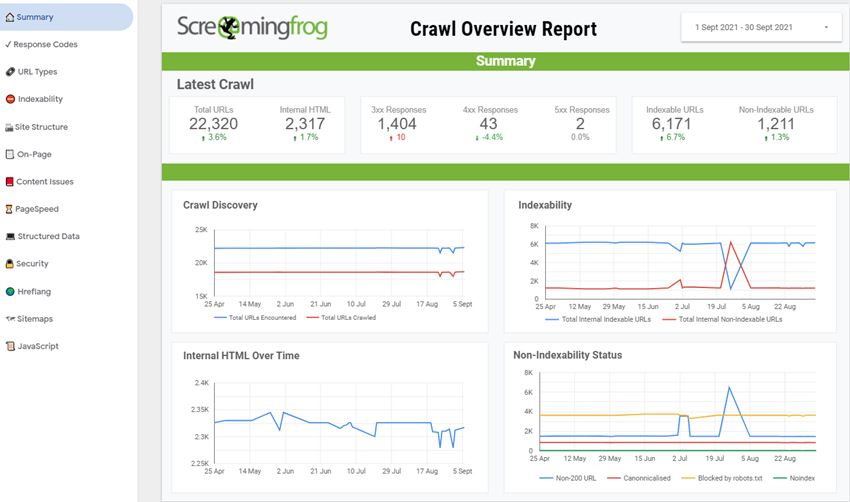
This documentation helps you compare pre- and post-migration performance and ensures nothing slips through the cracks. If a page or redirect breaks, you’ll know immediately where to look.
Follow these steps:
- Download Screaming Frog.
- Enter your domain and let it crawl.
- Export reports for:
- All URLs (so you know nothing is missing later)
- Redirects (so you can confirm they still work)
- Metadata (page titles, descriptions, canonical tags)
Step 4: Choose and Prepare Your New Host
A host is the computer where your WordPress files and database live. When someone types your URL, their browser connects to your host’s server to fetch the site. A poor host = longer load times = frustrated users and lower rankings.
Your hosting environment also has a direct impact on SEO. Slow servers, downtime, or missing SSL certificates can hurt rankings. Make sure the hosting company you’re migrating to provides:
- Fast load speeds: Look for SSD storage and support for PHP 8.0+.
- Strong uptime guarantees: Should guarantee 99.9% or better.
- SSL support: Ensures your WordPress site runs securely over HTTPS.
- Easy scalability: Important if you get sudden traffic spikes.
Have a larger site? In a compliance-heavy industry?
Colocation solutions offer a balanced option for businesses migrating from WordPress hosting in shared or on-premises environments, providing better performance, security, and compliance without the high costs associated with running in-house infrastructure. Ideal for high-traffic or compliance-heavy WordPress sites.
Before migration day, install WordPress on the new host, check PHP and MySQL compatibility, and configure SSL.
PHP is the programming language WordPress is built on. MySQL is a database system WordPress uses to store posts, users, and settings. An SSL certificate lets your site load over HTTPS, which encrypts your data and shows the padlock icon in browsers.
The goal is to have everything ready so the transition causes minimal downtime.
Preparing the server:
- Create an empty MySQL database.
- Install a clean version of WordPress to check compatibility.
- Install or activate SSL certificates (many hosts use Let’s Encrypt).
Step 5: Migrate Files and Database
At this point, you’re physically moving your site from one computer (your old host) to another (the new host).
There are several ways to do this.
You can migrate your WordPress site using plugins like Duplicator or do it manually.
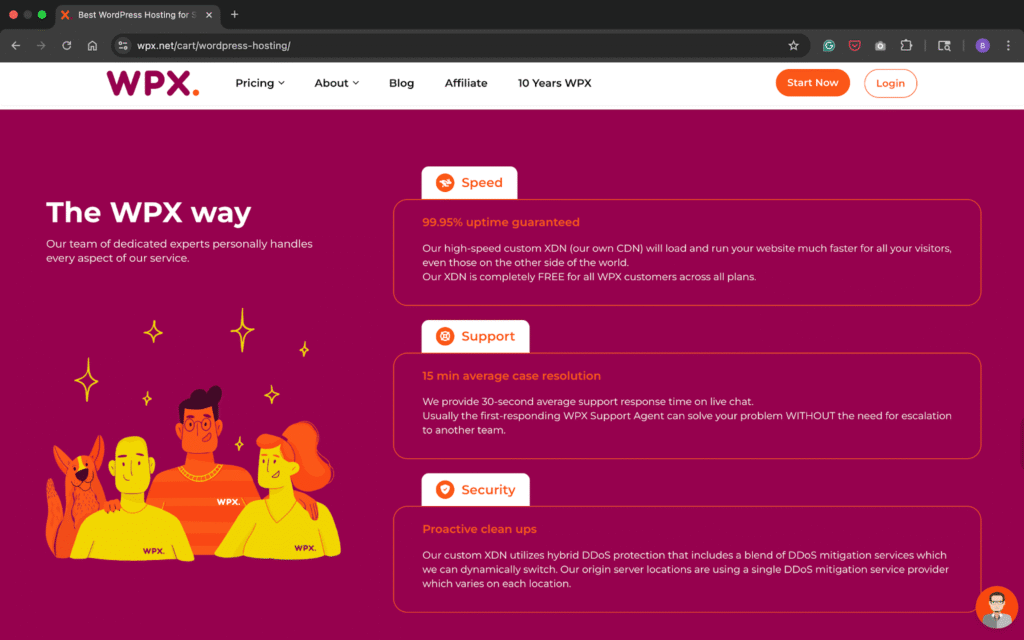
If you prefer a hands-off approach, WPX offers free unlimited migrations handled by our expert team, completed within 24 hours. This means you don’t have to deal with the technical steps yourself unless you want to. Our specialists take care of the entire process for you, ensuring a smooth, error-free transition without downtime.
The manual route means exporting the database, uploading files via FTP, and updating the wp-config.php file (a configuration file that tells WordPress how to connect to your database) with the new server details.
Make sure hidden files like .htaccess are included. The .htaccess file is important because it tells WordPress how to handle URLs (like /about-us instead of index.php?id=2). If it’s missing, you’ll end up with broken links. It also controls redirects, caching, and security rules, so losing it can cause both SEO and functionality issues.
Now, let’s look at what the manual migration steps look like in more detail:
- Upload your WordPress backup .zip file via FTP.
- Extract them into the new server’s public_html.
- Import your .sql database backup into the new MySQL database using phpMyAdmin.
- Edit wp-config.php with your new database name, user, and password.
As you migrate, consider the infrastructure surrounding WordPress.
While WordPress itself may not be scanned like custom application code, the surrounding infrastructure (Docker images, IaC server definitions, Kubernetes manifests, and cloud IAM policies) can benefit significantly from vulnerability scanning tools.
Step 6: Update Domain and DNS Settings
Once the website files are in place, point your domain name to the new host. Right now, it still points to the old host. Update your DNS records or name servers to ensure visitors are directed to the correct server.
What’s DNS? Think of DNS as the “address book” of the internet. It tells browsers which IP address (server) your domain is located on.
Here’s how to update it:
- Log in to your domain registrar (e.g., GoDaddy, Namecheap, etc.).
- Either:
- Update the A record, which points your domain to your server’s IP address, so it directs to your new hosting provider, or
- Switch to your new host’s name servers (they’ll provide the values).
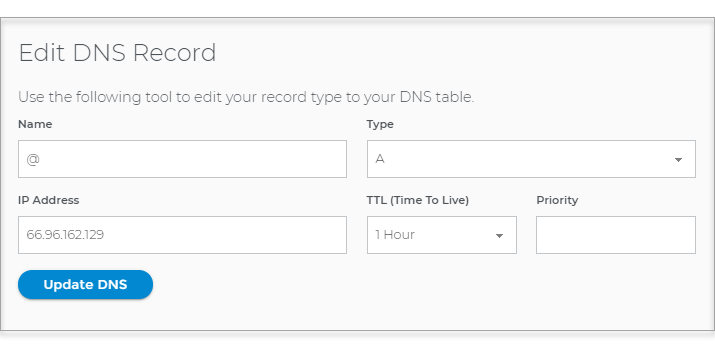
To minimize downtime, lower your DNS TTL value before making changes. Time to Live (TTL) controls how long DNS servers remember old settings. Lowering it (e.g., from 24 hours to 5 minutes) before migration helps the internet “forget” the old server faster.
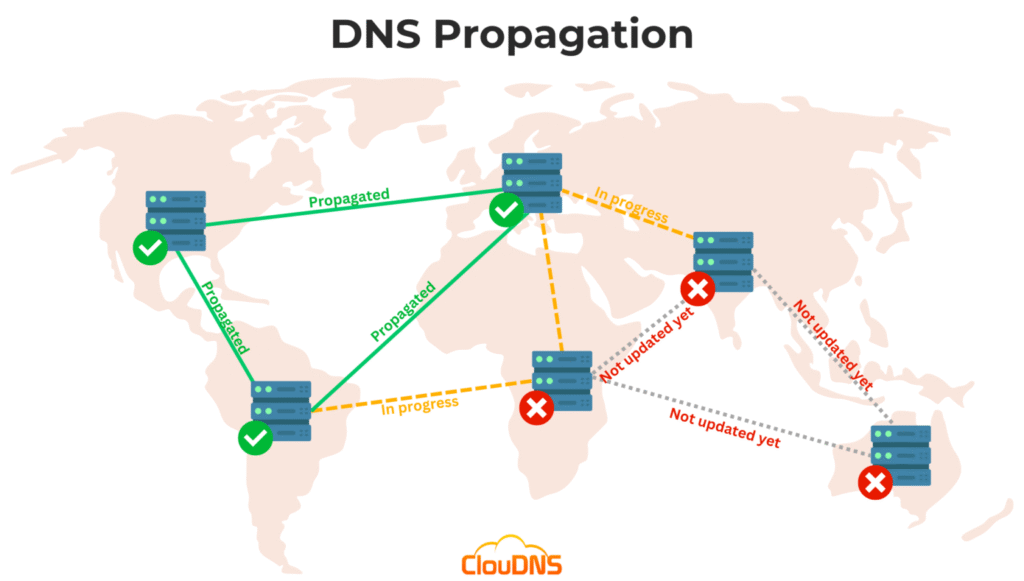
Keep in mind propagation can take up to 48 hours worldwide, so schedule the switch during a quiet period for your WordPress site. Propagation simply means it takes time for every DNS server around the world to update your domain’s new location. During this period, some users may still access your old site, while others will reach the new one.
Step 7: Test and Verify Site Functionality
Once DNS has propagated, your WordPress site is live on the new server. Now, it’s time to test everything to make sure nothing broke.
What to test:
- Click through key pages (e.g., home, blog posts, product pages).
- Test forms, search boxes, and logins.
- Make sure images and CSS load properly.
- Verify that WordPress plugins and themes work as expected and confirm that your SSL certificate is active.
- Log into /wp-admin and regenerate permalinks (Settings > Permalinks > Save). This rewrites .htaccess with the correct rules. This ensures the correct URL structure and prevents 404 errors.
You could also do a deeper check. For example:
- Open Chrome DevTools (F12 > Console) to spot broken resources or errors. This is a free tool built into the Chrome browser that lets you spot errors and check performance.
- Run your site through GTmetrix or PageSpeed Insights to confirm performance.
- Use SSL Labs’ test to confirm HTTPS is configured correctly.
Step 8: Implement SEO Safeguards
The migration process can disrupt SEO if you overlook the details. Safeguard your rankings by:
- Setting up 301 redirects if any URLs change, which permanently forward old URLs to new ones if you changed any structure, so your rankings and link authority transfer to the new URL
- Checking canonical tags, which tell Google which version of a page to index, avoiding duplicates
- Reviewing robots.txt and .htaccess files, which ensure it doesn’t block important directories
- Submitting an updated XML sitemap (a map of all your important URLs that help Google discover your site quickly after the migration) to Google Search Console, which helps crawlers reindex the new server quickly
These steps ensure Google can continue crawling your site smoothly without misindexing or duplicate content while also protecting rankings and ensuring a seamless customer experience, so visitors can easily find what they need without broken links or errors.
Step 9: Monitor SEO Performance After Migration
After the migration, keep a close eye on analytics and Search Console. Watch for crawl errors, indexing issues, and traffic changes.
Track your keyword rankings, especially for pages identified during your SEO audit. Test your Core Web Vitals, Google’s set of metrics for site speed, responsiveness, and visual stability. Good scores mean better user experience and SEO.
They include:
- Largest Contentful Paint (LCP): Measures how long it takes for the main content (e.g., image, headline, block of text) to load on the screen.
- Cumulative Layout Shift (CLS): Measures how stable your page layout is while it loads (e.g., if text or buttons jump around as ads/images load).
- Interaction to Next Paint (INP): Measures how responsive a page is during the entire visit, not just the first interaction.

After checking Core Web Vitals, confirm your new hosting platform delivers the performance improvements you expected.
Use uptime monitors like UptimeRobot or Pingdom to ensure your WordPress site isn’t going down unexpectedly.
Final Thoughts
A WordPress migration can run smoothly when you handle each step with care and avoid common mistakes. The steps we’ve outlined above can help ensure your WordPress site moves safely without risking SEO performance.
You don’t have to go it alone. WPX offers free unlimited migrations with every hosting plan and completes them within 24 hours. Our team manages the transfer for you, so you can switch hosts without the hassle.
Sign up with WPX today and let our team handle your WordPress migration at no cost.


