If you want to allow a developer to make changes and help run your website, you can add them as a collaborator to your WPX account. You can use collaborators to add different team members and give them custom permissions depending on their roles.
This article will guide you through the steps to add a developer to your WPX account.
Step 1. Log in to your WPX account
Begin by logging into your WPX account. You can do this by visiting the WPX login page.
Step 2. Select Collaborators
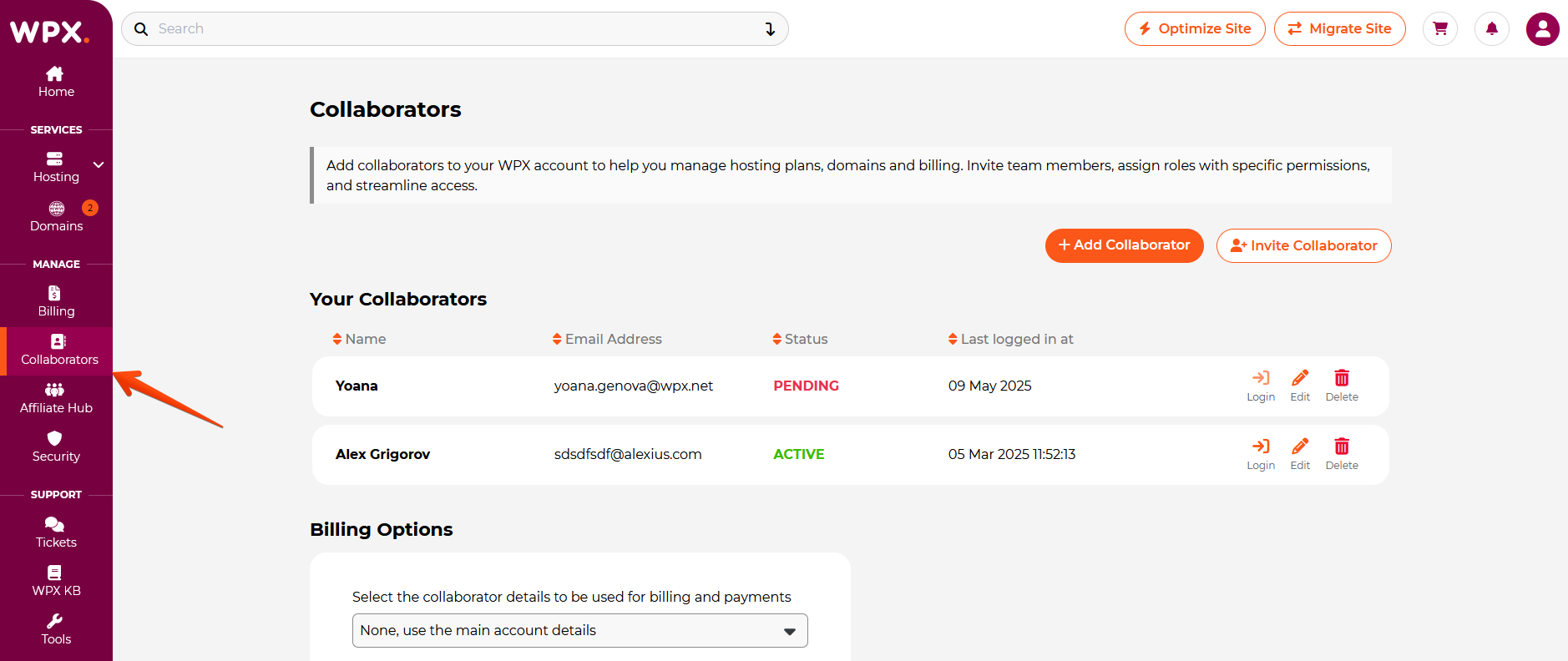
Step 3. Add Collaborator
Fill in the Collaborator information in the required fields and proceed to the privileges.
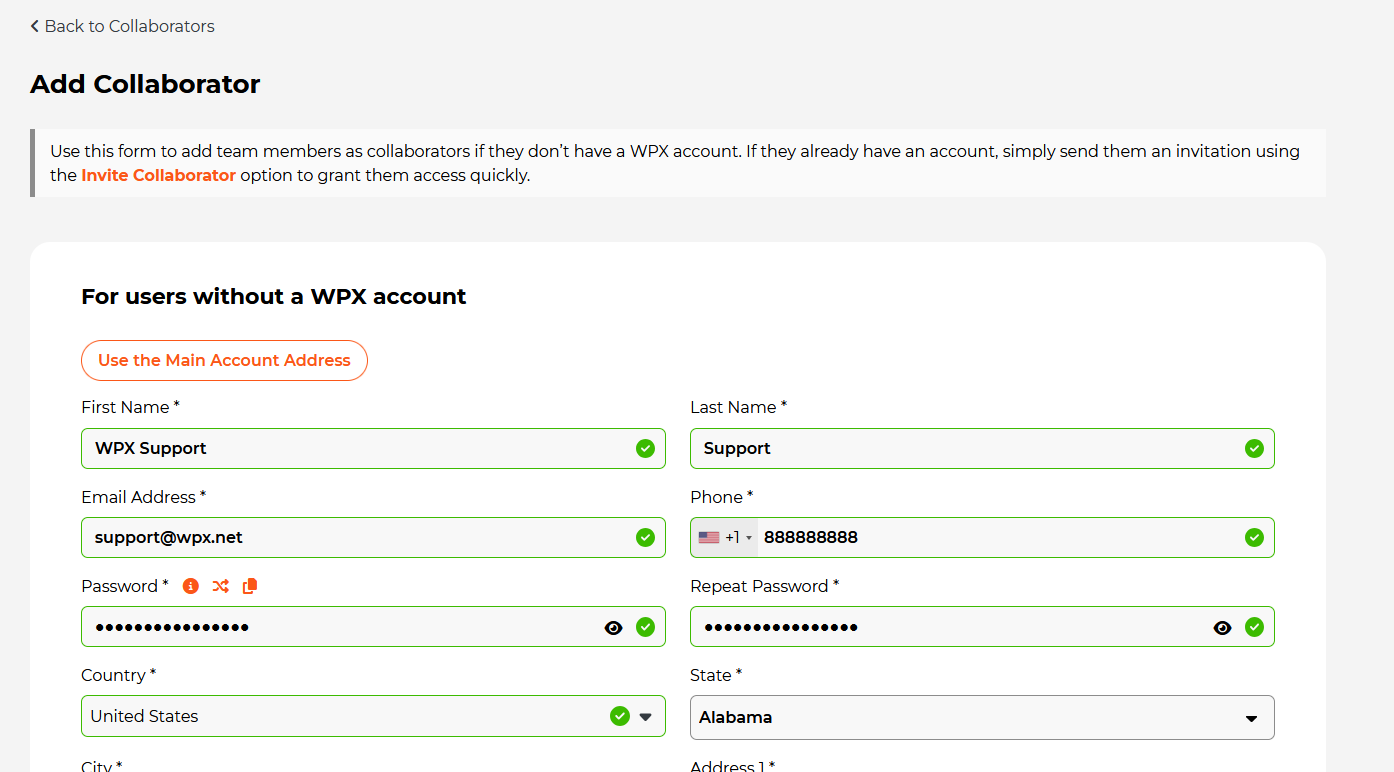
Step 4. Control Access
By default, collaborator privileges are set to ‘None.’ To grant specific access, select and configure the appropriate privileges.
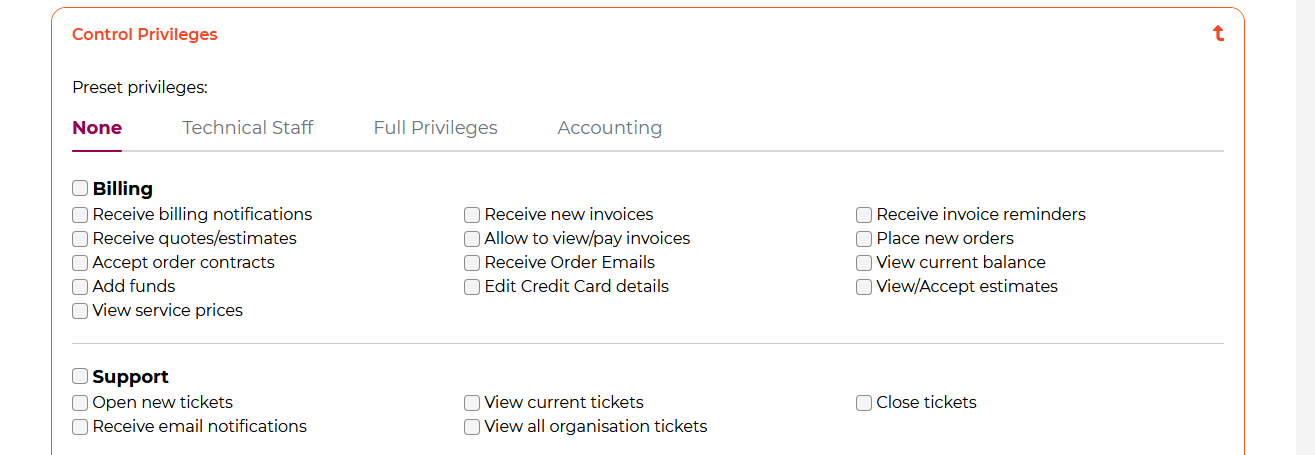
To make things easier, we have added a few default setups with predefined settings. These will cover the most common Contact types;
- Technical Staff: If you are planning to add a developer to the site, this option will be the best one for you. The Technical Staff template will allow the contact to access website files and databases so that the developer can upload/edit any updated content that is assigned to them.
- Full Privileges: The contact has full access to the account and services just like the owner of the account.
- Accounting: The contact can receive billing notifications, with the ability to pay invoices, place orders, view the current balance, and edit Credit Card details.
The Collaborator will be able to open new tickets, receive email notifications, and view the current tickets, but if you just want him to have access to the files and databases of the site, then you can select only the privileges for Databases and File Manager.
When you are done with the account information, click on the Create button and provide access to your WPX account to your Developer, Tech person, etc.
Switch Accounts
You can log in as any of your collaborators who do not have a WPX account.
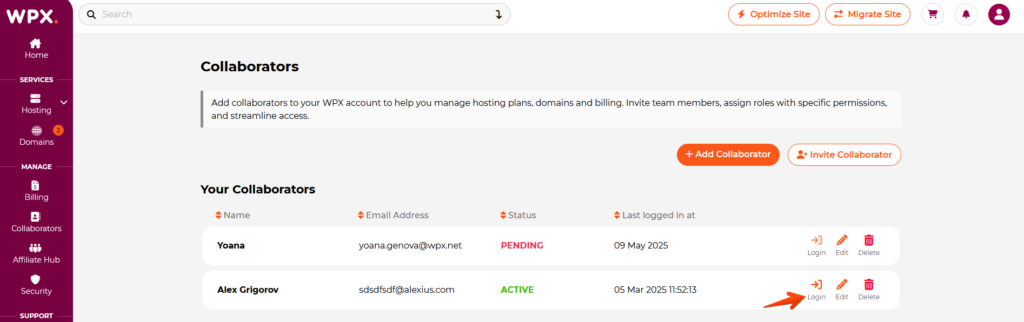
You can also edit the privileges of your Collaborators and delete them at any point.
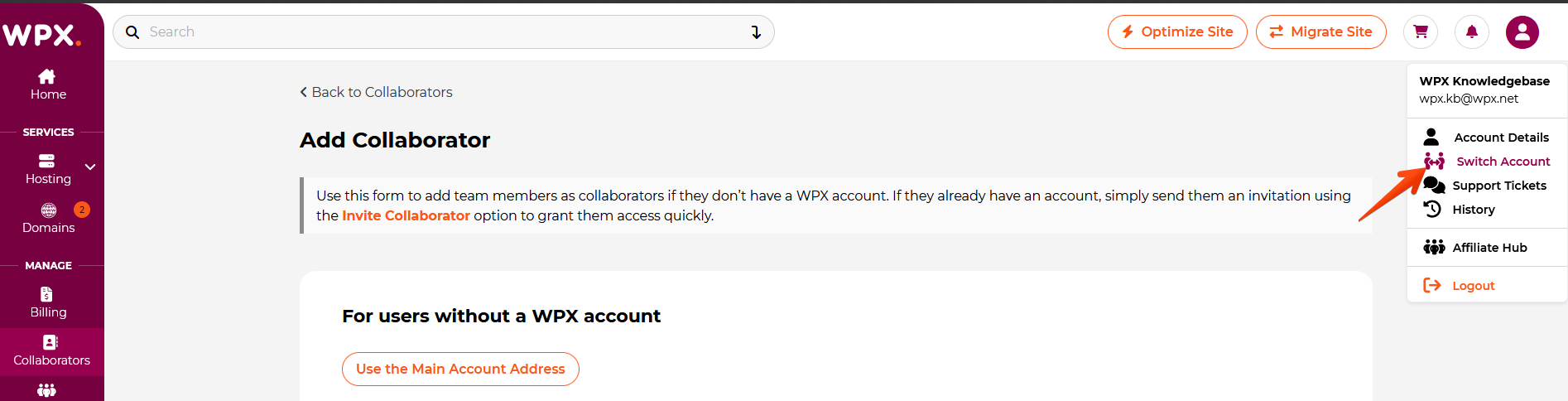
If you’re a Collaborator to a WPX user, you can switch between accounts as shown here:
If you get stuck with any function discussed here, please contact WPX Support via live chat (use the bottom right-hand widget!) and they will usually respond and help within 30 seconds or less.