f you’re locked out of your WordPress dashboard or need to reset a user password manually, you can do it through the database using phpMyAdmin.
This guide will show you step by step how to securely change a WordPress admin (or any user) password directly via your site’s database in the WPX Control Panel.
Step 1. Log in to your WPX account
Begin by logging into your WPX account. You can do this by visiting the WPX login page.
Step 2. Go to Control Panel
Once logged in:
- Locate your hosting plan in the WPX client area.
- Click the Control Panel button next to the plan you wish to manage.

Step 3. Open phpMyAdmin
In the Control Panel:
- Select Databases.
- Then click on the phpMyAdmin button to open it.

Step 4: Change the WordPress password
- In phpMyAdmin, select your site’s database from the left-hand menu.
- Find and click on the
wp_userstable (the prefix may vary, e.g.,wpx_usersorsubdomain_users). - Locate the user whose password you want to change.
- Click the Edit button next to that user’s row.

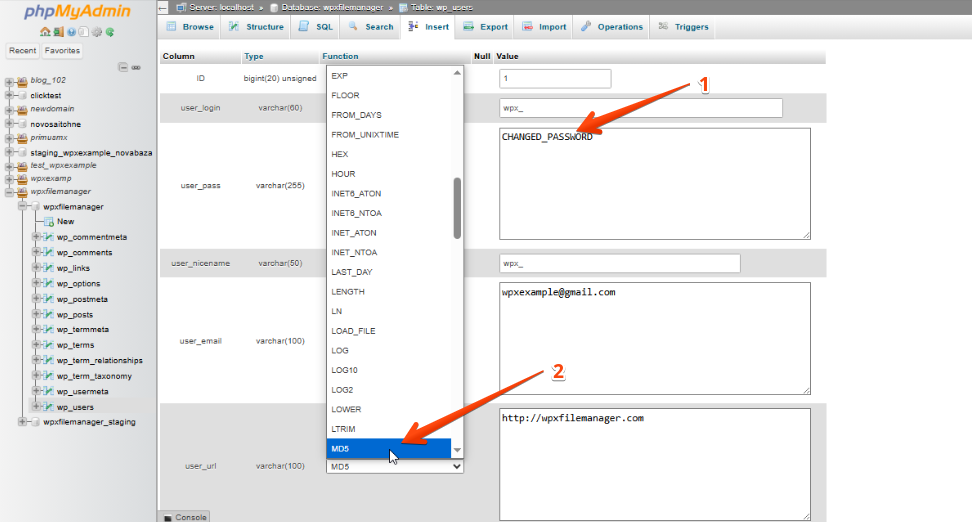
In the user_pass row:
- Enter your new password in the
Valuefield. - Select MD5 for encryption.
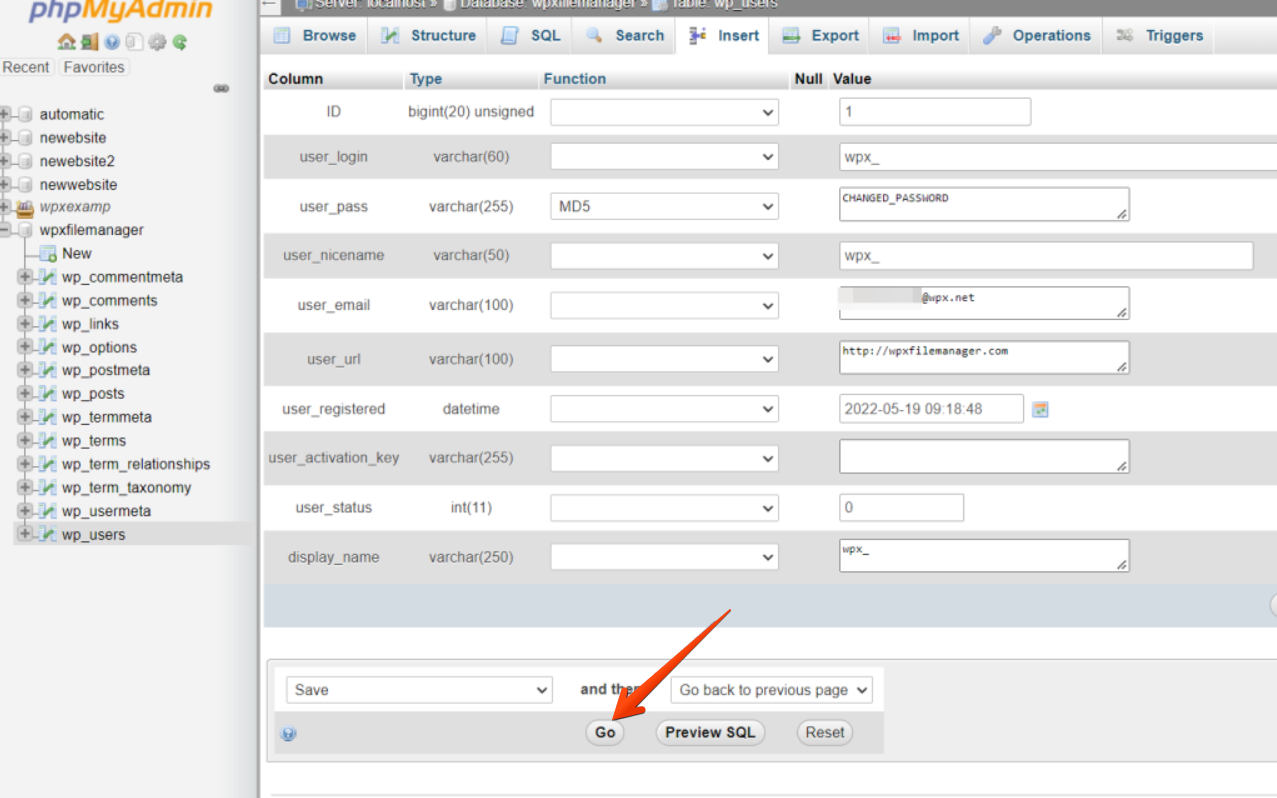
Scroll down and click the Go button to save the changes.
If you get stuck with anything discussed on this page, please get in touch with the WPX Support Team via live chat (use the bottom right-hand widget), and they will respond and help within 30 seconds or less.