When updating a website, your browser might still load old files, which can cause issues like outdated forms appearing. This happens because browsers store files in a “cache” to speed up loading times. However, cached files can conflict with updates.
Clearing your browser’s cache and cookies is often the first step in fixing these problems. In this article, we’ll show you how to do that for your specific browser.
How to Force Refresh your page?
Before clearing your entire browser cache, try a quick trick—force refresh the page. This reloads the current page without using cached files, but it won’t affect the rest of your browser cache.
You can do this using simple keyboard shortcuts:
- Google Chrome and Firefox on Windows Devices:
Press Ctrl+F5 - Google Chrome or Firefox on Mac Devices:
Press Command + Shift + R - Safari:
Press Command + Shift + R
How to clear the cache and cookies on Google Chrome?
Clearing the cache and cookies in Google Chrome is super easy and fast; you just need to open your browser and click the More button (1) at the top right. Then you need to click on Delete browsing data (2).

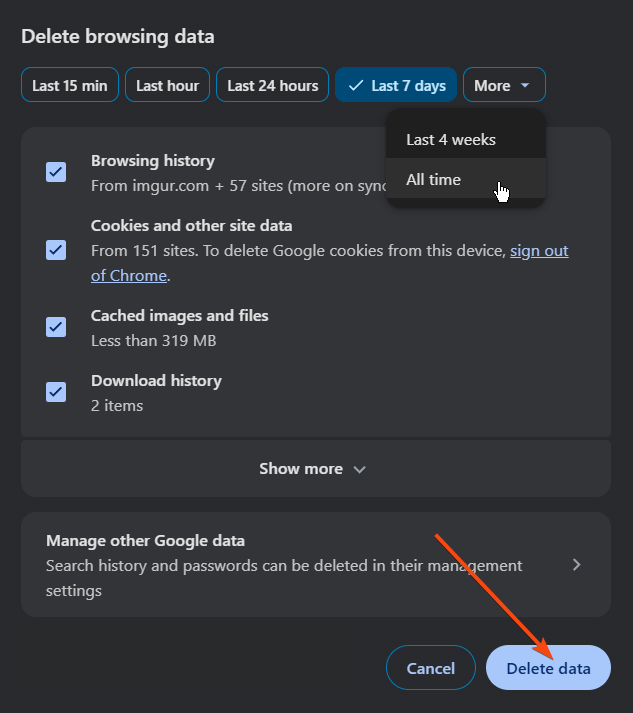
Once you have clicked on Delete browsing data, a pop-up window will appear on your screen. At the top, you will be able to choose the time range. To delete everything, select All time.
Next to “Cookies and other site data” and “Cached images and files,” check the boxes and click Delete data.
Once you clear your browser cache, you can view the new changes to your website.
How to clear the cache and cookies on Mozilla Firefox?
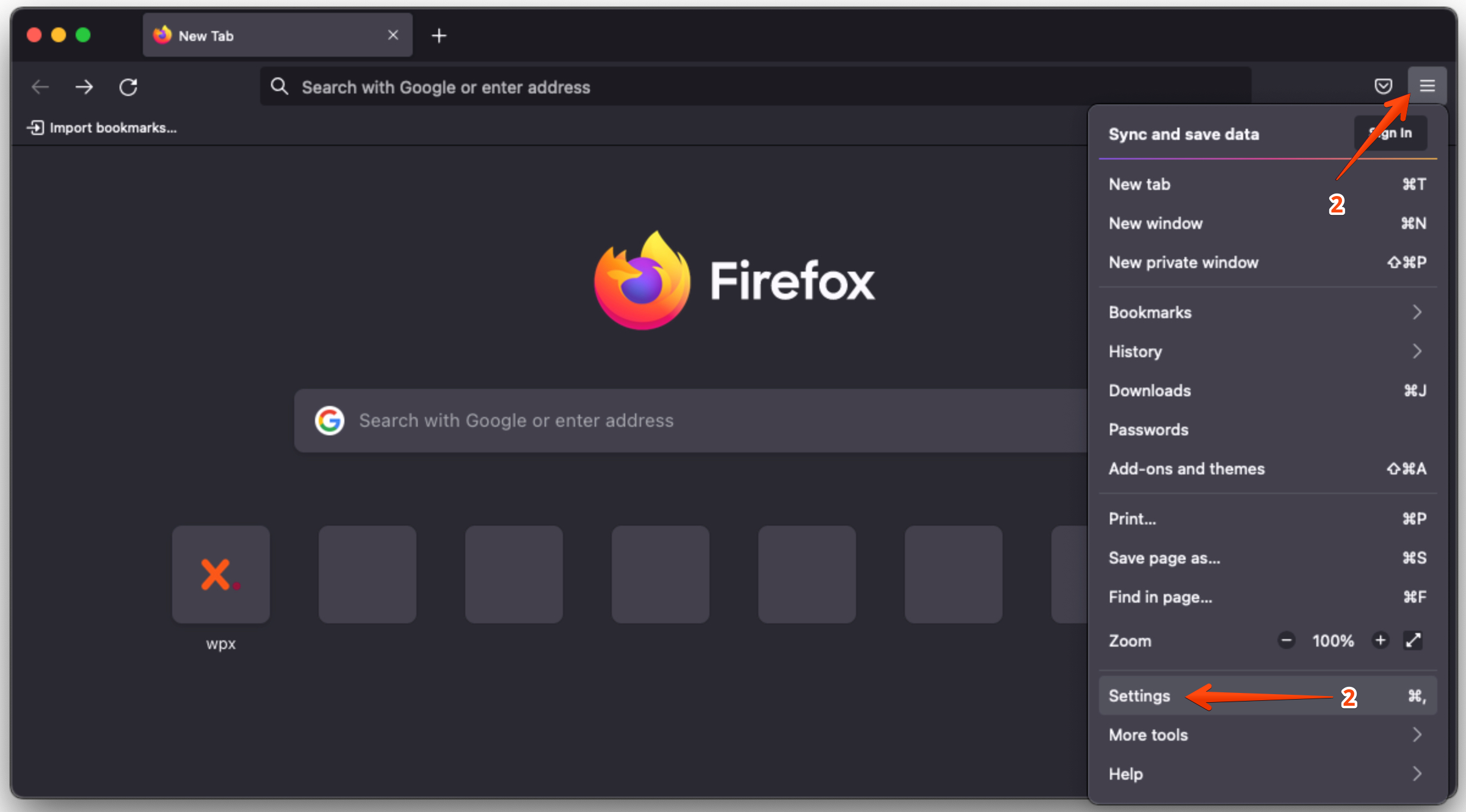
To clear your cookies and cache on Firefox, click the Application Menu button(1), which is located on the top right. After that, you need to click on Settings(2).
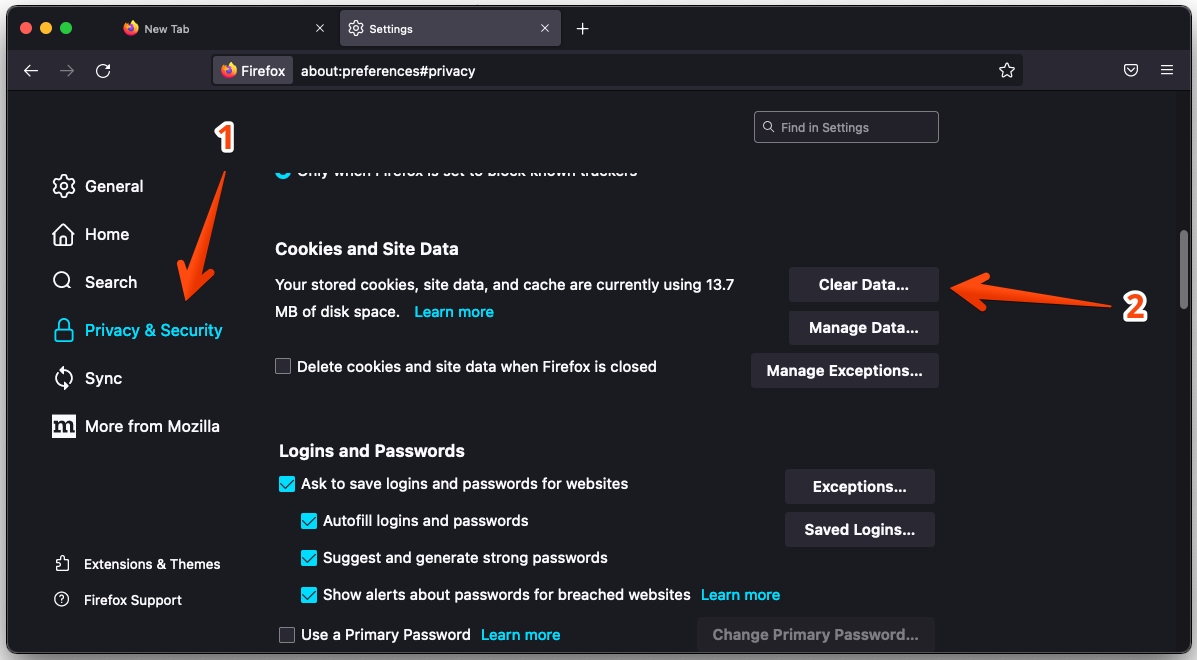
On the left side, you will see Privacy & Security panel(1), click it. After that, in the Cookies and Site Data section, you need to select the Clear Data button(2).
Next to “Cookies and Site Data” and “Cached Web content,” check the boxes and click Clear.
How to clear the cache and cookies on Safari?
It’s a straightforward process to clear history/cookies and the cache in Safari on your Mac device. You just need to open the browser, in the menu bar, which is located on the top left of your screen, click Safari(1). At the bottom of the drop-down, choose History(2).
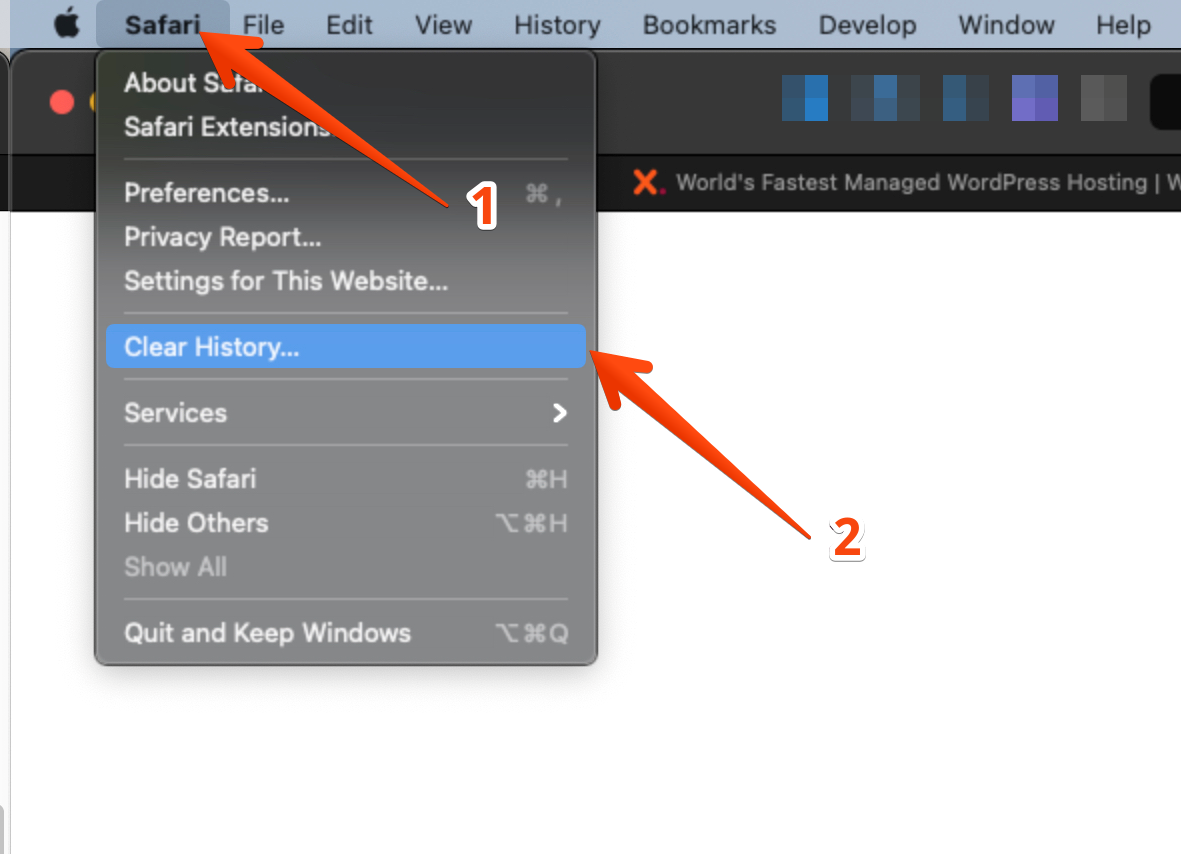
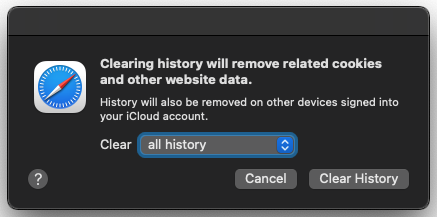
Once you have clicked on the Clear History button, a pop-up window will appear on your screen. Use the drop-down menu to pick what timeframe you want to clear history, cache, and cookies from Safari:
Stuck at any point? Don’t worry, just click the live chat widget in the bottom-right, and one of our support agents will assist you in under 30 seconds.