Setting up your free business email box with WPX is quick and easy. In this step-by-step guide, we’ll show you how to create an email account for one of your hosted websites.
Step 1. Log in to your WPX account
Begin by logging into your WPX account. You can do this by visiting the WPX login page.
Step 2. Go to Control Panel
Once logged in:
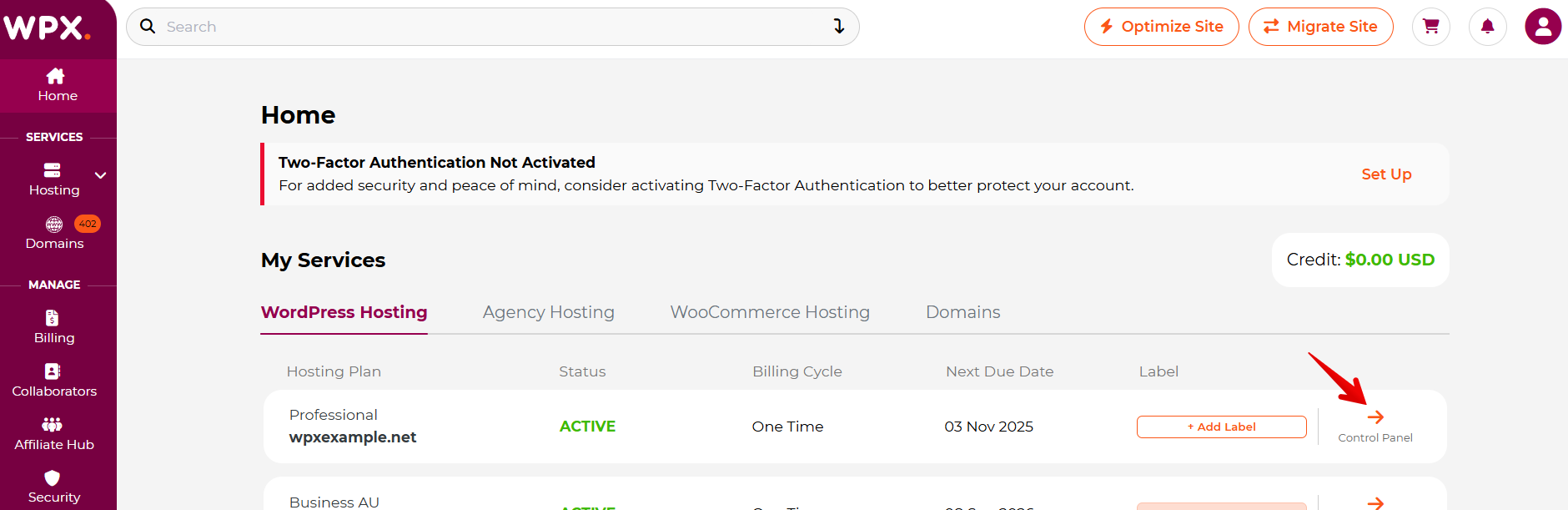
- Locate your hosting plan in the WPX client area.
- Click the Control Panel button next to the plan you wish to manage.
Step 3. Go to the Emails menu
In your Hosting Panel:
- Click on the Emails tab.
- Then click the + Create Email Box button.

Step 4: Enter Email Account Details
In the dropdown window, configure the settings for your new email account.
Here’s what you can do:
- Choose the email address name (e.g.,
info@yourdomain.com). - Set a password or generate one automatically using the Generate Password button.
- Limit disk space for this mailbox if needed (optional, but helpful for managing storage).
- Create aliases or set a catch-all (optional and can be updated later).
- Set up email forwarding if you want messages sent to this account to go to another address.
Once everything is filled out, click Create to finish.

Important Notes
- WPX email boxes count toward your hosting plan’s disk space. Limiting storage per mailbox is recommended, especially if you plan to create multiple accounts.
- Our built-in email system is great for light to moderate use. However, for business-critical or high-volume email communication, we highly recommend using a professional email solution like Google Workspace or Zoho Mail. We’ll even help you integrate it and automatically install the necessary DNS records in just a few clicks!
Stuck at any point? Don’t worry, just click the live chat widget in the bottom-right, and one of our support agents will assist you in under 30 seconds.