If you need to permanently remove a database or simply replace its content with new data, this guide will walk you through two methods:
- Deleting the entire database from your hosting account
- Dropping the database (removing its contents) to import fresh tables later
Step 1. Log in to your WPX account
Begin by logging into your WPX account. You can do this by visiting the WPX login page.
Step 2. Go to Control Panel
Once logged in:
- Locate your hosting plan in the WPX client area.
- Click the Control Panel button next to the plan you wish to manage.

How to delete a database?
In the Control Panel:
- Select Databases.
- To delete the database, click the Delete button next to it.

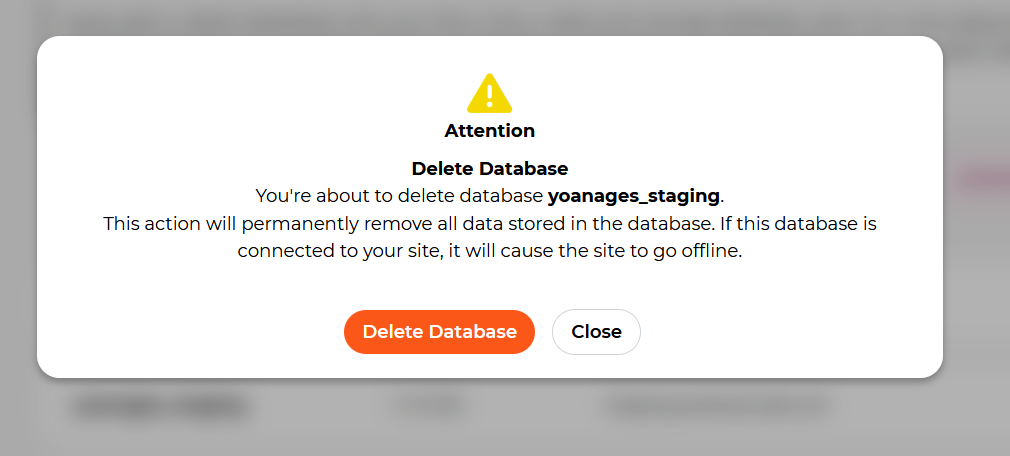
A confirmation popup will appear. Click Delete Database to confirm the action.
How to empty a database (drop)?
In the Control Panel:
- Select Databases.
- Then click on the phpMyAdmin button to open it.

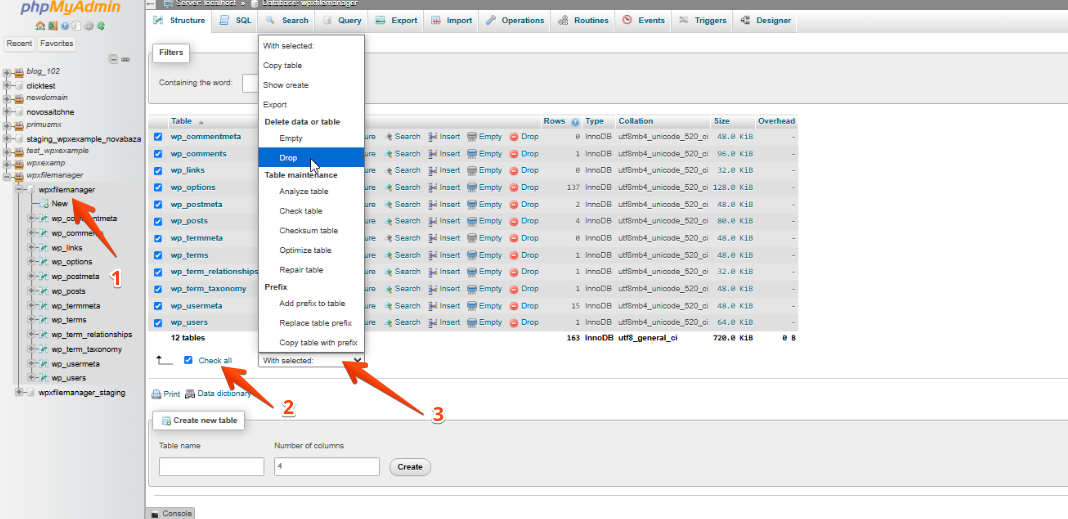
- In phpMyAdmin, select the target database from the left-hand sidebar.
- Check the box at the bottom to Select All tables.
- From the With selected drop-down menu, choose Drop.
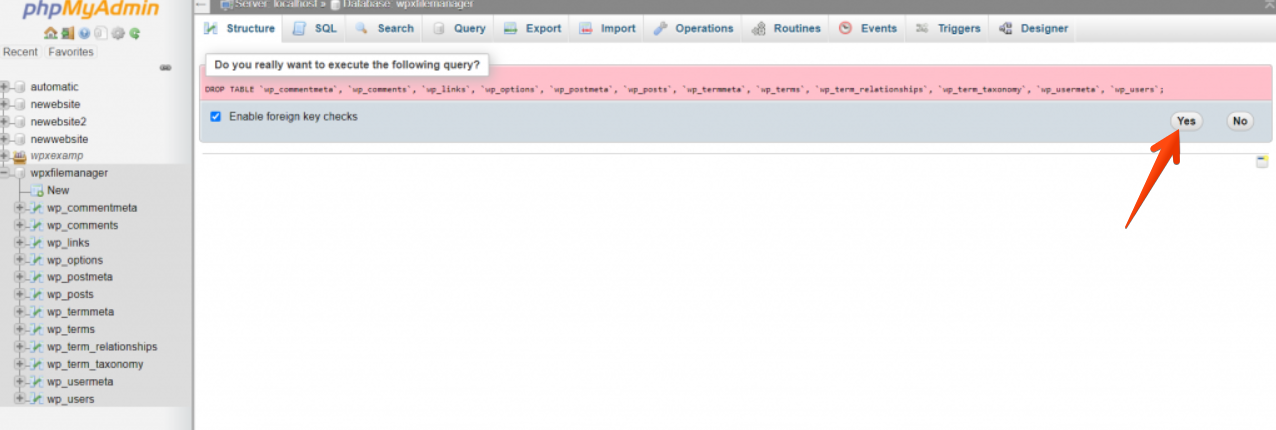
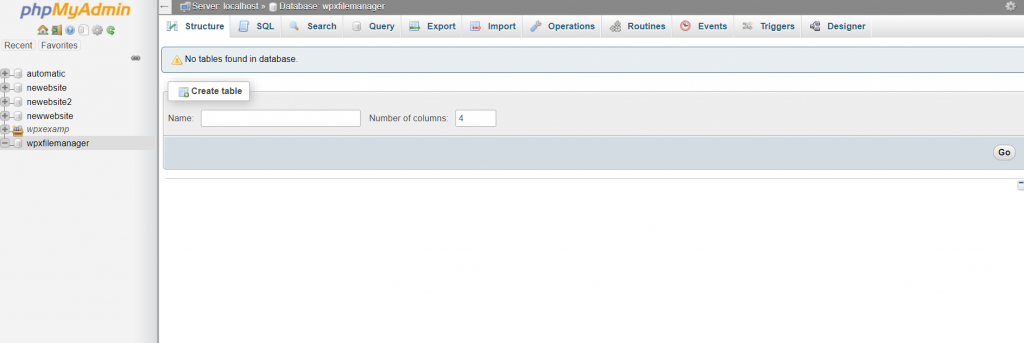
A confirmation window will appear. Click Yes to confirm that you want to delete all data from the database.
Stuck at any point? Don’t worry, just click the live chat widget in the bottom-right, and one of our support agents will assist you in under 30 seconds.