79% off your 1st month on monthly WordPress hosting plans. Worst case: you try the best.
  1. Home
  2. Hosting Tools
  3. WPX XDN
  4. How to Enable/Disable WPX XDN on Your Websites

How to Enable/Disable WPX XDN on Your Websites

This article is a step-by-step guide to help you enable/disable WPX XDN on your websites.

Step 1. Log in to your WPX account

Begin by logging into your WPX account. You can do this by visiting the WPX login page.​

Step 2. Go to Control Panel

Once logged in:

  1. Locate your hosting plan in the WPX client area.
  2. Click the Control Panel button next to the plan you wish to manage.
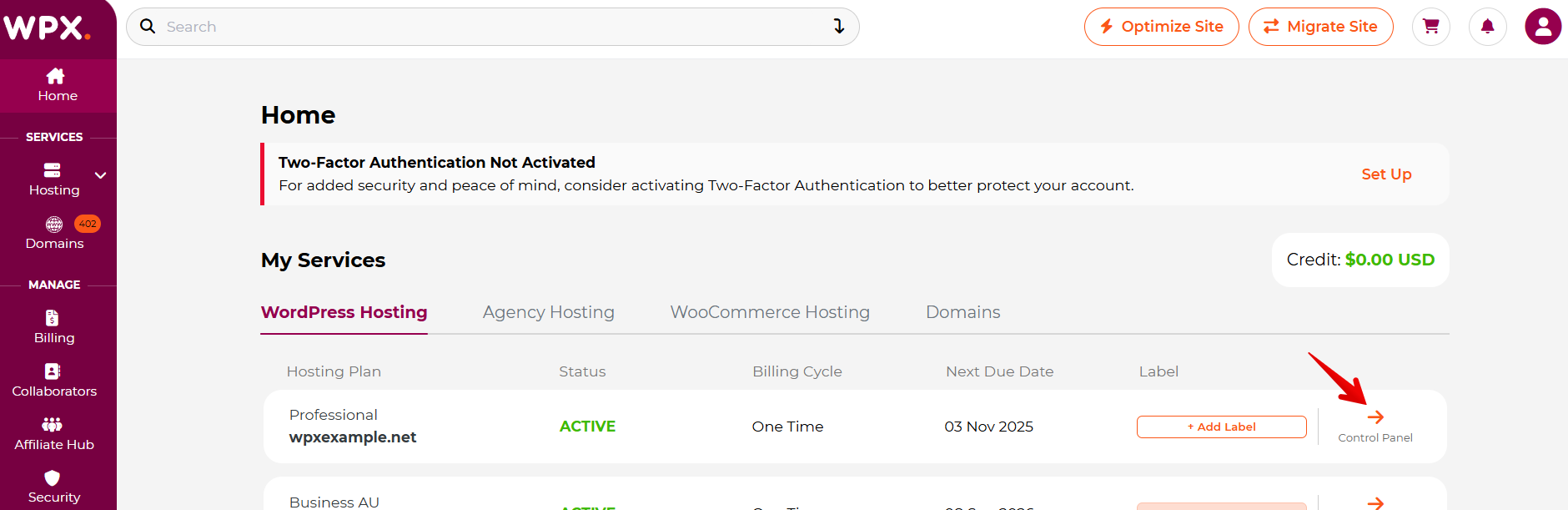
If you have more than five hosting plans of the same type (WordPress, Agency, or WooCommerce), not all may appear on the homepage. Use the WordPress Hosting, Agency Hosting, or WooCommerce Hosting tab in the left-hand menu to find your service.

Step 3. Enable/ Disable WPX XDN

Within the Control Panel:

  1. Select WPX XDN
  2. Then, under Status, click the toggle to enable/disable XDN for the specific site.
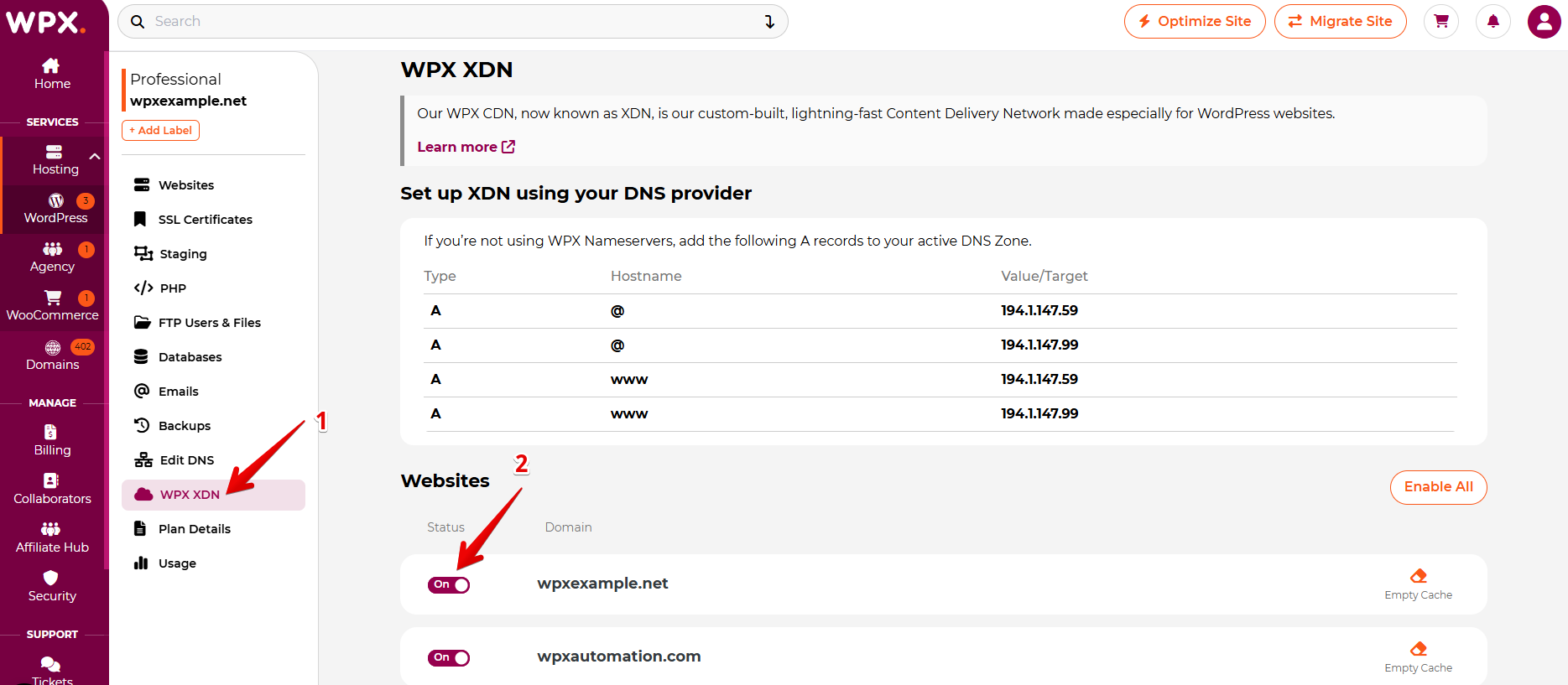
After activating the XDN, it will take approximately ONE HOUR for your website’s content to be copied and distributed throughout the XDN network. Deactivating it will disable your website’s XDN caching.

Stuck at any point? Don’t worry, just click the live chat widget in the bottom-right, and one of our support agents will assist you in under 30 seconds.

Was this article helpful?

Related Articles

Need Support?
Can’t find the answer you’re looking for? Don’t worry we’re here to help!
Contact Support