A traceroute is a diagnostic test that you perform on your computer. The traceroute results display the path across the network (Internet) that data takes from your computer to a destination. Usually, that destination computer will be a web server, and the traceroute is used to help determine why a website is slow or unresponsive.
This article will provide information on how to properly use traceroute on your computer and the difference, depending on the operating system – Windows or Mac OS.
If you are a Windows user:
Step 1. Click the Windows icon and type “cmd”.
First, you need to click on the Windows icon (1) on the down-left corner of your screen. Then you need to type “cmd” in the field (2) and click on the “Command Prompt” link or icon (3):

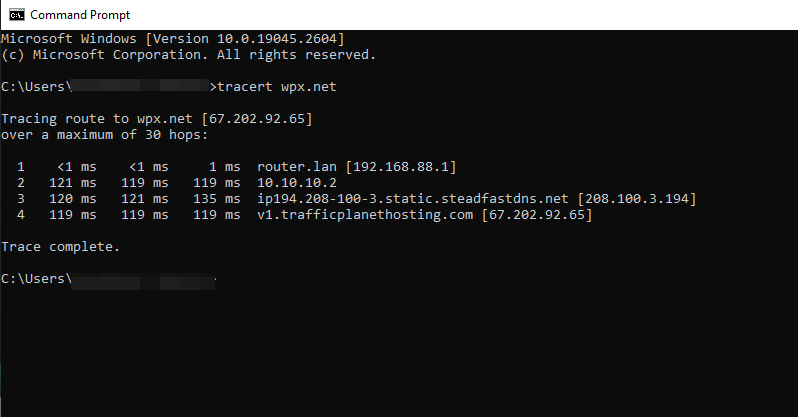
Step 2. Type “tracert” followed by the domain name.
The traceroute will run and the results will be displayed as you see on the screenshot:
If you are a Mac user:
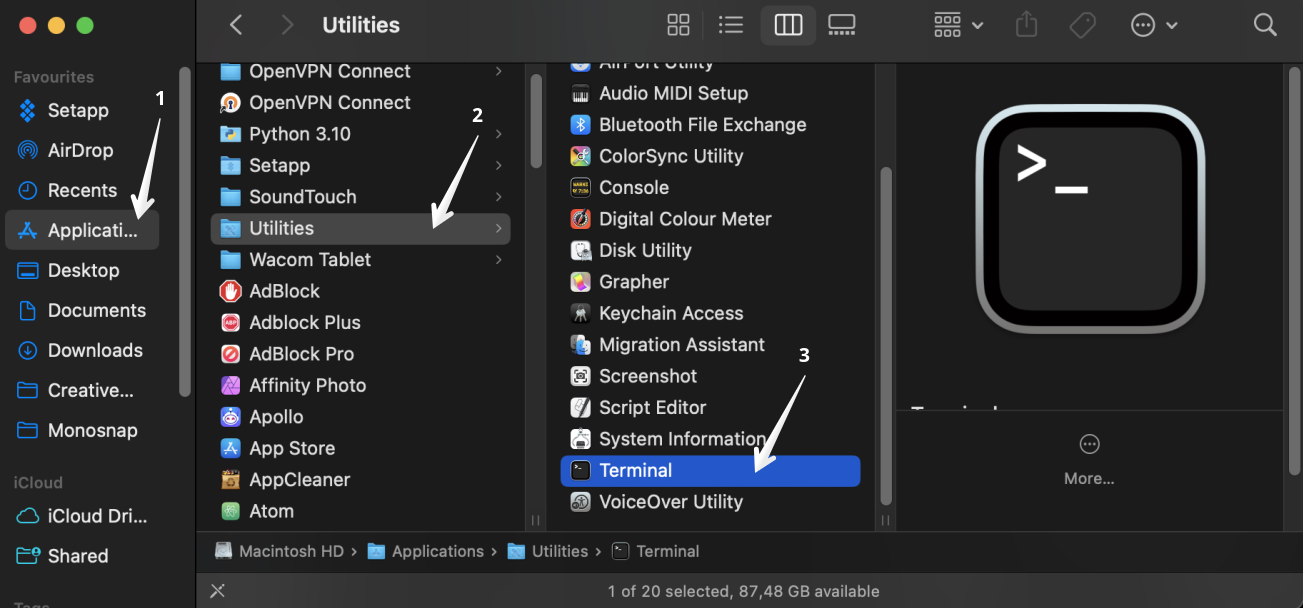
Step 1. Launch Terminal.
You need to go to Applications (1), Utilities (2) and find the Terminal (3):
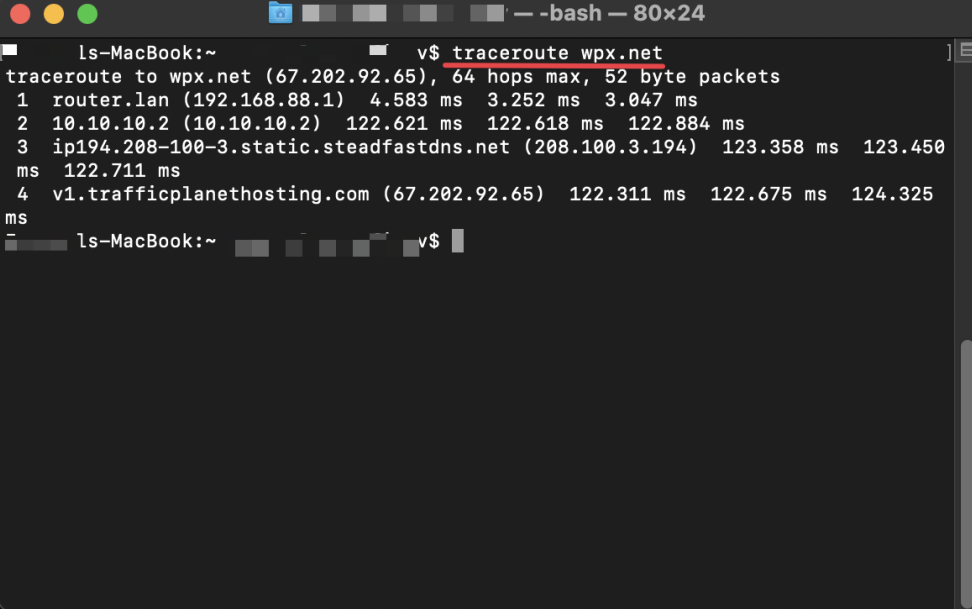
Step 2. Enter the word “traceroute”, followed by a space, and then the domain name for which you want to run a traceroute.
The traceroute will run and the results will be displayed as you see on the screenshot:
Stuck at any point? Don’t worry, just click the live chat widget in the bottom-right, and one of our support agents will assist you in under 30 seconds.