Have you ever wanted your WordPress posts to look cleaner and be more readable? That’s where indentation comes in. Indenting text can make your writing look neat and professional.
Indenting in WordPress isn’t always straightforward, though, especially since editors have changed so much over the years. But don’t worry, we’ll show you how to resolve this common WordPress issue and how to indent your text easily using the Block Editor (Gutenberg) in this guide. We’ll also share other simple ways to do it.
Let’s talk about how indentation works and how you can use it to make your content look better with just a few clicks.
What is indentation in WordPress?
Indentation is moving text slightly to the right, usually at the start of a paragraph. It indicates breaks, quotes, or shifts in thought to help readers follow along.
In theory, it’s as simple as pressing the ‘Tab’ key. But what about WordPress? Things work a bit differently. Most themes and editors don’t apply paragraph indentation by default; the options aren’t always obvious.
Here’s what you need to know:
- Paragraph indentation: This adds space at the start of a line.
- Block indentation: This shifts a whole block of text to the right.
- Visual spacing: Some users add blank space to fake indentation, but that’s not great for SEO or mobile readability.
WordPress also has two main editors: the Classic Editor and the Block Editor (Gutenberg). Each has its own formatting methods. We’ll start with Gutenberg in this guide since it’s now the default editor for most WordPress sites.
How to Indent text in WordPress Block Editor (Gutenberg)
The Block Editor, which is also called Gutenberg, made content creation easier with a more visual interface. You can add different “blocks” for things like paragraphs, pictures, and headings. But indentation tools aren’t prominently featured.
Here are the best ways to indent text in Gutenberg:
1. Use the Classic Block option
The Block Quote block is one of the easiest ways to create an indented effect.
Steps:
- Place your cursor in the paragraph you want to indent.
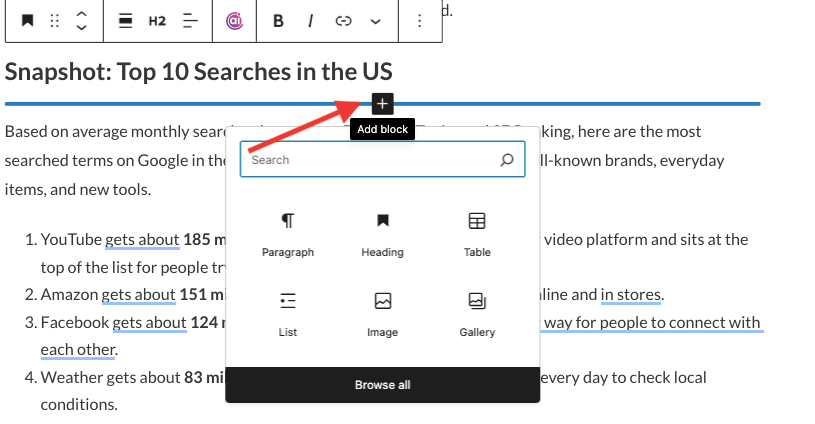
- To add a new block, click the “+” icon.

- Search for the “Classic” block.

- This will reveal the formatting controls. Select the increase/decrease indent in the toolbar.

Pro Tip: You can customize the appearance of block quotes in some themes through theme settings or custom CSS.
2. Use the Spacer Block to add indentation
The Spacer Block can be helpful if you want to adjust the layout and spacing.
Steps:
- To add a new block before your paragraph, click the “+” button.
- Pick the “Spacer” block.
- Adjust the height to create visual spacing.
You can also shift your paragraph right by placing it in a narrower column, aligned center or right. It’s not true indentation, but it can look effective.
3. Use the “Group” Block with some space around it
This method works if your theme supports block customization
Steps:
- Choose the block of text you want.
- Click the three-dot menu (⋮) and select ‘Group.’
- In the sidebar for settings, click on “Dimensions” and then “Padding.”
- Add left padding (e.g., 30px) to shift the text right.
This lets you control exactly how far the text is indented, and it works across devices, making it good for responsive layouts.
How To Indent Text in WordPress In The Classic Editor
You’re not alone in using the Classic Editor! Many site owners prefer its simple, text-based layout. It’s easy to indent text in the Classic Editor, as long as the right buttons are visible.
Use the buttons to indent and outdent
You can find indenting tools right on the toolbar of the Classic Editor. Here’s how:
- Select the text you want to indent.
- On the toolbar, look for the buttons that say “Increase Indent” (→) and “Decrease Indent” (←).
- To indent, click the right arrow. Click the left arrow to remove the indent.
That’s all! This method shifts your whole paragraph to the right, similar to a block indent in Microsoft Word. The Classic Editor may feel ‘old school,’ but it’s fast and effective.
Advanced Method: Adding Indent with Custom CSS
Want full control over your indentation? Custom CSS can help. This method works well for theme developers, designers, or anyone comfortable with code.
1. Use the “Additional CSS” Panel
You can add custom styles in WordPress without editing theme files. Use this method to indent paragraphs site-wide.
Steps:
- In your WordPress dashboard, click on “Customize” under “Appearance.”
- Click on “Additional CSS.”
- Paste the following code, then click Publish.
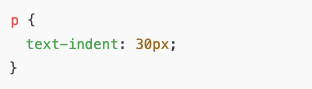
This code adds a 30-pixel indent to all paragraphs (<p> tags) site-wide.
Want to target just one section? Apply a custom class like this:
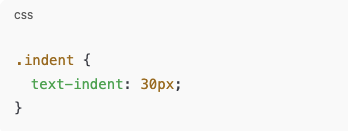
Then, in your HTML or block editor:

2. Inline CSS with HTML Block (for quick changes)
To indent a single paragraph without affecting the whole site:

Remember that excessive inline styling can clutter your HTML and make editing harder. Use it sparingly.
Conclusion
Indentation may seem minor, but it can greatly impact the look and feel of your content. Now you can confidently control text layout in several ways, using the Block Editor, the Classic Editor, or custom CSS.
The most important thing is to keep it simple, consistent, and helpful. Adding some formatting can make your posts easier to read, give them a clean, professional look, and help them stand out visually. And remember, there’s almost always a plugin or workaround if something looks off.
Keep formatting and exploring, and your content will shine!
Frequently Asked Questions

You can indent text with the Block Quote block, the Classic Editor’s indent button, or by using custom CSS for more control. Plugins can offer additional options.
To start a new line without starting a new paragraph, press Shift + Enter. Press Enter or Return for a full paragraph break.
For bullet points, click the Increase Indent button in the list block toolbar. To nest bullets in Gutenberg, choose the list and click the indent icon (right arrow).