If you’ve finished working on your Staging site and are now ready to update your Live site, this guide will walk you through the process of merging the two.
By merging your Staging site with the Live site, you ensure that all the latest changes from Staging are added to the Live site, while preserving any new content or updates made directly on the Live site during the development process.
Step 1. Log in to your WPX account
Begin by logging into your WPX account. You can do this by visiting the WPX login page.
Step 2. Go to Control Panel
Once logged in:
- Locate your hosting plan in the WPX client area.
- Click the Control Panel button next to the plan you wish to manage.

Step 3. Merge Staging to Live
It is important to note that merging your Staging site with the Live site will preserve new blog comments and any edited or added Posts and Pages on the Live site. It will also apply changes from the Staging site, such as new plugins or themes, but these will need to be manually activated on the Live site’s WP-Admin page. Any edited Posts or Pages on the Staging site will replace the corresponding ones on the Live site.
- Navigate to the Staging section in your WPX Control Panel.
- Locate the Staging site you want to merge.
- Click the Merge button next to it.
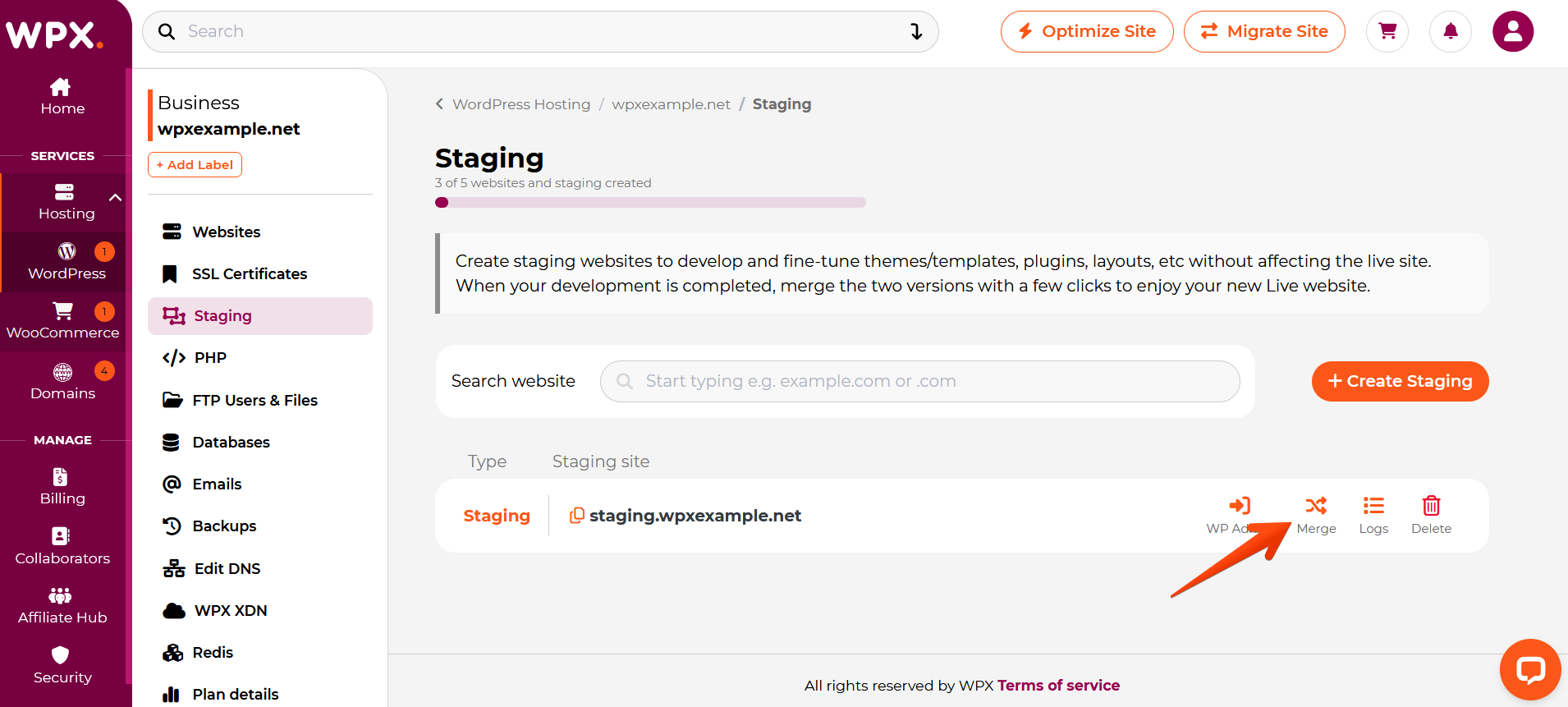
Once you click the Merge button, a new section will appear with the option to create a backup before merging (this is checked by default).
If you have a recent backup of your Live site, simply uncheck the box to skip this step and proceed by clicking the Merge to Live button.

When the merge process starts, a pop-up will notify you that it’s in progress.
You can safely close it and continue working in the panel.


The merge process is now complete, and your live website has been successfully updated. To see the changes, you need to clear your browser cache or view the site in a different browser or Incognito mode.
Keep in mind that your internet connection may also cache the site, so try checking it from another network (e.g., mobile data) or add /?nocache to the URL.
Have more questions? Contact the WPX Support Team through the live chat widget in the bottom-right corner, and they’ll assist you promptly, typically within 30 seconds.