There are many screenshot tools that you can choose from. In this article, we’ll cover the default screenshot software that comes with Windows/macOS and how to use it.
If you’d like to go for more advanced tools, you should consider the following options:
… and many more.
Method 1: Create a screenshot via the LiveChat application
By clicking the + button, you can take a screenshot of any open window on your computer or attach a file directly to the chat.
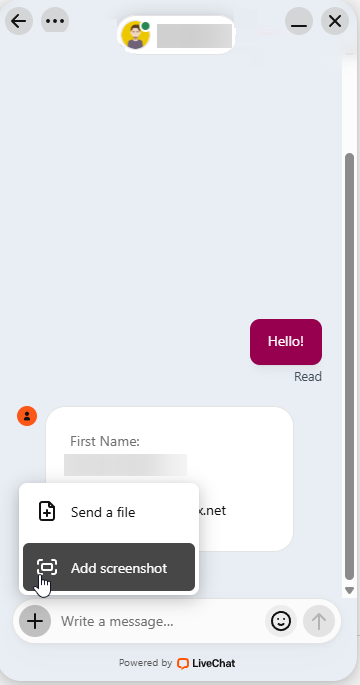
Screenshots are especially helpful for visual issues, as they help our support team better understand the problem you’re experiencing.
Method 2: Take a screenshot using your PC’s built-in Screenshot Tools
How to take a screenshot on Windows?
The first thing you should keep in mind is to capture a specific area that you’d like to share and avoid sharing your entire screen due to security purposes.
Capture a specific area.
If you’d like to capture a specific area on your Windows device, please use the following button combination:
Windows Key + Shift + S
Then drag the crosshair to select the area of the screen to capture.
This will copy the image to the clipboard, and you can paste it anywhere by pressing:
Ctrl + V

Capture the entire screen.
If you still want to capture your entire screen, you can use the following key:
PrtSc (Print Screen)
All you have to do to paste the screenshot anywhere is to press:
Ctrl + V
How to take a screenshot on macOS?
It’s almost the same as with the Windows example shown above. The only thing that differs is the key combinations.
Capture a specific area.
If you’d like to capture a specific area on your macOS device, please use the following key combination:
shift + command + 4
Then drag the crosshair to select the area of the screen to capture.
This will copy the image to the clipboard, and you can paste it anywhere by pressing:
command + V
Capture the entire screen.
If you want to capture your entire screen, you can use the following keys:
command + shift + 3
All you have to do to paste the screenshot anywhere is to press:
command + V
Stuck at any point? Don’t worry, just click the live chat widget in the bottom-right, and one of our support agents will assist you in under 30 seconds.