WPX XDN is WPX’s own high-performance CDN designed to optimize your website’s delivery. But what if you’re already using other popular CDN providers like Cloudflare or Ezoic? Can you still take advantage of WPX XDN?
This article will guide you step-by-step on how to configure WPX XDN alongside Cloudflare or other CDNs, so you get the best of both worlds without any conflicts.
Can WPX XDN work with other CDN Providers?
Yes! WPX XDN can be used alongside third-party CDN services like Cloudflare, provided your DNS setup allows your domain’s A records to point to WPX.
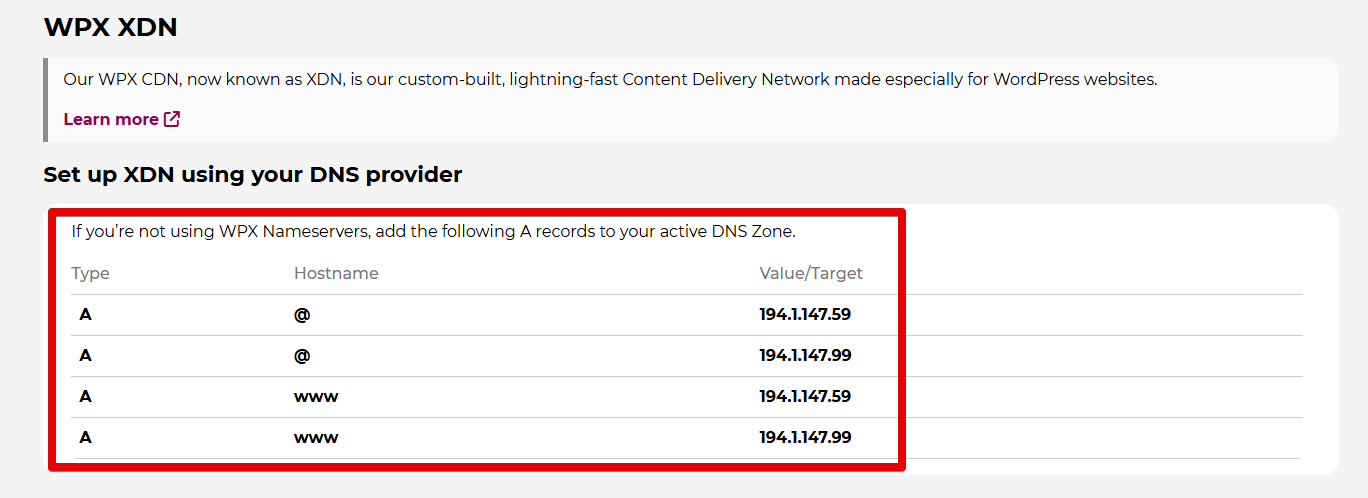
To use WPX XDN, you need to point your domain’s four A records to the IP addresses listed in your WPX hosting plan. If you’re using Cloudflare, you can keep your Cloudflare nameservers and update the A records in your Cloudflare DNS settings to point to WPX. This allows you to keep managing your DNS through Cloudflare while using WPX XDN for an additional layer of performance optimization.
How to set up WPX XDN with Cloudflare?
Follow these steps to configure WPX XDN with Cloudflare:
Step 1: Log In to WPX and Cloudflare
Once logged in, navigate to your WPX Control Panel.
Step 2. Go to Control Panel
Once logged in:
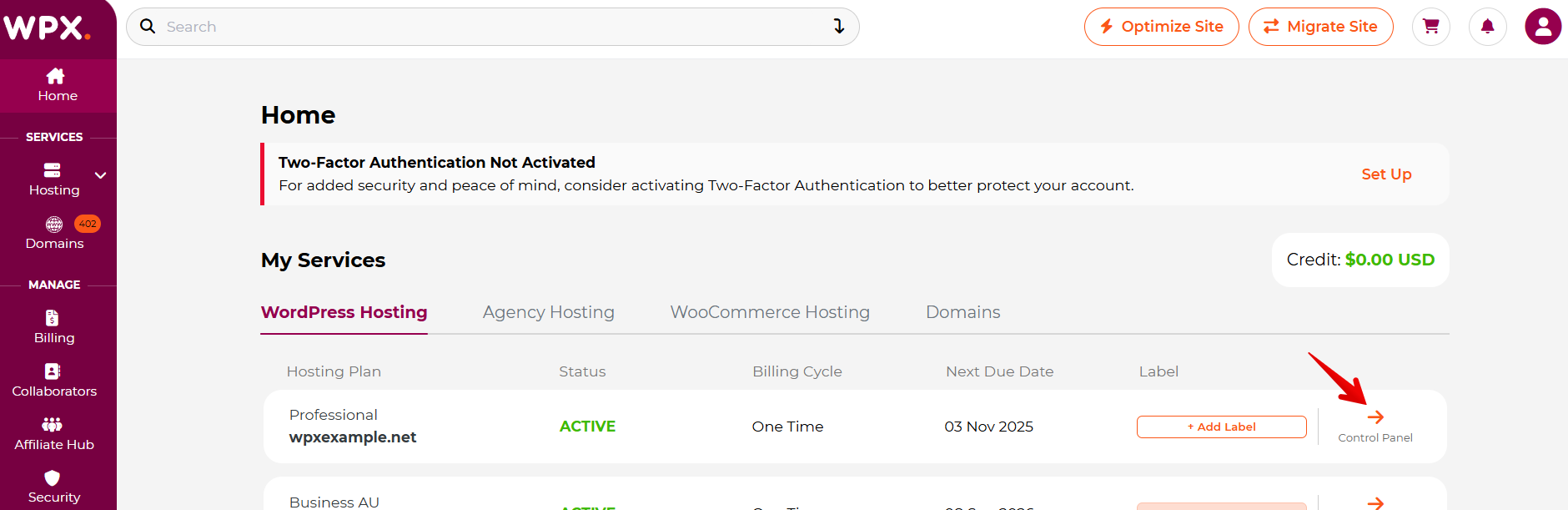
- Locate your hosting plan in the WPX client area.
- Click the Control Panel button next to the plan you wish to manage.
Step 3. Open the WPX XDN menu
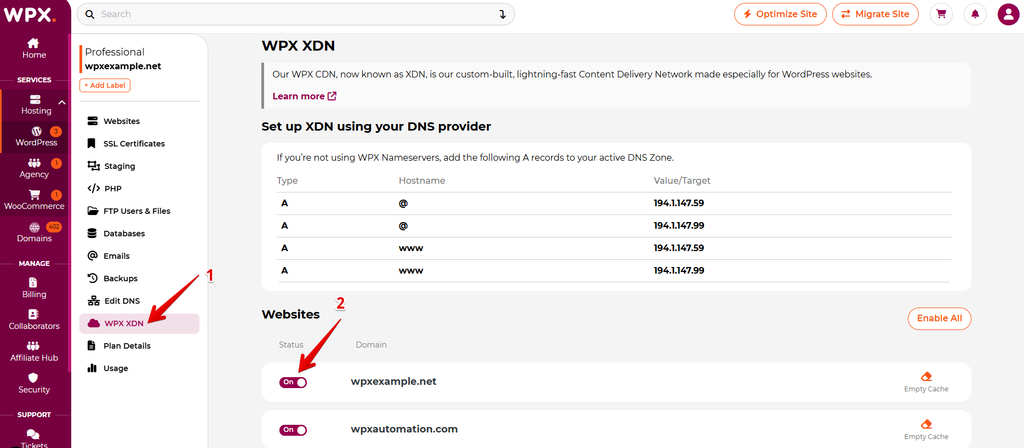
- Select the WPX XDN menu inside the Control Panel.
- Check the Status column to confirm if WPX XDN is enabled for your website.
Locate the 4 custom A records (IP addresses) provided for WPX XDN.
Step 4: Update DNS Records in Cloudflare
In your Cloudflare dashboard, select the website you want to configure, then go to the Records menu under DNS.
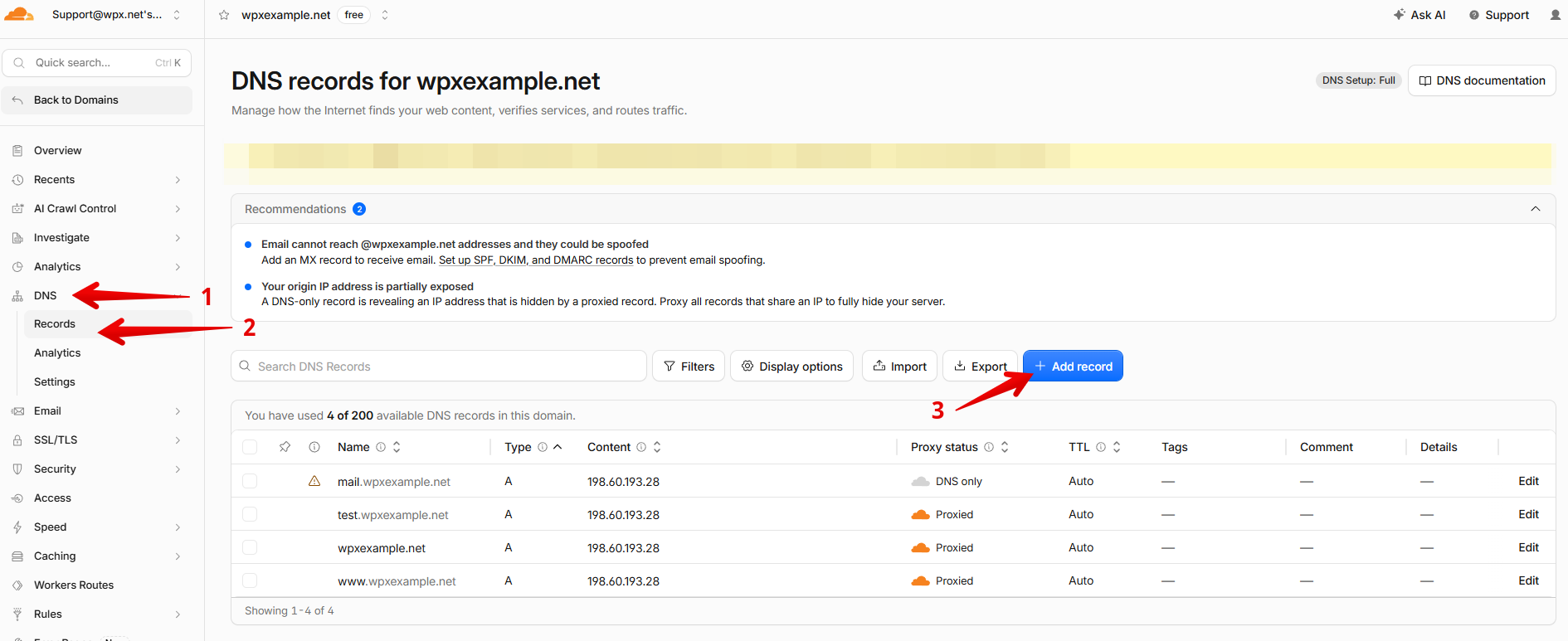
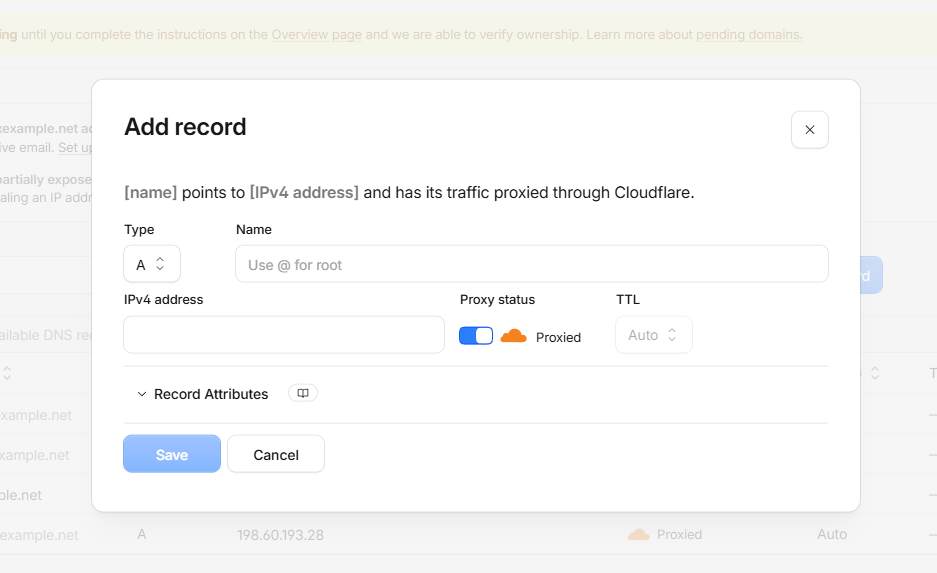
Click Add record, select Type – A for all 4 Records. Then fill in the Name and the XDN IPs. To apply the changes, click Save.
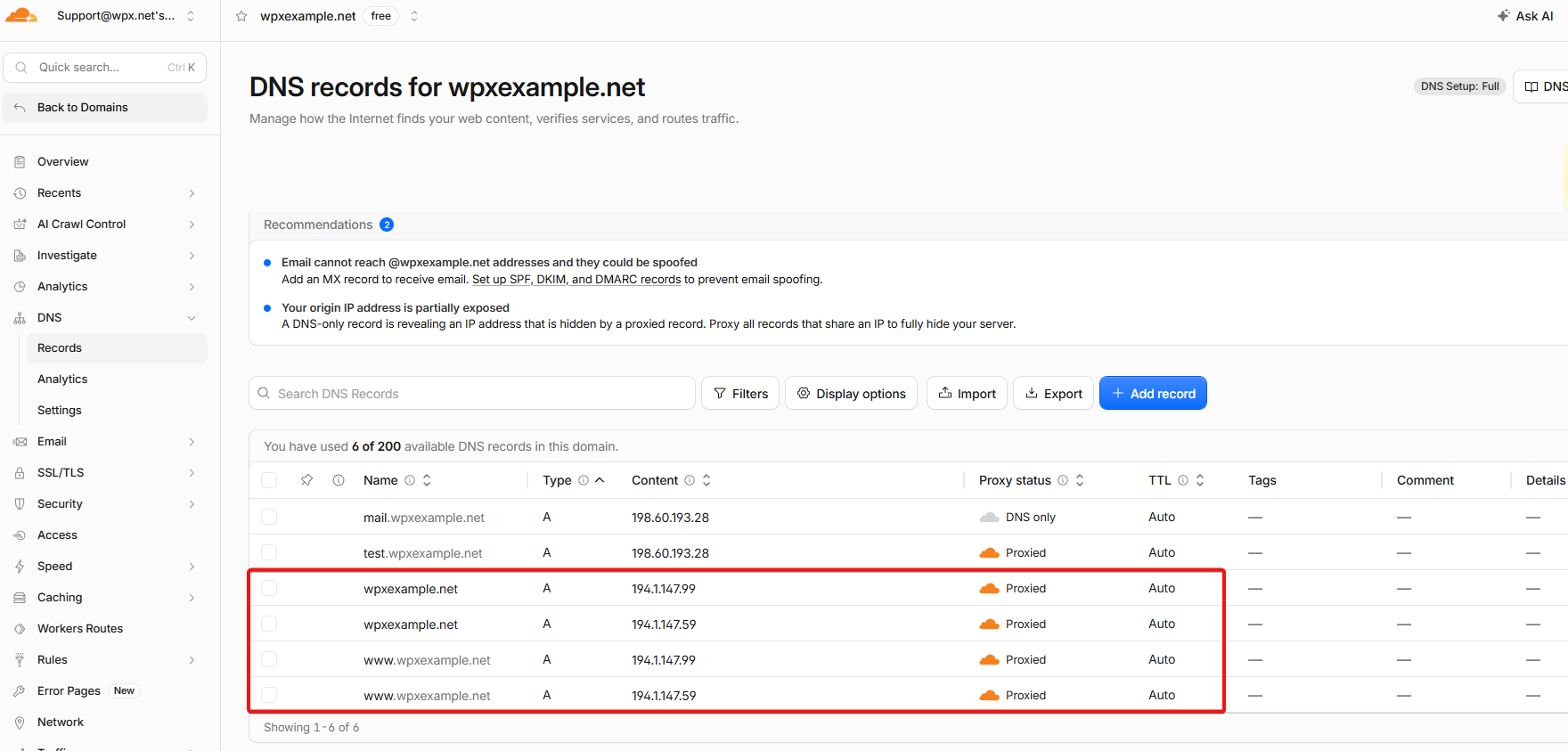
- 2 A records for the root domain (@)
- 2 A records for the
wwwsubdomain
This is how your Cloudflare DNS zone will appear once all 4 A records have been added:
How to use WPX XDN with Cloudflare and Ezoic?
To use WPX XDN alongside Cloudflare and Ezoic:
- Make sure your domain’s NS records point to Cloudflare.
- Create and configure your Ezoic account.
- In Ezoic, navigate to Settings and then Cloudflare

Select Activate via own Account.

Provide your Cloudflare credentials to allow Ezoic access to your DNS.

After activation, go to DNS Settings in Ezoic and add the required WPX XDN A records, just as you would in Cloudflare.
Click the Add DNS Record button and add the same 4 A records.

Stuck at any point? Don’t worry, just click the live chat widget in the bottom-right, and one of our support agents will assist you in under 30 seconds.