Backing up your WordPress site is vital even if WPX performs automatic daily backups, because plugin-generated copies offer flexibility for site transfers or quick restores. This guide walks you through three recommended free plugins: All-in-One WP Migration, Duplicator, and UpdraftPlus.
All-in-One WP Migration
- What it does: Exports your entire site files and database without needing a technical setup.
- Limitations: The free version exports only; to restore via the plugin, you need the paid version.
- WPX workaround: WPX support can restore free-version backups for you, so you don’t need to purchase the plugin.
How to use:
Install and activate via Plugins → Add New. After the installation is complete. Click on the Activate button.
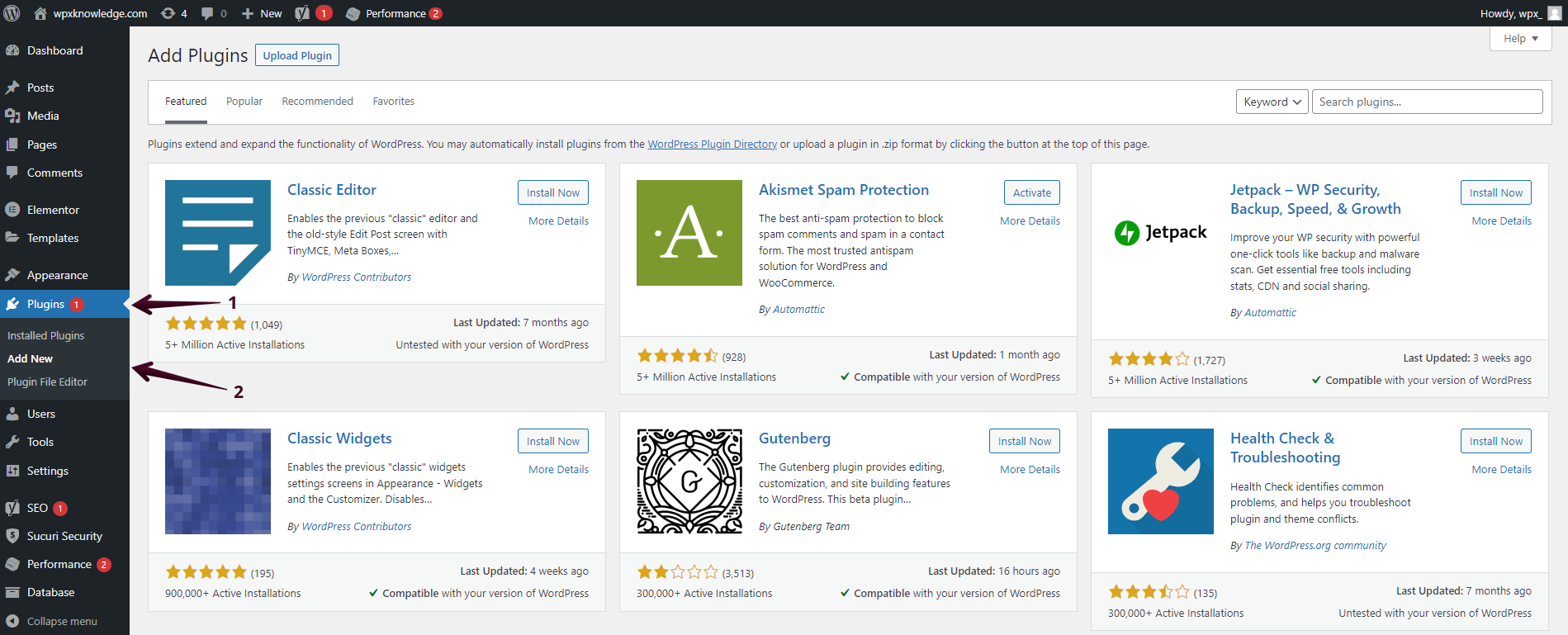

After that:
- Navigate to All‑in‑One WP Migration settings.
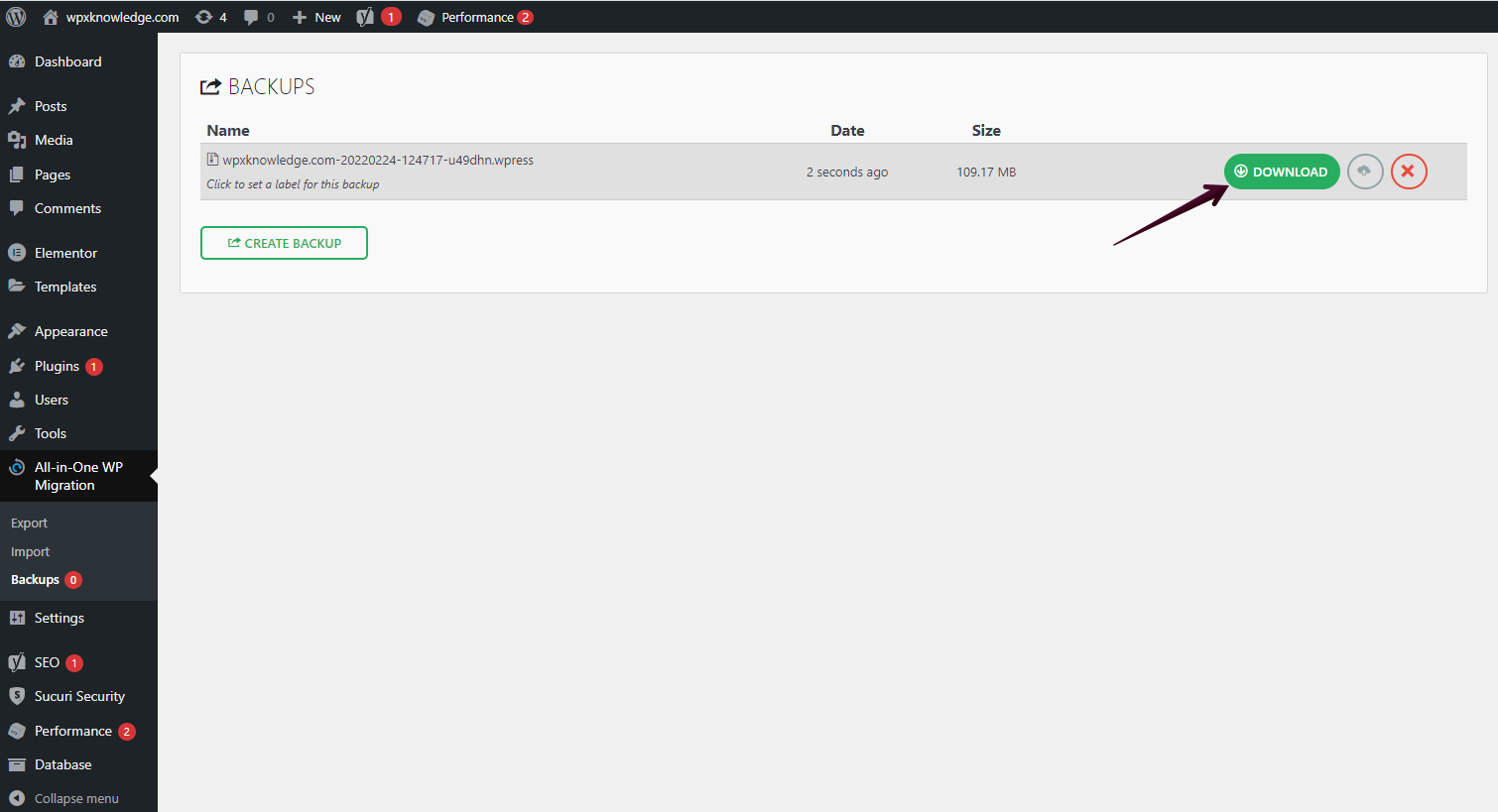
- Go to the Backups menu.
- Click on the Create Backup button.

Once complete, download the backup file to your computer.
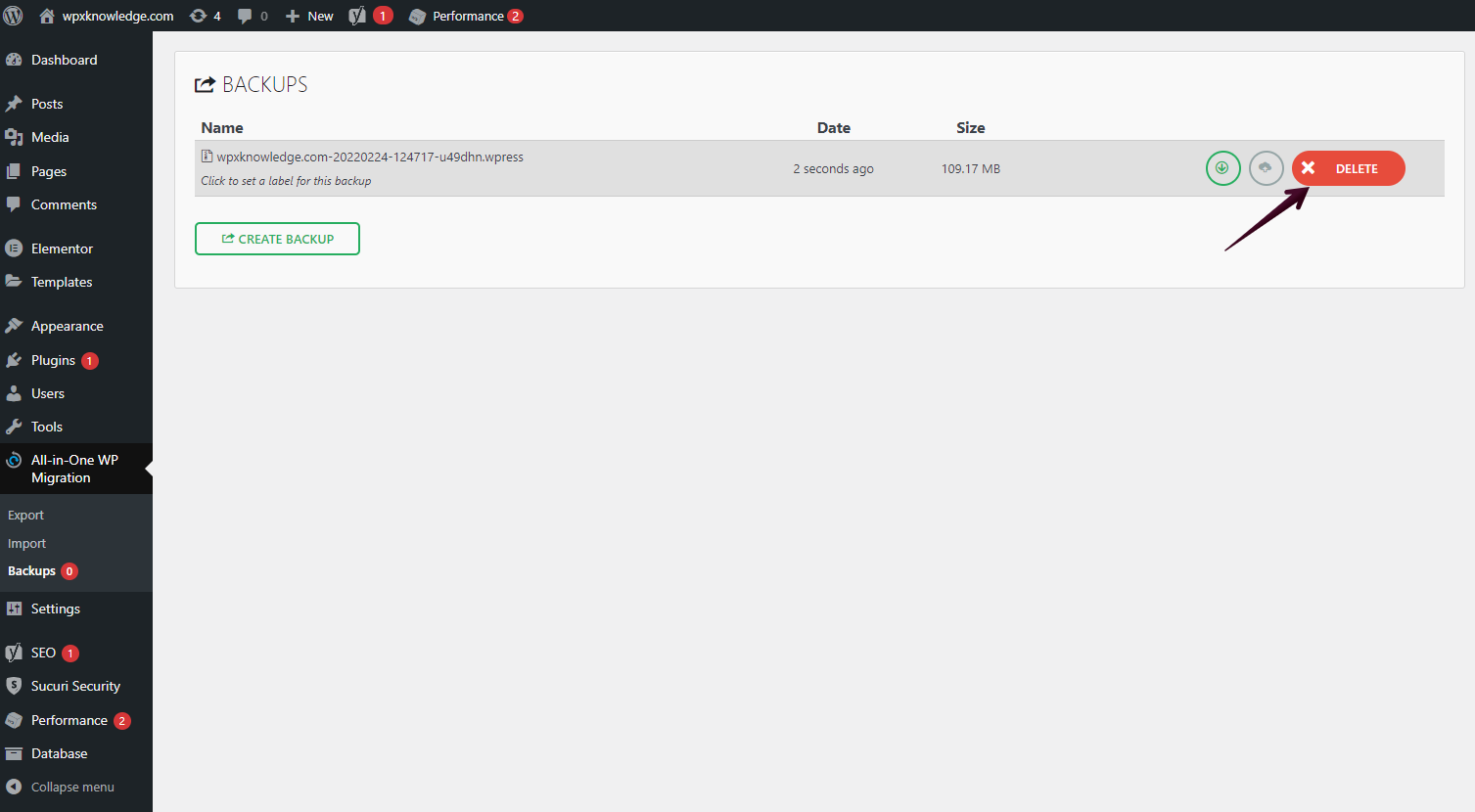
Delete the server copy via plugin settings to free up disk space.
Duplicator
- Purpose: Packs your website into a transferable archive, great for migration or archiving.
- Free version limit: Archives can’t exceed ~500 MB; larger sites require the Pro version.
How to use:
Install and activate via Plugins → Add New. After the installation is complete. Click on the Activate button.
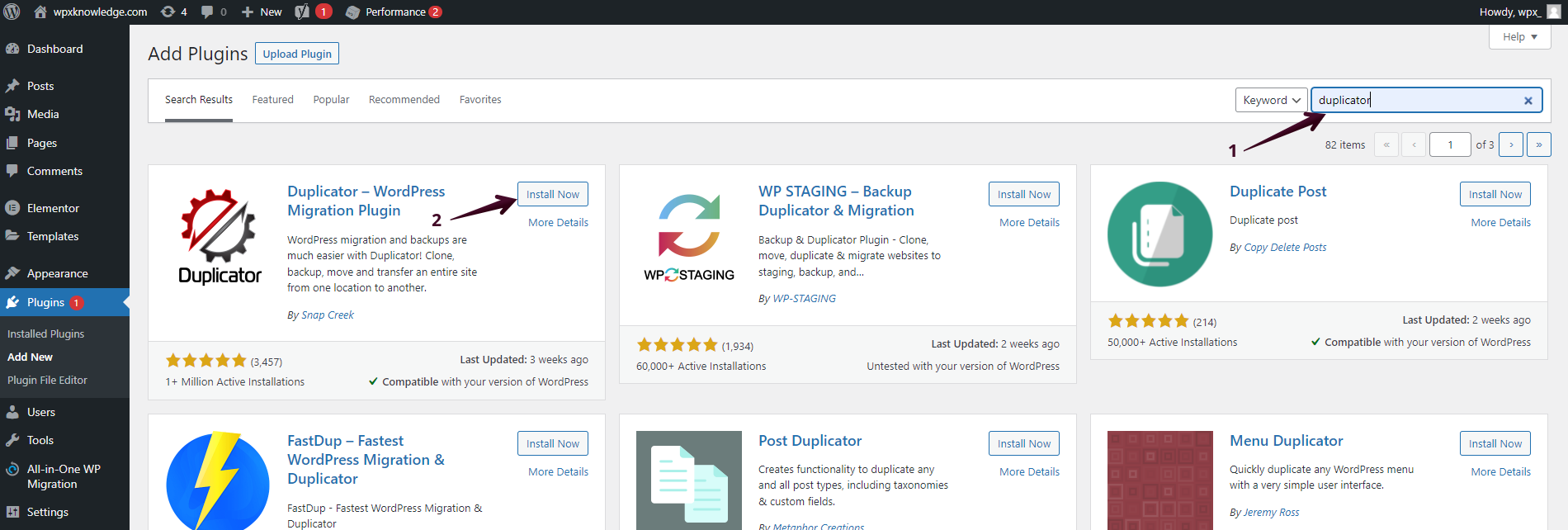
After that:
- Go to Duplicator settings
- Select Packages
- Click Create New, then follow the prompts to build the package.

There are different backup options under Archive that you can check. When you’re ready with the setting of the backup, click Next to continue the process.
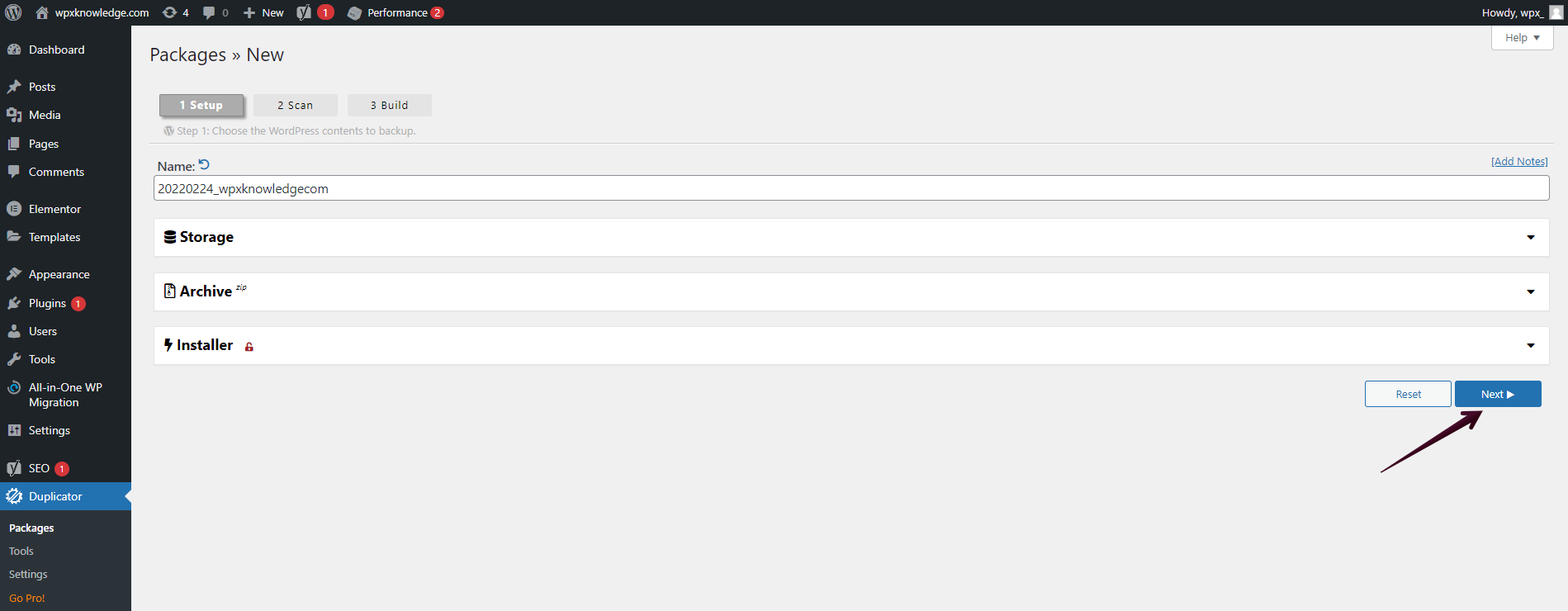
After that, the Duplicator plugin will scan your entire site and check if there are any issues before continuing with a report.
To continue with the actual backup of the site, you need to confirm that you want to proceed (1) and select Build (2):

Once the backup is completed, you can download it locally on your computer by selecting Download Both Files:
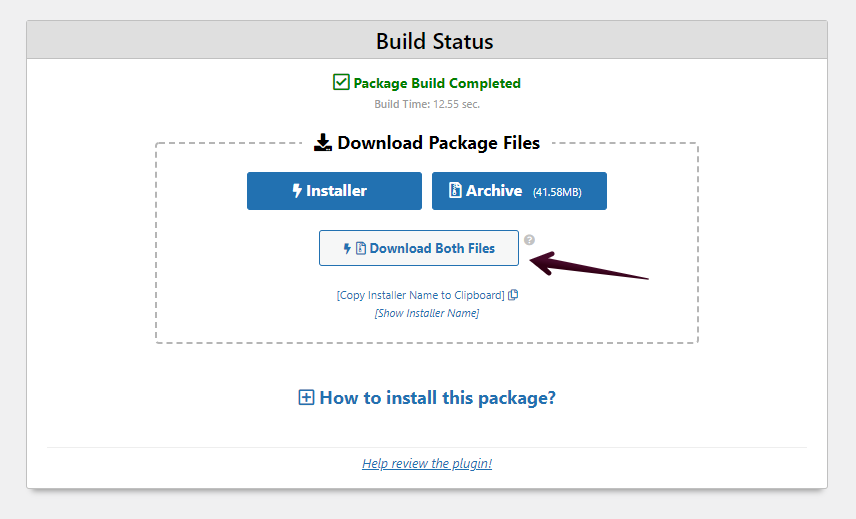
Always download and remove the package afterward to avoid consuming disk space.
To delete the backup after you have downloaded it locally:
- Go to the Packages section again.
- Check the mark of the specific backup
- Then select Delete from the drop-down menu to apply the changes:
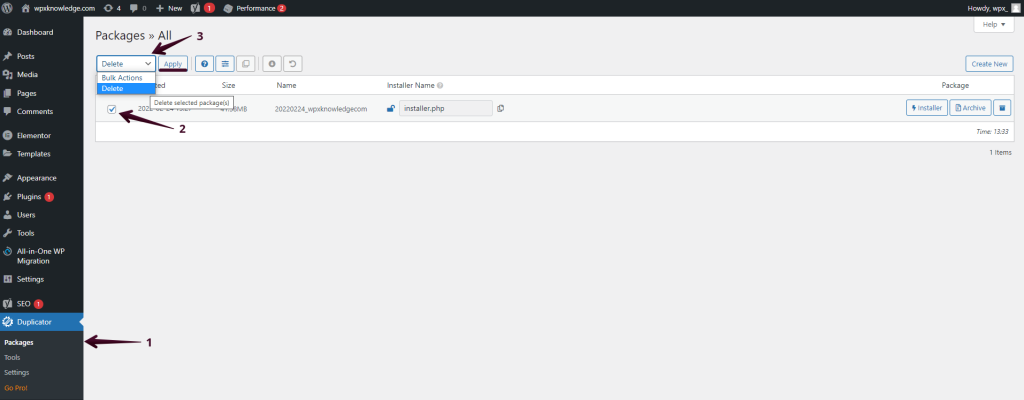
UpdraftPlus
- Capabilities: Free plugin for manual or scheduled backups with support for local and remote storage (Google Drive, Dropbox, FTP, etc.).
- Features:
- Schedule backups for files and/or the database.
- Retain multiple archive versions.
- Optional encryption, email notifications, and remote storage compatibility in the paid version.
How to use:
Install and activate via Plugins → Add New. After the installation is complete. Click on the Activate button.

Once you install the plugin, you need to activate it, so you can proceed with creating a backup of your site:
How to use:
- Go to the Settings section
- Select UpdraftPlus from the dropdown.
- Click the Backup Now button.
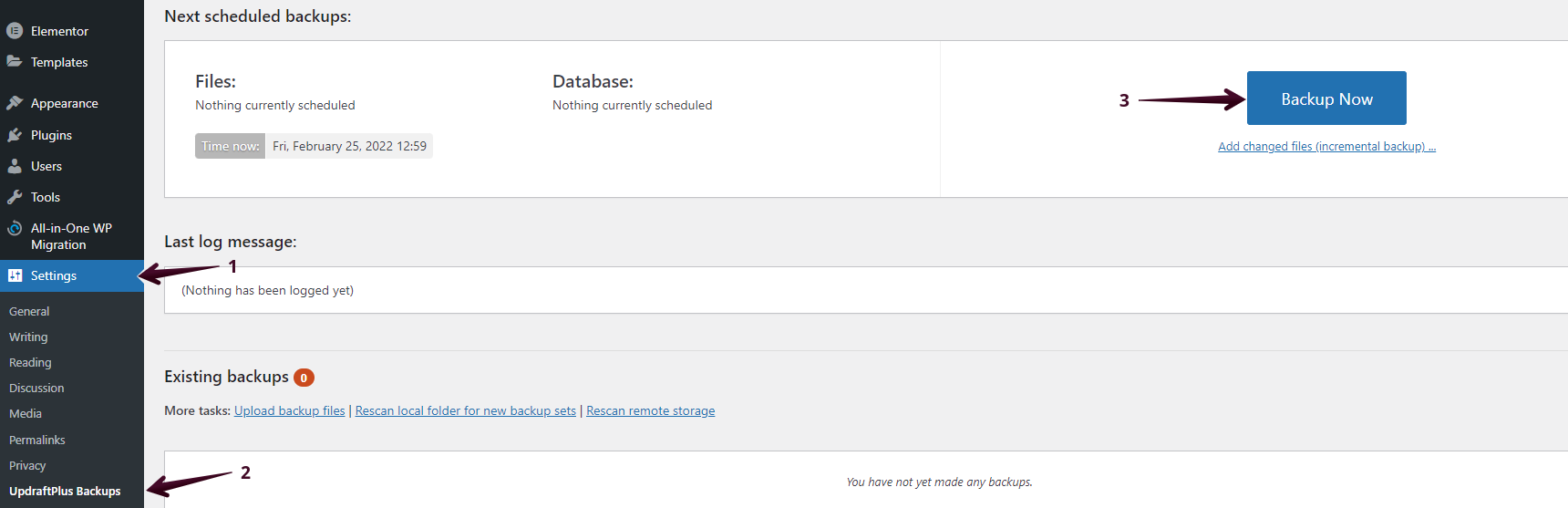
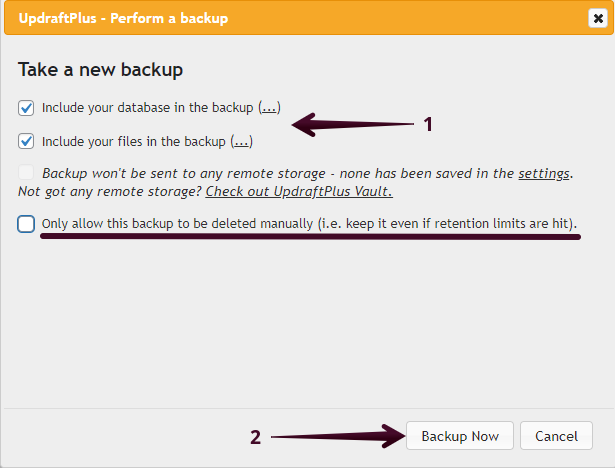
After you select the option to backup your website, the plugin will offer three options for you, which are connected to creating an archive separately for your files and database or altogether.
Once you select the type of backup (1) you want, then select Backup Now (2) to start the process:
When the backup is completed, you will see all the different options, including restoring, downloading, and deleting different parts of your website:

These were the main backup plugins you can use to back up your site and store it locally on your computer for additional safety.
Have more questions? Contact the WPX Support Team through the live chat widget in the bottom-right corner, and they’ll assist you promptly, typically within 30 seconds.