UPDATED FEBRUARY 12 2026
BY Terry Kyle, co-Founder & co-CEO, WPX.net
Seeing an error message like “ERR_SSL_PROTOCOL_ERROR” on your screen is a PITA.
This smart-alecky, technical-sounding message might make you worry something is seriously broken.
Breaking good news!
This error is pretty common, and in most cases, can be fixed in just a few minutes BUT hold on:
WPX customers NEVER EVER waste time researching & fixing frustrating issues like this err_ssl_protocol_error warning BECAUSE we fix it for them fast & free.
Fact.
And our WP hosting plans start at $11.99 monthly.
Houston, What Does ERR_SSL_PROTOCOL_ERROR Even Mean?
This error means that your web browser, whether it’s Chrome, Safari, or Edge, attempted to make a secure connection to a website (dramatic pause for effect) and the relationship collapsed during the handshake.
Tragic, right?
Here’s the pretty boring truth:
When you visit a secure website, the kind that starts with https://, your browser and the server perform a polite little security ritual.
They exchange certificates, verify identities, and agree on encryption – yay!
It’s basically digital small talk before they trust each other with your data.
This process protects your passwords, credit cards, and all the questionable late-night purchases you’d rather keep private.
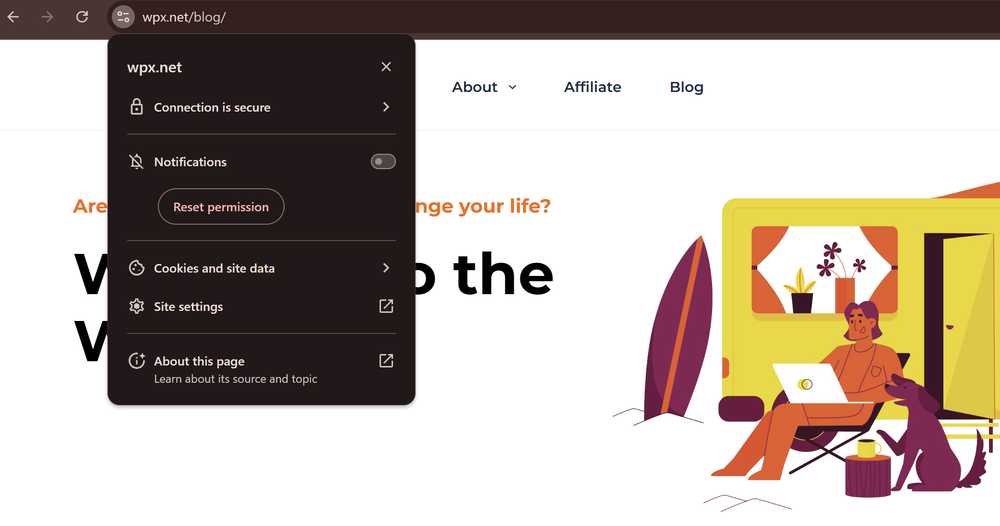
The ERR_SSL_PROTOCOL_ERROR appears when that handshake fails (gasp!).
Maybe the SSL certificate is expired.
Maybe it’s misconfigured.
Maybe your browser looks at it and says, “Nah, I don’t trust this situation, I’m out.”
That’s a lotta maybes.
Instead of risking your data, the browser shuts everything down.
No warning shot.
No negotiation.
Just a firm digital “Absolutely not.”
Depending on which browser is delivering the bad news, you might see something UNhelpful like:
- This site can’t provide a secure connection
- ERR_SSL_PROTOCOL_ERROR
- Secure connection failed
Different wording. Same verdict. The secure handshake collapsed and your browser pulled the plug like a cautious parent yanking a child away from a suspicious stranger.
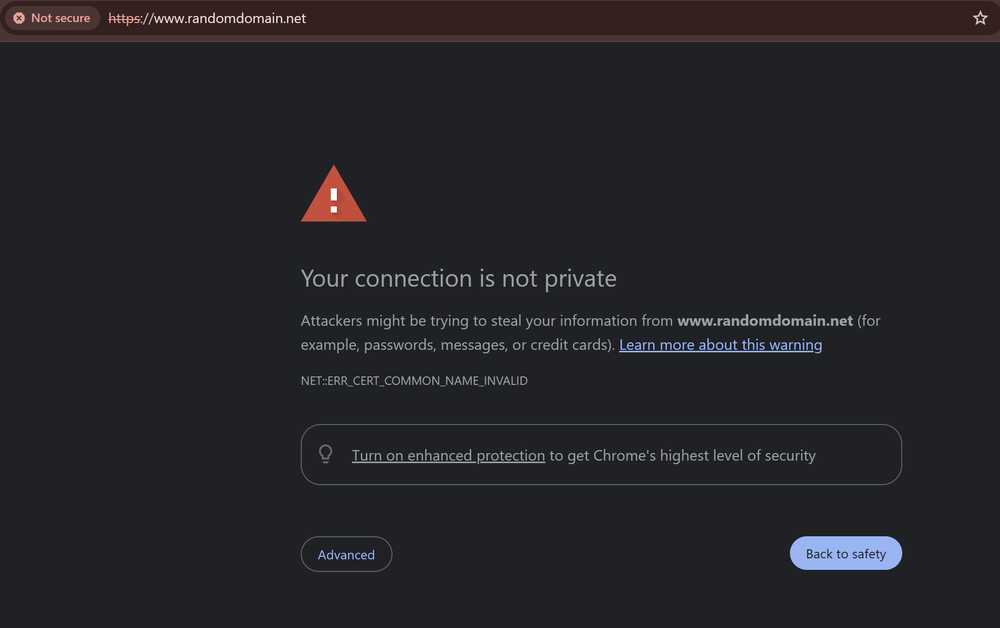
All of these messages mean one thing: the encrypted connection did not happen.
Your browser would rather disappoint you than risk exposing your data.
Annoying?
Yes.
Responsible?
Also yes.
Don’t spiral.
This guide walks you through fixes in order of least dramatic to mildly inconvenient.
STEP 1: Check Whether the Error Happens Everywhere
Before you start dismantling your digital life, confirm the problem isn’t just your device having a moment.
Try opening the site in:
- A different browser, or other browsers, to see if the issue persists
- A private or incognito window
- Another device entirely
If it works elsewhere, congratulations. The website is fine. Your device is the one staging a protest.
STEP 2: Clear Browser Cache and Cookies
Your browser hoards files to ‘help’ you load websites faster.
Sometimes those files age like milk.
Clearing the cache, including cached images and cached data, can help resolve SSL errors like ‘ERR_SSL_PROTOCOL_ERROR’ by removing outdated or corrupted files that interfere with secure connections.
Yay!
To clear browsing data such as cache, cookies, and cached images, follow your browser’s official steps. Clearing your browsing data is less dramatic than it sounds.
Sick of AI chatbots when you need fast, ACCURATE, helpful customer support? WPX ONLY uses actual humans (shocking, right?) with deep WordPress experience that respond in under 30 seconds on live chat, 24/7/365.
And our WP hosting plans start at $11.99 monthly.
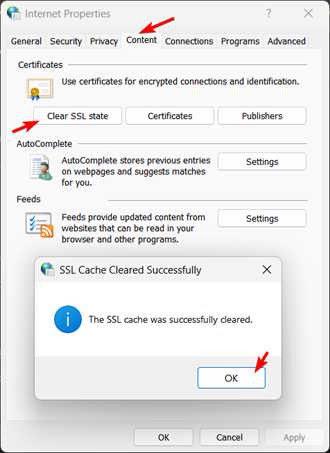
STEP 3: Clear Your Browser’s SSL State
Your computer also caches SSL certificates. Because why keep things simple?
If that cache gets corrupted, secure connections get blocked.
On Windows:
- Click Start
- Type Internet Options
- Go to the Content tab
- Click Clear SSL State
- Confirm
- Restart your browser On macOS:
- Close all browsers
- Open Finder → Applications → Utilities → Keychain Access
- Select System
- Find the certificate causing trouble
- Delete it
- Restart your computer
Yes, it feels dramatic. No, you’re not breaking the internet.
STEP 4: Check Your System Date and Time
If your computer thinks it’s 2015, it will reject certificates valid in 2026.
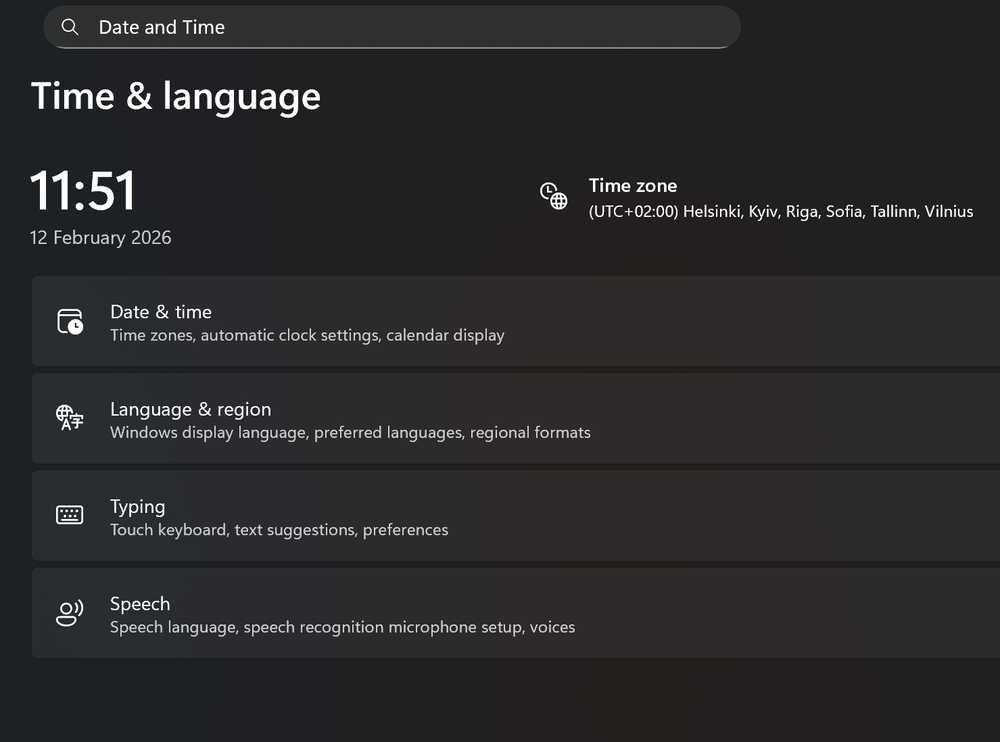
SSL certificates are time-sensitive.
Even being a few hours off can trigger errors.
Your device and the server need to agree on what year it is.
Ensuring the correct date and time is set on your system is essential to avoid SSL connection errors.
On Windows:
- Right-click the clock
- Adjust date and time
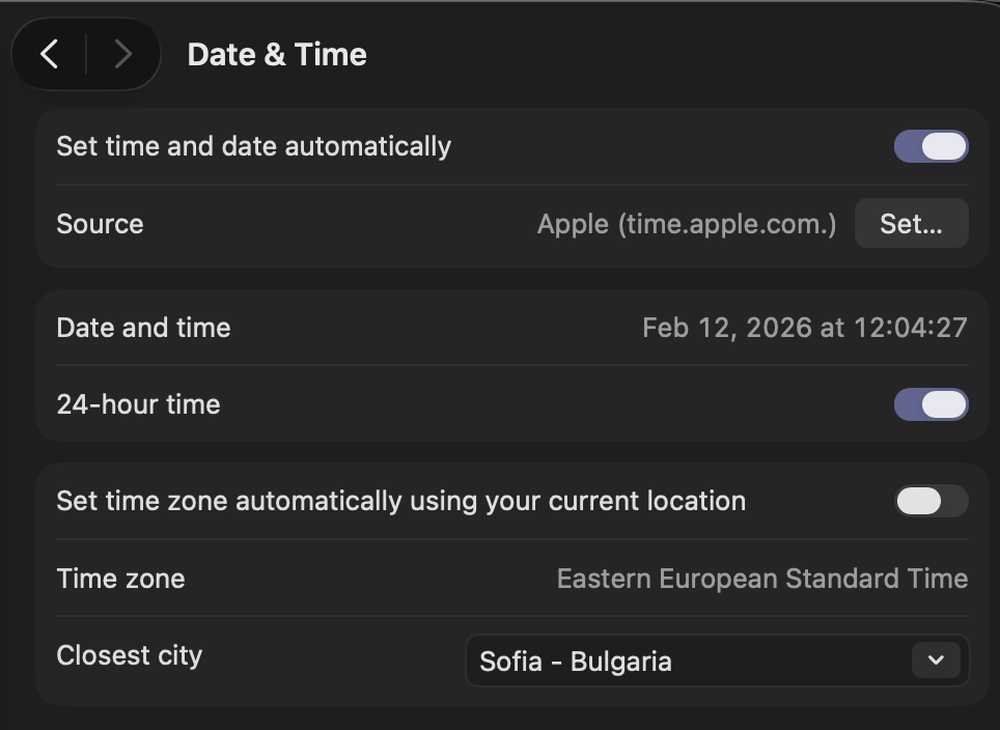
- Enable automatic time and time zone On macOS:
- Apple menu → System Settings
- General → Date & Time
- Enable automatic time
Restart your browser and try again. It’s surprising how often this fixes everything.
STEP 5: Use an Online SSL Checker

If you want an outside opinion, use a tool like WhyNoPadlock or SSL Labs.
Enter your domain.
Run the test.
Green checkmarks mean your SSL is behaving.
Warnings mean it needs attention.
This also reveals if the certificate has expired.
If you’re hosted with WPX, installing a new certificate takes exactly 1 click – we measured it. Twice.
Which is significantly easier than reading this guide.
Also check for mixed content.
That’s when your site loads securely but still pulls in insecure resources.
It’s like locking your front door while leaving a window wide open. Not smart.
STEP 6: Disable Browser Extensions
Extensions can interfere with secure connections.
Ad blockers and privacy tools sometimes get overprotective.
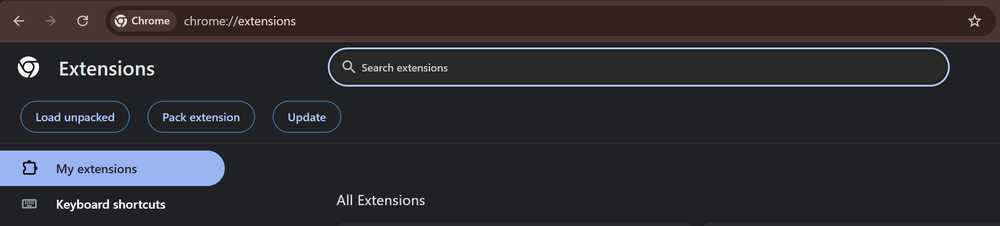
Temporarily disable all extensions.
Reload the site.
If it works, re-enable them one by one until you find the culprit.
Yes, this is tedious. So is debugging.
STEP 7: Update Your Browser
Outdated browsers struggle with modern security standards and can cause compatibility issues with modern SSL protocols, leading to errors like ‘ERR_SSL_PROTOCOL_ERROR’.
If you – yes you! – keep your browser updated, this helps prevent SSL errors and ensures secure connections.
Doesn’t it?
Check for updates inside your browser settings here:
Chrome: Help → About Google Chrome
Firefox: Help → About Firefox
Edge: Help and feedback → About Microsoft Edge
Safari: Update macOS via System Settings
Updates fix bugs and support newer encryption protocols.
Running an ancient browser is not a personality feature, it’s a bug.
Sorry to be harsh.
STEP 8: Update Your Operating System
Your OS also needs current security certificates and patches.
Windows 11:
Settings → Windows Update → Check for updates
macOS:
System Settings → Software Update
Install everything.
Restart if required.
Resist the urge to postpone for “later.”
STEP 9: Temporarily Disable Your Antivirus or Firewall
Security software sometimes blocks legitimate SSL connections because it’s trying to be heroic.
Boring.
Antivirus software, in particular, can interfere with SSL/TLS protocols by monitoring or blocking secure connections.
Try accessing your antivirus settings and look for options related to SSL scanning or HTTPS protection.
Temporarily disable these features or the entire protection for 10–15 minutes.
Test the site.
Turn protection back on immediately.
If disabling fixes it, whitelist the website properly.
Do not just leave your defenses down and hope for the best.
That’s just silly.
Server-Side Issues You Can’t Ignore (But Can Fix)
Sometimes, the ERR_SSL_PROTOCOL_ERROR isn’t your browser’s fault – it’s the website’s server throwing a toddler’s digital tantrum.
Server-side issues are like the plumbing problems of the internet: invisible, real annoying, and guaranteed to ruin your day if ignored.
But don’t panic!
With a little detective work, you can fix these errors and provide a secure connection for every visitor.
But What If Nothing Works?
Try:
- A different network
- Another device
- Checking server logs
If the problem persists after trying all troubleshooting steps to resolve persistent SSL errors, you may be facing deeper SSL errors related to server misconfigurations or invalid certificates.
In such cases, if you are unable to resolve the issue, contact support and provide:
- The exact error
- Your domain
- Devices tested
- Recent changes made
They can check certificate configuration, server settings, and DNS records without guesswork.ion, server settings, and DNS records without guesswork.
On another WordPress note, if you desperately need to know how to quickly create a 301 redirect in your htaccess file, that top secret info can be found here.
And if you want the easiest way to install Contact Form 7, then click here.
Closing Arguments Your Honor?
ERR_SSL_PROTOCOL_ERROR looks quite dramatic, but it’s usually caused by simple stuff like bad cache, wrong time settings, or outdated software.
Most of the time, checking your clock and clearing the cache fixes it within minutes.
Surprisingly, your browser isn’t trying to ruin your day.
It’s trying to protect your data from genuinely unsafe connections.
It just does it in the most alarming way possible. Lucky you!
SSL certificates must be correctly installed and not past their expiration date to ensure secure connections and that everything works correctly.
Users also play a key role in maintaining secure connections by keeping their browsers, apps, and devices up to date, and by managing site data as needed.
Whether you’re using Chrome, Brave browser, or another app, checking settings like the three dots menu in the top right corner or the search bar can help resolve issues on a page.
If you’re desperately short of reading material at home there, you can read much much more about SSLs over here.
And remember, as a WPX customer (on any plan), we fix annoying stuff like this for you, fast and free!
Most newer WP hosts do NOT offer email. At all. Ever. That’s rude. However, WPX has always offered free email and always will (except on base Starter plan). And you get a free 41-point CDN as well for hypersonic global loading speed.
And our WP hosting plans start at $11.99 monthly.