In this article, we will explain the thought process behind CPU and how it is utilized in the WPX hosting plans, as well as the set limitations and procedures.
1. How is CPU measured on my hosting plan?
Let’s start with an explanation of the CPU. Basically, the CPU (Central Processing Unit) is the brain of your server. The more CPU units it has, the faster and more capable it is of processing a larger volume of requests.
CPU is mainly measured by “minutes” per one CPU core. Additionally, it depends on the way you use the CPU cores that are available to you. If they are not maxed, then the CPU minutes are used in half. To give a brief example:
If you are using 1 CPU Core for one minute (real-time), that equals 1 CPU minute.
If you are using 0.5 of a CPU Core for one minute (real-time), that equals 0.5 CPU minutes.
To give a better understanding, we will provide an overall statistic, depending on the hosting plan you choose:
WordPress plans:
- Starter – 0.5 CPU Core: Provides CPU Cores equal to 108 CPU minutes per day.
- Business – 1 CPU Core: Provides CPU Cores equal to 216 CPU minutes per day.
- Professional – 2 CPU Cores: Provides CPU Cores equal to 432 CPU minutes per day.
Agency plans:
- Elite – 3 CPU Cores: Provides CPU Cores equal to 720 CPU minutes per day.
- Agency – 6 CPU Cores: Provides CPU Cores equal to 1440 CPU minutes per day.
WooCommerce plans:
- Powerstore – 2 CPU Cores: Provides CPU Cores equal to 432 CPU minutes per day.
- Superstore – 3 CPU Cores: Provides CPU Cores equal to 864 CPU minutes per day.
- Hyperstore – 4 CPU Cores: Provides CPU Cores equal to 1440 CPU minutes per day.
2. Where can I see my CPU usage?
First, you need to log in to your WPX account here. Once logged in, select the Control Panel of the hosting plan where you want to check the CPU:

From the menu on the left, you need to click on the Usage option, then select CPU.
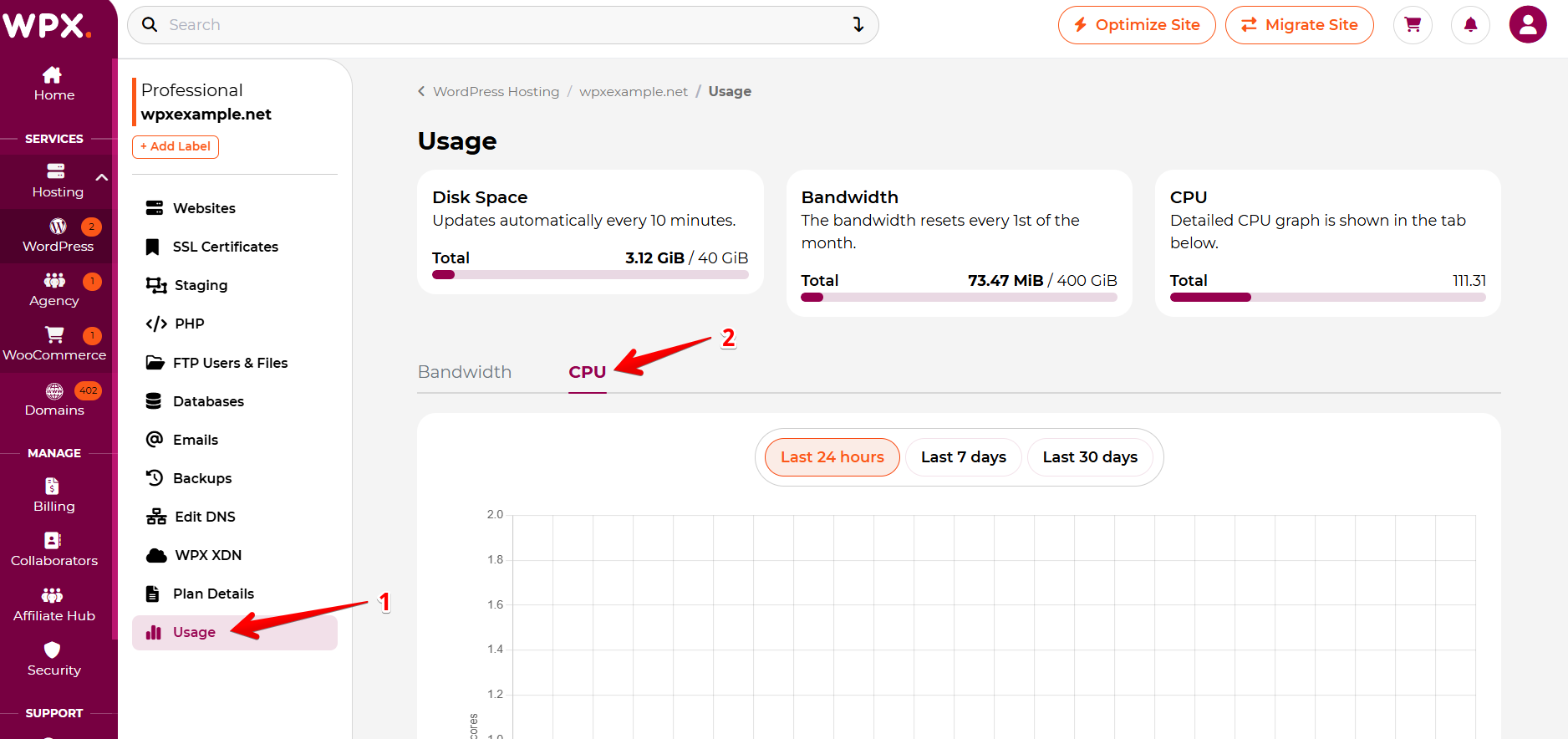
Now you’ll be able to see the CPU usage for the whole account – you can check the CPU Usage for the last 24 hours/7 days/30 days:
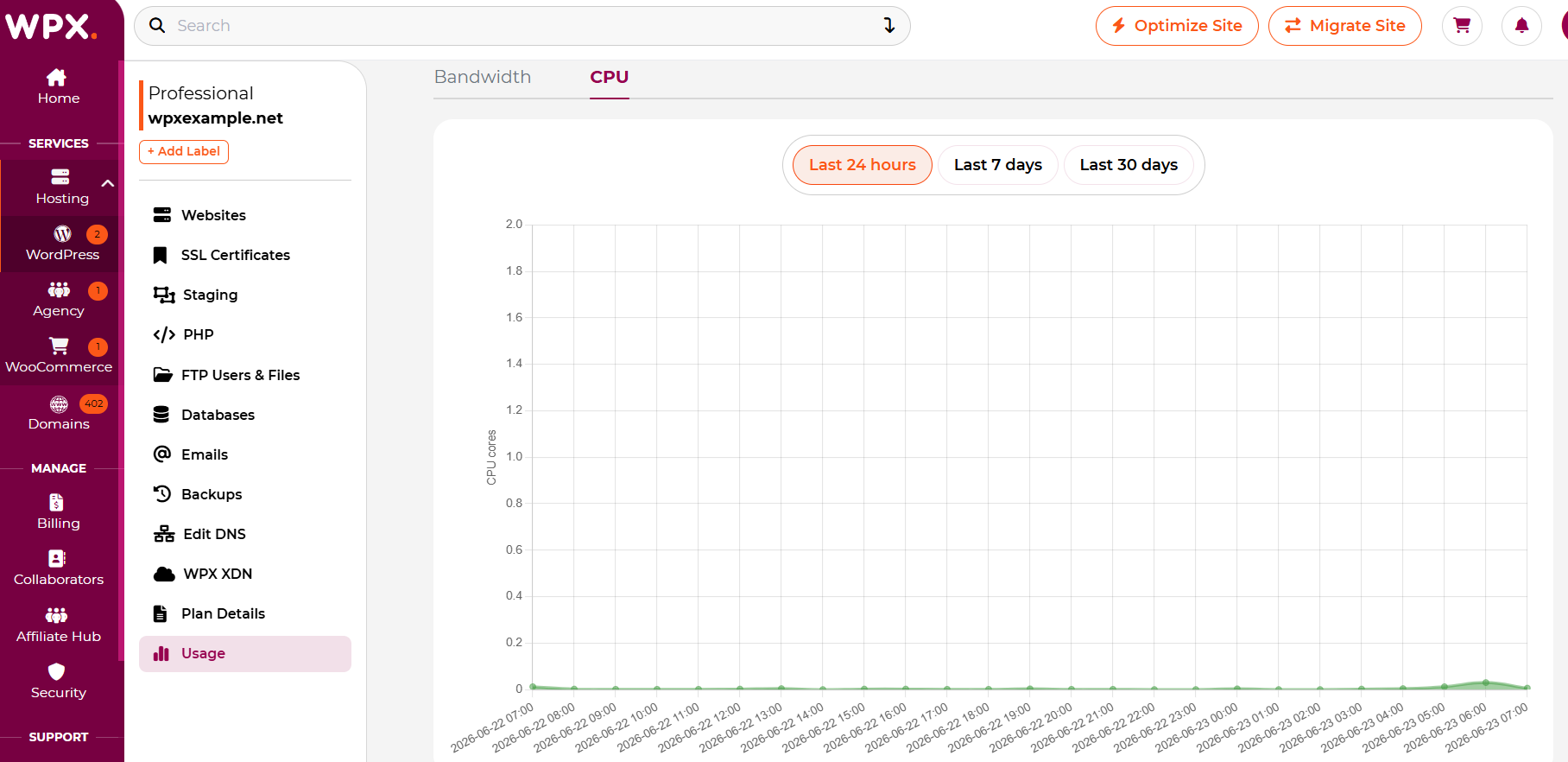
3. What happens if I cross my CPU minutes on my WPX hosting plan?
In case you use more CPU minutes than what the plan offers, then you do not need to worry.
In detail, the first step would be automatic detection, which results in a ticket that is generated and escalated to our Security and Optimization Team for evaluation. You will also receive a notification in your WPX Control Panel regarding it.
The time for processing such a request will be between 24 – 48 hours, depending on the working hours and days when the ticket is created and escalated to our experts.
Our Security and Optimization Team will provide you with a thorough explanation of the causes that exceeded the given limitations and, of course, possible solutions.
If you have any other questions on the topic, don’t hesitate to contact the WPX Support Team via live chat (use the bottom right-hand widget) and they will respond and help within 30 seconds or less.