In the following article, we’ll show you how to check your hosting plan bandwidth and disk space usage.
Step 1. Log in to your WPX account and Access your Hosting Control Panel
You can log in to your WPX account here. Once logged in, select the Control Panel of the hosting plan where you want to check the usage:

Step 2. Navigate to the Usage menu
From the menu on the left, select Usage.
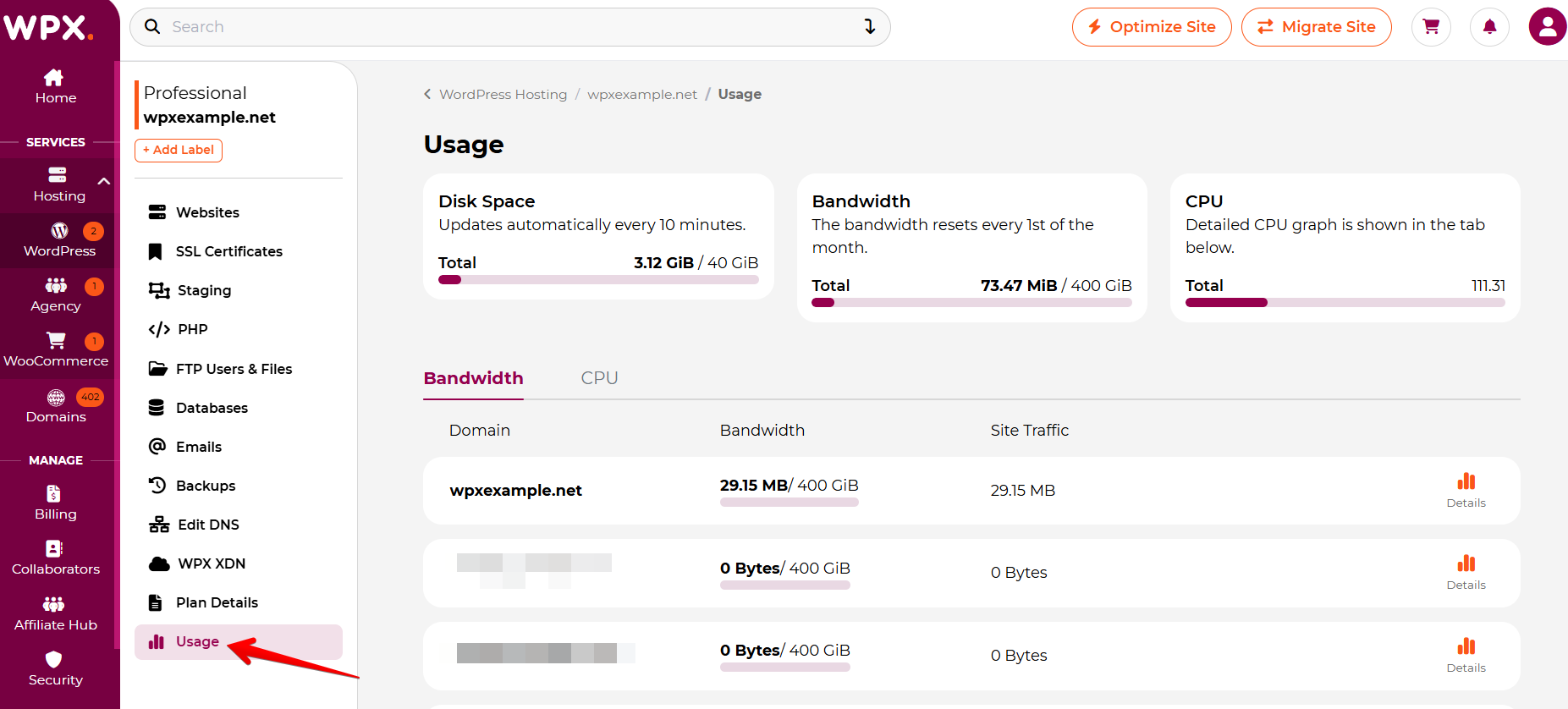
Step 3. Disk Space usage
Once you click on the Show button, you’ll be able to see the usage for Disk Space usage:
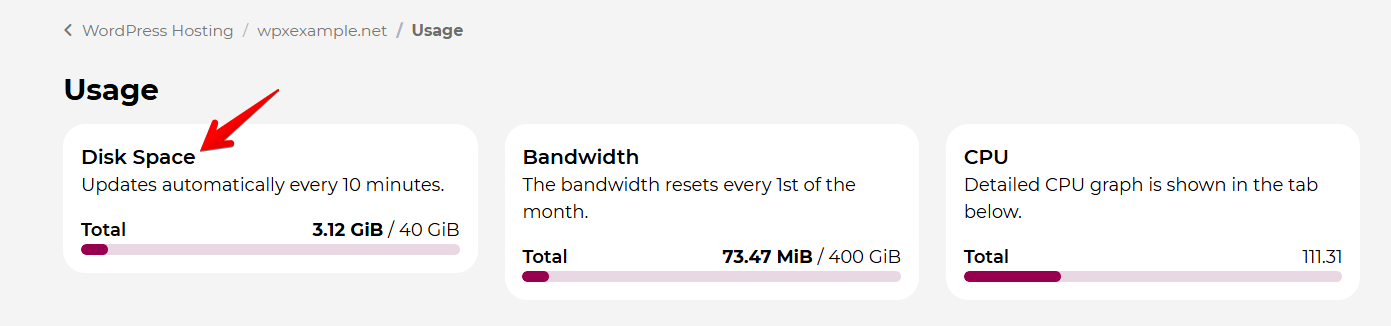
What’s included in your Disk Space usage?
- All of the WordPress files of your sites with us (basically everything stored on the server as files); You can check your files/folders sizes from the File Manager.
- All WPX Mailboxes content (mail usage) in your hosting plan;
- Personal backups created with the Backup Manager.
You can check the Disk Space used by databases separately in the Database menu:

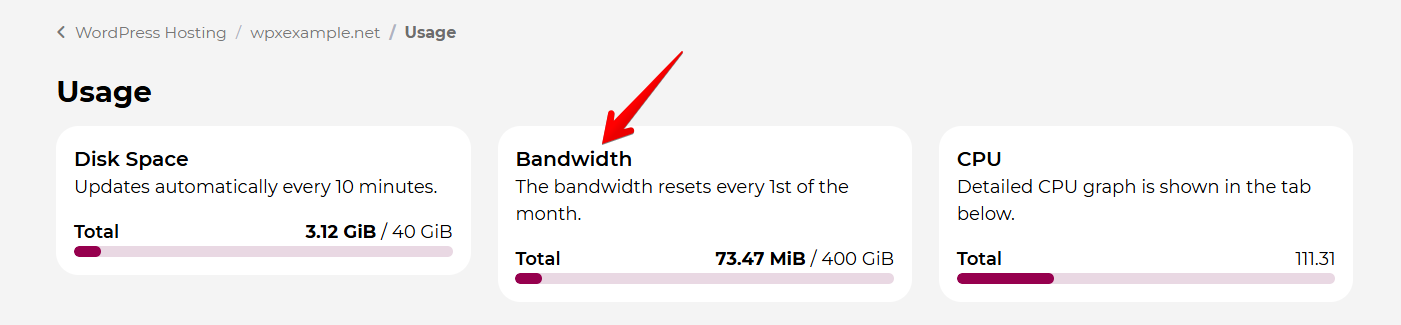
Step 4. Bandwidth Usage
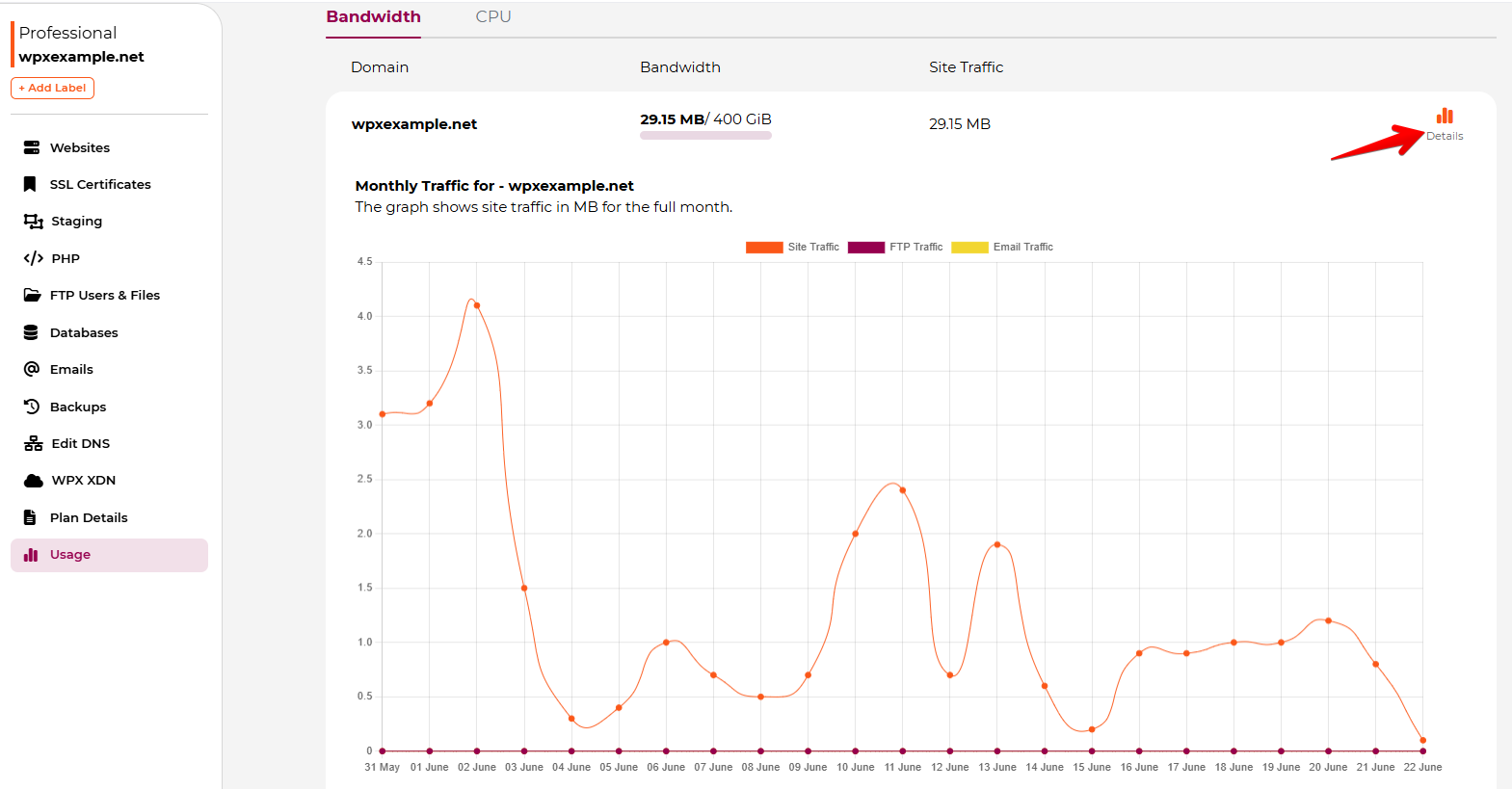
There’s a Bandwidth usage tab for the current month (resets on the 1st day of each month). You can also get more detailed information about your daily bandwidth usage by pressing the Details button for each of your sites.
If you select Details, you can view the bandwidth usage for each site in your account:
Does your usage appear to be more than expected? You can also check: What happens if I exceed my bandwidth limit?
Step 5. CPU Usage
In the Usage section, you’ll be able to check the CPU usage for the service. If you click on the CPU Details, then you’ll see the CPU Usage for the last 24 hours/7 days/30 days:
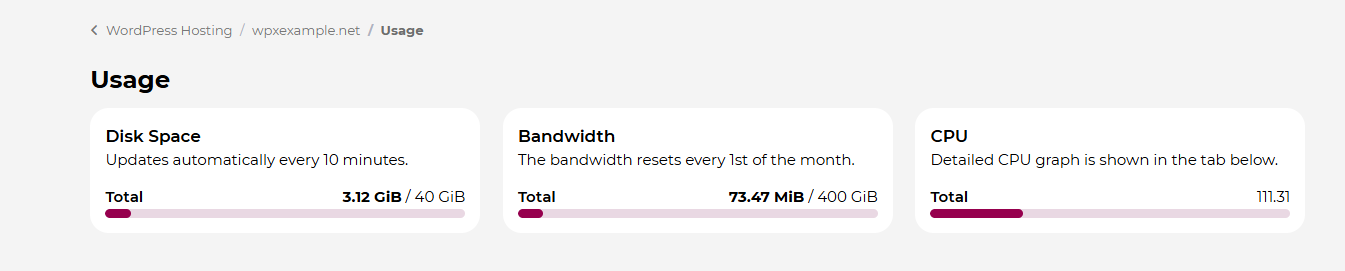
You can check this article for a more detailed explanation of how to monitor your CPU usage, including information about usage patterns and limitations.
Stuck at any point? Don’t worry, just click the live chat widget in the bottom-right, and one of our support agents will assist you in under 30 seconds.