This guide will walk you through configuring your SSL certificate when using Cloudflare.
Step 1. Log in to your Cloudflare account
You can log in to your Cloudflare account here. You can follow this guide if your domain is not yet added to Cloudflare.
Step 2: Configure Full SSL/TLS Encryption in Cloudflare
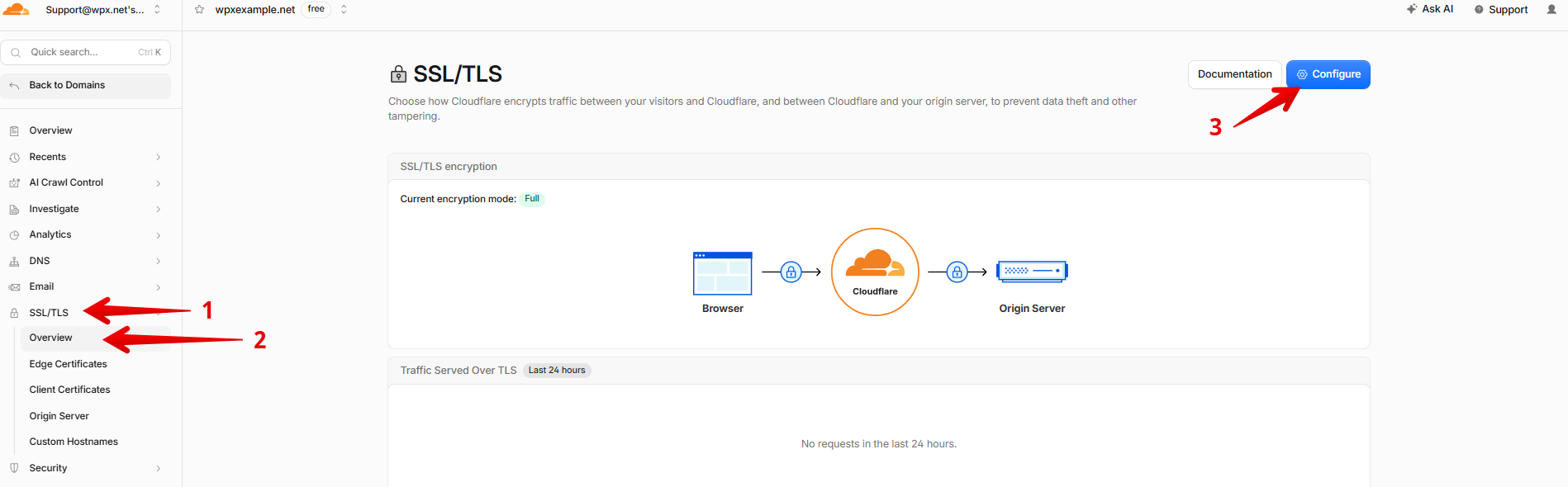
Once logged in, you’ll land on the Cloudflare dashboard. In the left-hand menu, click SSL/TLS (1), then under the Overview (2) tab, select Configure (3).
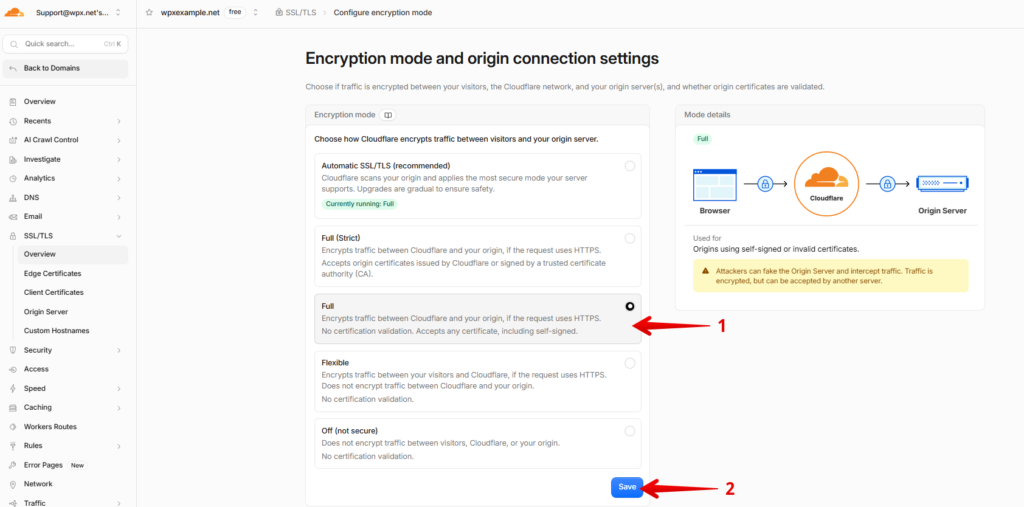
Make sure that the selected encryption mode is set to Full (1), then Save (2) the changes.
Step 3: Adjust Edge Certificate Settings
Next, go to the Edge Certificates (1) tab under the SSL/TLS section and make sure the following options are set:
- Minimum TLS Version (2): The minimum TLS version should be set to 1.2 to ensure modern browser compatibility and better security
- TLS 1.3 (3): This should be ON by default. Leave it enabled unless it causes issues.
- Automatic HTTPS Rewrites (4): Also ON by default. Keep this enabled to ensure your site loads securely.
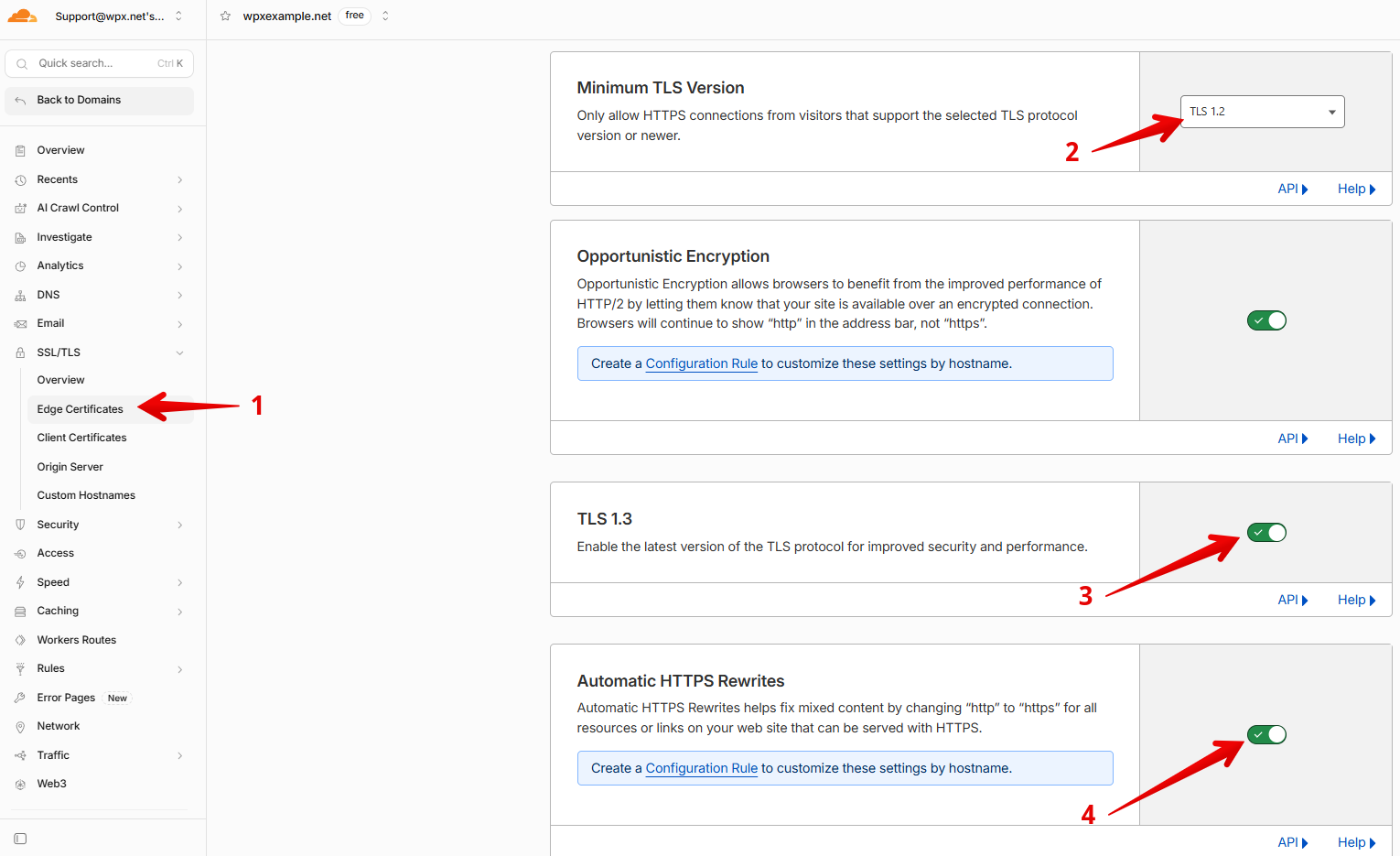
These settings help enforce HTTPS and ensure compatibility with modern protocols.
Stuck at any point? Don’t worry, just click the live chat widget in the bottom-right, and one of our support agents will assist you in under 30 seconds.